Portal Device Setup
How to set up a new TRMNL check-in device and link it to a Location, so members can check in by scanning its screen.
Prerequisites
- A TRMNL device, charged or plugged in, within range of the Wi-Fi network it will use.
- A phone or laptop with Wi-Fi, to reach the device's setup page.
- The name and password of the Wi-Fi network the device will use. TRMNL devices connect to 2.4 GHz networks.
- Dashboard access with permission to claim devices (Hub → Devices). If you don't see that menu item, ask an organization admin for the device permission.
How it works
Setup has two halves. First, on the device's own setup page, you point it at Weave's terminal server (https://terminal.weave.host) and connect it to your Wi-Fi. Once it reaches the server, it shows a setup code instead of a check-in QR code. Second, an admin enters that code in the dashboard to claim the device to a Location. From then on the device shows a rotating check-in QR code for that Location.
Steps
1. Join the device's setup network
Turn the device on. When it has no saved Wi-Fi network, it broadcasts its own network named TRMNL- followed by six characters. On a phone or laptop, join that network.
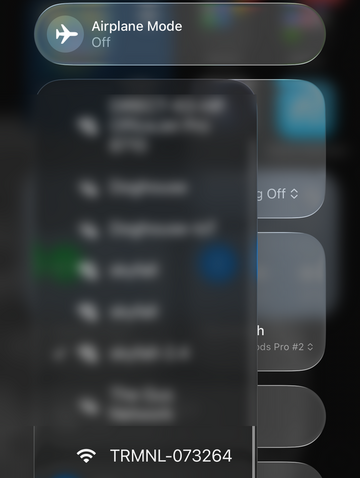
A Captive Wi-Fi setup page opens. If it doesn't, open a browser and go to any website to bring it up.
2. Point the device at the Weave server
The device talks to TRMNL's own server unless you change it, so do this before connecting it to Wi-Fi.
-
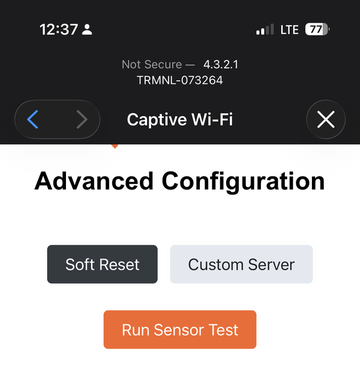
On the setup page, tap Advanced. The Advanced Configuration page opens.
-
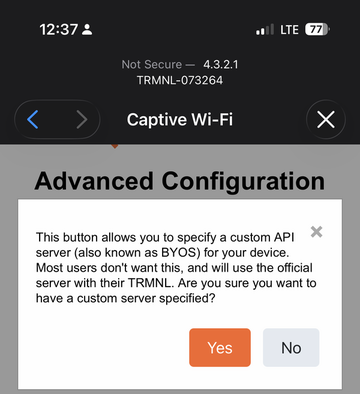
Tap Custom Server. A prompt asks whether you're sure you want a custom server. Tap Yes.
-
In the API Server field, enter
https://terminal.weave.hostexactly.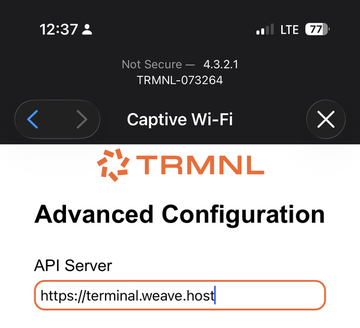
-
Scroll down and tap Back to Wi-Fi. Leave the other settings (static IP, NTP server, hostname) as they are.
3. Connect the device to Wi-Fi
Back on the Wi-Fi page, check that API Server shows https://terminal.weave.host. Then:
- Enter your network's name in SSID.
- Enter the network's Password.
- Tap Connect.
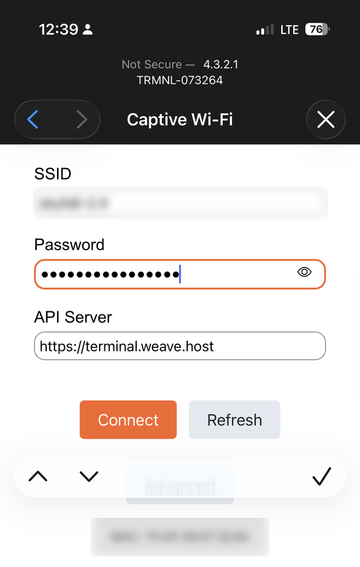
The device leaves setup mode, joins your network and contacts the Weave server.
4. Read the setup code off the device
Once the device reaches the server, its screen shows a 6-digit code with SETUP CODE beneath it. Keep the device in view or note the code down; you'll type it in exactly.
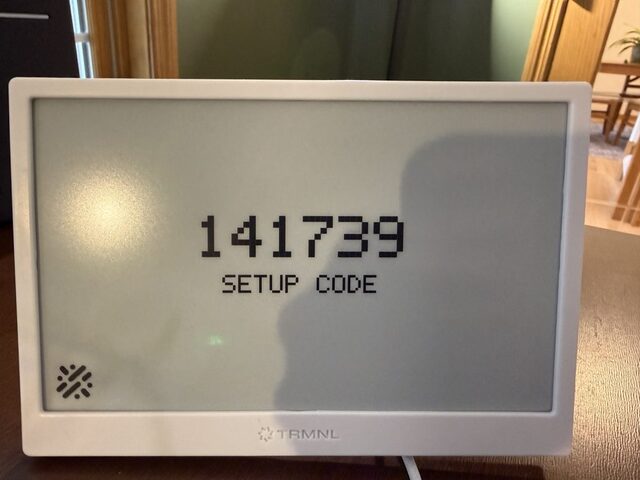
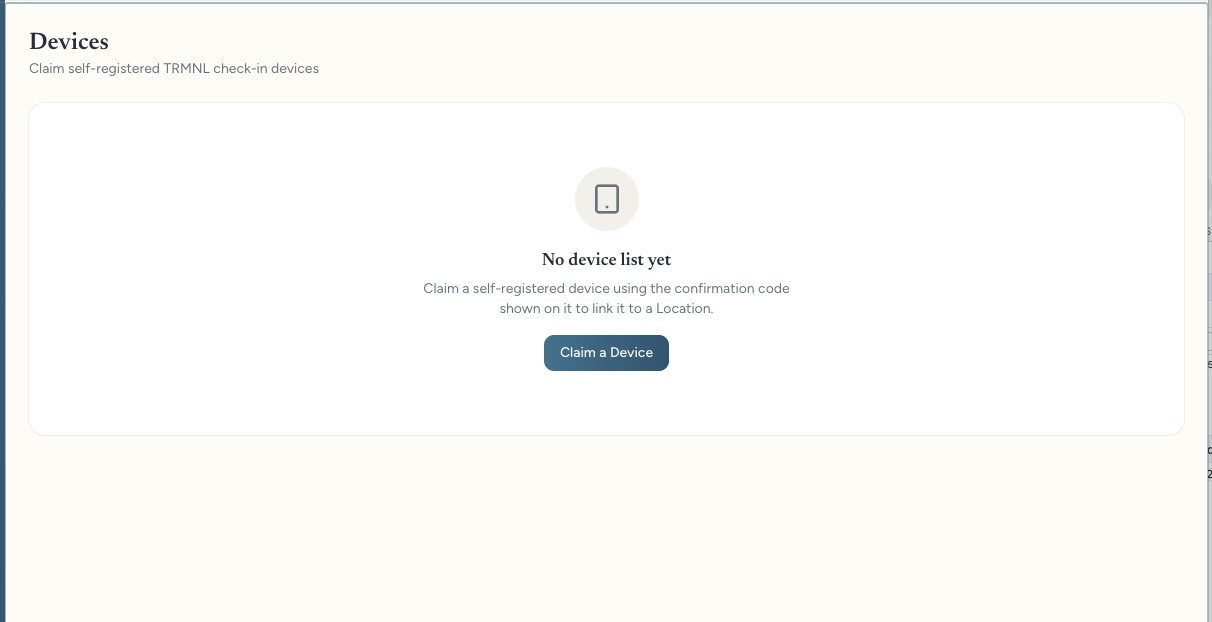
5. Open the Devices page and start the claim
In the dashboard, go to Hub → Devices and click Claim a Device.
6. Fill in the claim form
The Claim Device panel opens.
- Location: select the Location this device is physically at. If it doesn't exist yet, open the dropdown and choose Add New Location. Pick a Location type, fill in its name, address and country, and click Create Location. The new Location is selected for you.
- Confirmation Code: enter the 6-digit setup code from the device's screen.
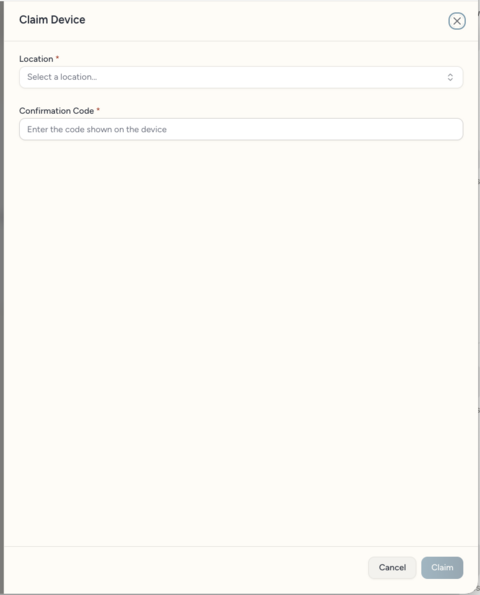
Click Claim. The panel closes when the claim succeeds.
7. Confirm it worked
The device checks in with the server about every 60 seconds. Within a minute or so of a successful claim, its screen switches from the setup code to a check-in QR code. That's your signal it's live, and members can now check in by scanning it.
Setup code lifetime
A setup code stays valid for 7 days. If the device sits unclaimed longer than that, it gets a new code on its own the next time it checks in, so always use the code currently on the screen. Restarting the device doesn't change a code that is still valid.
Troubleshooting
| Message | What it means | What to do |
|---|---|---|
| Incorrect confirmation code. | The code doesn't match any device waiting to be claimed. | Check the code on the device's screen again. Codes are easy to mistype, and an expired code is replaced by a new one. |
| Location not found. | The Location you selected doesn't resolve. | Make sure the Location was fully created and try again. |
| This device has already been claimed. | This code was already used to link a device to a Location. | To move the device to a different Location, release it from the Devices page, then claim it again. |
| Your session has expired. Please sign in again. | Your dashboard sign-in timed out. | Sign in again and repeat the claim. |
| You don't have permission to claim devices. | Your role doesn't include the device permission. | Ask an organization admin to grant it, or to claim the device for you. |
| Too many attempts. Please wait a moment and try again. | Claim attempts are rate limited. | Wait a minute, then try once more with the code on the screen. |
| Couldn't confirm the claim with the device right now. Please try again in a moment. | The terminal server couldn't be reached to finish the claim. | Retry in a moment. If it keeps happening, contact support. |
| Failed to claim device. Please try again. | An unexpected error. | Retry once. If it keeps happening, contact support with the approximate time and the Location you were claiming to. |
If the device never shows a setup code, it hasn't reached the server. Check its Wi-Fi connection and that the server URL is exactly https://terminal.weave.host, then restart it.
If a claimed device shows CHECK IN ISSUE / UPDATE SOON, it is online but couldn't build its check-in code. It retries on its own; if the message stays for more than a few minutes, contact support.