Settings
Settings covers your own account, not your organization's. Use Profile to change your name and timezone, and Security to manage your password, two-factor authentication and the devices you're signed in on.
Before you start
Settings is open to every signed-in user. Changes apply only to you.
Update your profile
- Open Settings and select Profile.
- Edit First Name and Last Name under Profile Information.
- Select Save Profile.
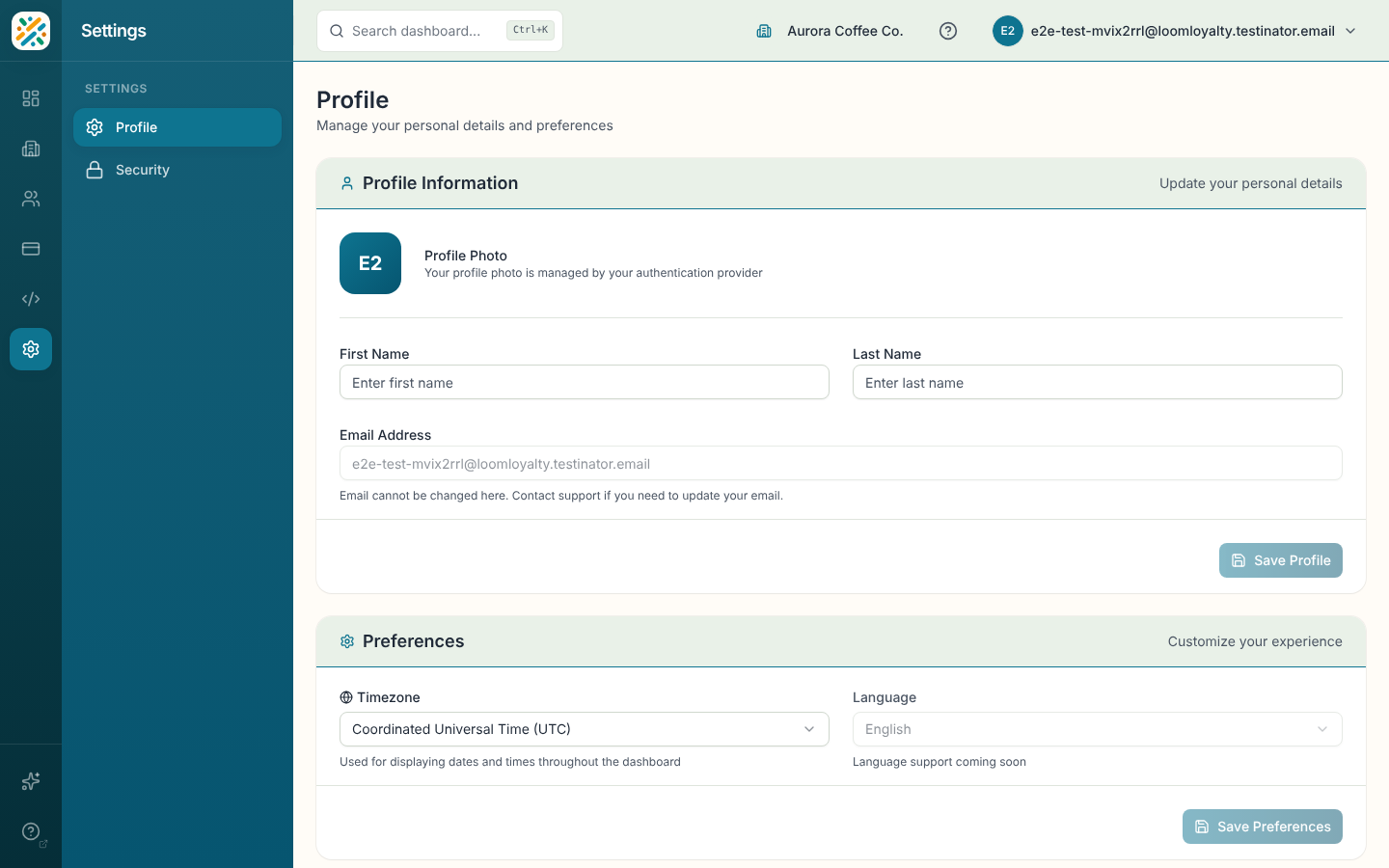
Your profile photo is managed by your authentication provider, so you can't change it here. Email Address can't be changed here either; contact support to update it.
Change your preferences
- Under Preferences, choose a Timezone. Dates and times across the Dashboard use it.
- Select Save Preferences.
The Language field is shown but disabled. It reads "Language support coming soon".
Choose whether to share product analytics
Under Product analytics, the Share product analytics switch controls whether Loom Loyalty measures how your team gets set up. It's a personal choice, and the card links to the privacy policy.
If your browser sends a Global Privacy Control signal, the switch starts off and the card says so. Turn it on yourself if you want to share.
Manage your security
- Select Security in the Settings menu.
- Under Security Settings, manage your password and two-factor authentication.
- Under Active Sessions, review the devices where you're logged in.
If the page shows "Unable to load security settings. Please try again later.", reload it after a moment.
Related
- Organization details, for your organization's own timezone and name
- Dashboard overview