Webhooks
Webhooks move events between Weave and the rest of your stack. In one direction, Weave calls a URL you own when something happens, like a customer earning points. In the other, an outside service posts events to a URL that Weave gives you. This page manages both, and keeps a log of what was delivered. For the developer-level details of payloads and signatures, see the Webhooks guide.
The page has three views, switched with the Send, Receive and Messages toggle.
Before you start
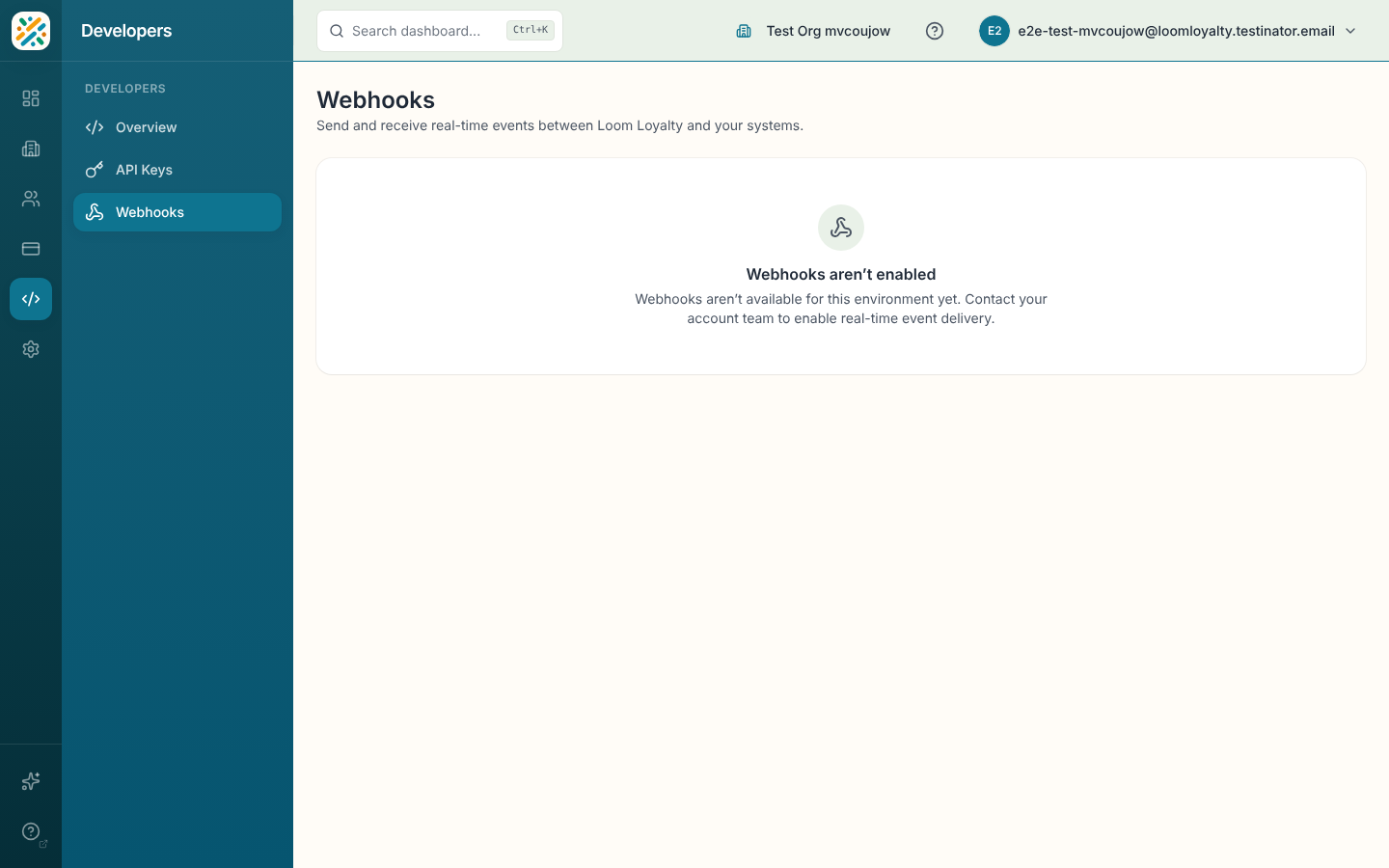
Webhooks are an add-on. If yours isn't on, the page says "Webhooks aren't enabled" and points you to the right next step: Get the webhooks add-on (opens Features), Upgrade plan, or a note to contact your account team. If delivery has been paused, you'll see "Webhook delivery is paused". Your endpoints and sources stay saved, and delivery resumes when webhooks are back on.
You need webhook:webhook-endpoints:read to open the page.
Send events to your systems
Open Send to manage endpoints, the URLs Weave calls.
Add an endpoint
- Click Add endpoint.
- Choose a Destination. Custom URL sends to any address. Other destinations are ready-made connectors and appear when available for your organization.
- For a custom URL, enter the Endpoint URL. It has to be an
https://address that accepts POST requests. - Add a Description if it helps, for example "Order system, production".
- Leave Enabled on to start delivering ("Receive webhook deliveries when enabled").
- Under Events to Subscribe, select at least one event.
- Click Create Endpoint.
Connectors that use sign-in (OAuth) work a little differently. You're redirected to the provider to authorize, and the endpoint is created when you return, with a "connected" notice on the page. Some connectors format the payload for you, and the form tells you when you don't need your own transformation.
Look at an endpoint
Click a row to open Webhook details: the URL, description, status, the events it receives, its signing secret and its recent deliveries. The secret is hidden until you reveal it, and you can copy it. Weave signs every payload with that secret, so your server can verify the request is really from Weave. The sheet includes a sample verification snippet and the signature header names.
To change an endpoint, click Edit. To remove it, click Delete and confirm.
Rotate the signing secret
Use the rotate button beside the secret and confirm Rotate secret. The old secret keeps working for a short overlap so deliveries already in flight aren't rejected. Update your verification code with the new one.
Reshape payloads with a transformation
In the details sheet, Edit transformation lets you write a small handler that changes the payload before it goes out. You can also describe what you want in plain language and let the assistant propose a handler, then review it. Turn Enabled on to apply it, and click Save transformation. Weave asks you to confirm because it runs your code, so only save code you trust.
If the endpoint has no transformation, the raw event payload is delivered as it is.
Check deliveries
The details sheet ends with Recent deliveries, the attempts made to that endpoint. Click one to see the request that was sent and the response that came back. Load more pages further back.
Receive events from other services
Open Receive to manage sources, which are inbound URLs external services can post to.
- Click Add source.
- Enter a Source name, like "Stripe" or "Shopify".
- Click to create it. Weave provisions a unique ingest URL and a signing secret.
The list shows Name, Ingest URL and Created. Row actions are Copy ingest URL, Rotate signing secret, Rotate ingest URL and Delete source.
- Rotating a secret shows the new one once, under New signing secret. Copy it then. Update your signature verification straight away.
- Rotating the URL stops the old one immediately, so update every system that sends to it.
- Deleting a source means anything still sending to it will stop being received.
Sources installed by a package also offer Uninstall in Packages in the row menu. If an ingest URL or secret is ever exposed, rotate it right away.
Messages
Messages is a read-only log of outbound messages. Each row shows Event type, Event ID, Channels and Timestamp. Open one to see the payload (you can copy it) and every delivery attempt for that message. If the original endpoint still exists, Resend delivery sends the message again.
Nothing here yet? The page says "No messages yet. Outbound webhook messages appear here once events are delivered."