Organization Details
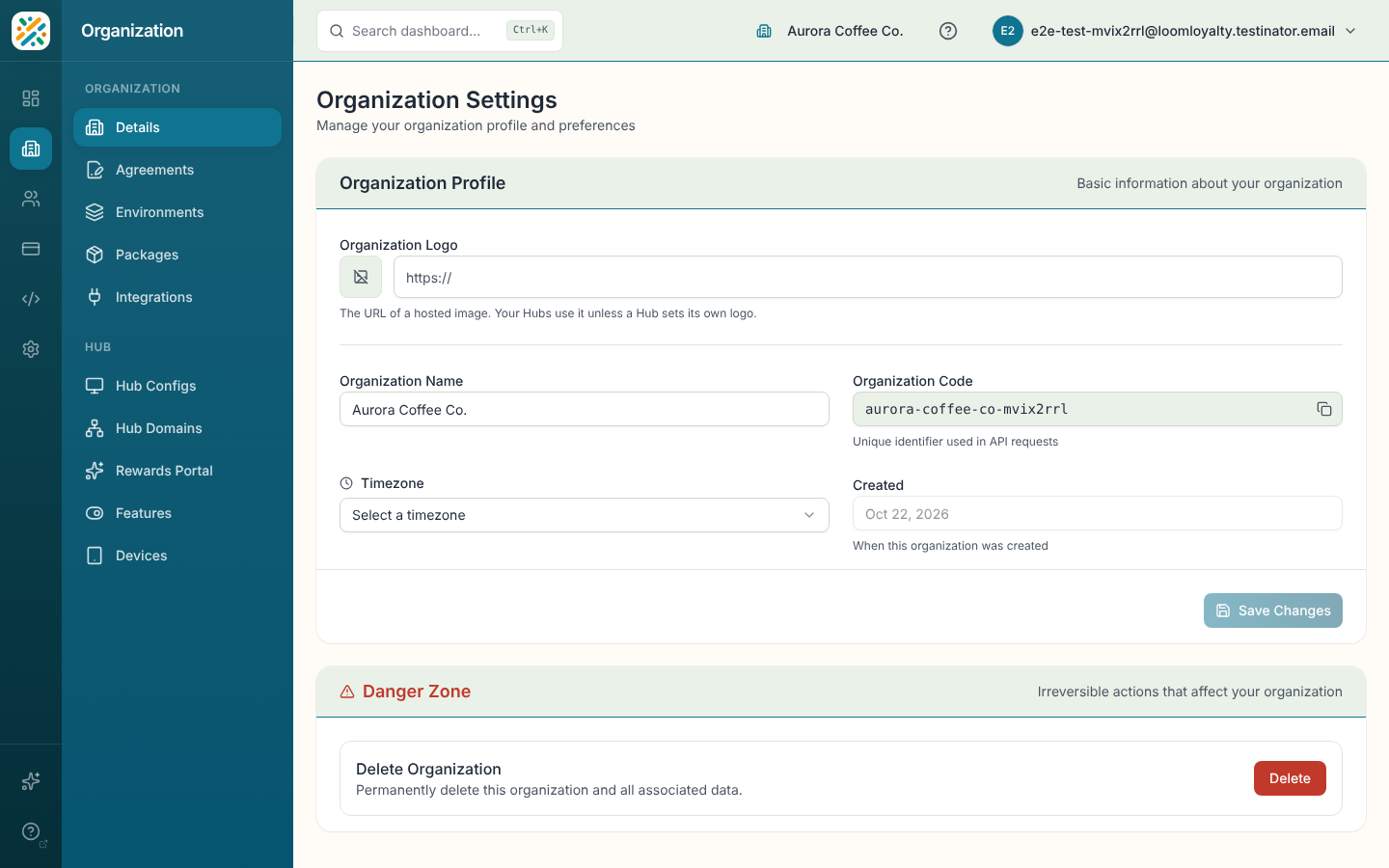
Organization Settings holds your organization's profile. Use it to rename the organization, set its logo and timezone, and find its code.
Before you start
You need permission to read organizations to see this page.
Edit your organization profile
- Open Organization and select Details.
- Under Organization Profile, change Organization Logo, Organization Name or Timezone.
- Select Save Changes. The button stays disabled until you change something.
If saving fails, an error message appears above the button and your edits stay in place.
Field reference
| Field | Meaning |
|---|---|
| Organization Logo | An image. Select Upload to add a file, or paste the web address of a hosted image. Your Hubs use it unless a Hub sets its own logo. |
| Organization Name | The name shown for your organization. |
| Organization Code | A unique identifier used in API requests. Use the copy control to copy it. You can't edit it. |
| Timezone | Your organization's timezone. |
| Created | When the organization was created. Read-only. |
Transfer ownership
Every organization has one owner. Only the owner can delete the organization or hand it to someone else. If you are the owner, Danger Zone at the bottom of the page shows Transfer Ownership. Nobody else sees it.
- Select Transfer.
- Choose the new owner. The list shows the organization's admins who have signed in at least once, so an admin who was invited but has never signed in doesn't appear yet. If nobody is listed, make a teammate an Admin on the Users page and ask them to sign in.
- Select Transfer Ownership.
The new owner takes over straight away. You stay an admin with the same access as before, but you can no longer delete the organization or transfer it, so Transfer Ownership disappears and the Danger Zone says that only the owner can delete it. Only the new owner can give ownership back.
If the transfer can't go through, for example because the person you chose is no longer an admin, the reason appears in the dialog and nothing changes.
You can't transfer the organization once its scheduled deletion date has passed. While a deletion is only scheduled, you can still transfer it, and the new owner can restore it.
Cancel the subscription
Only the organization's owner can cancel its subscription. If you are the owner, Danger Zone shows Cancel Subscription with the date the current billing period ends.
- Select Cancel Subscription.
- Choose why you are cancelling. You can add a comment.
- Select Cancel Subscription in the dialog.
Everything keeps working until the end date. Until then the Danger Zone shows Subscription ending with the date and a Keep Subscription button, which withdraws the cancellation. When the subscription ends, the organization is cancelled: it becomes read-only, and you can delete it.
If Loom Loyalty manages your organization's billing or contract, for example on Turnkey or under a contract signed outside the platform, the Danger Zone asks you to contact your account team instead.
Delete the organization
Only the organization's owner can delete or restore it.
- Before the organization is cancelled, Delete is disabled. Cancel the subscription first; you can delete the organization once it has ended.
- If Loom Loyalty manages your organization's contract outside the platform, Delete stays disabled. Contact your account team to close the organization.
- Once it is cancelled, select Delete, type the organization's code where the dialog asks for it, then select Delete Organization. The button stays off until the code matches.
- The deletion is scheduled, not immediate. The Danger Zone then shows the date it takes effect and a Restore Organization button, which withdraws the deletion until that date.
If a request can't go through, the reason appears in the Danger Zone or the dialog and nothing changes. Delete your organization explains the 30-day window and what is kept.
Related
- Delete your organization
- Environments
- Settings, for your personal timezone