Users
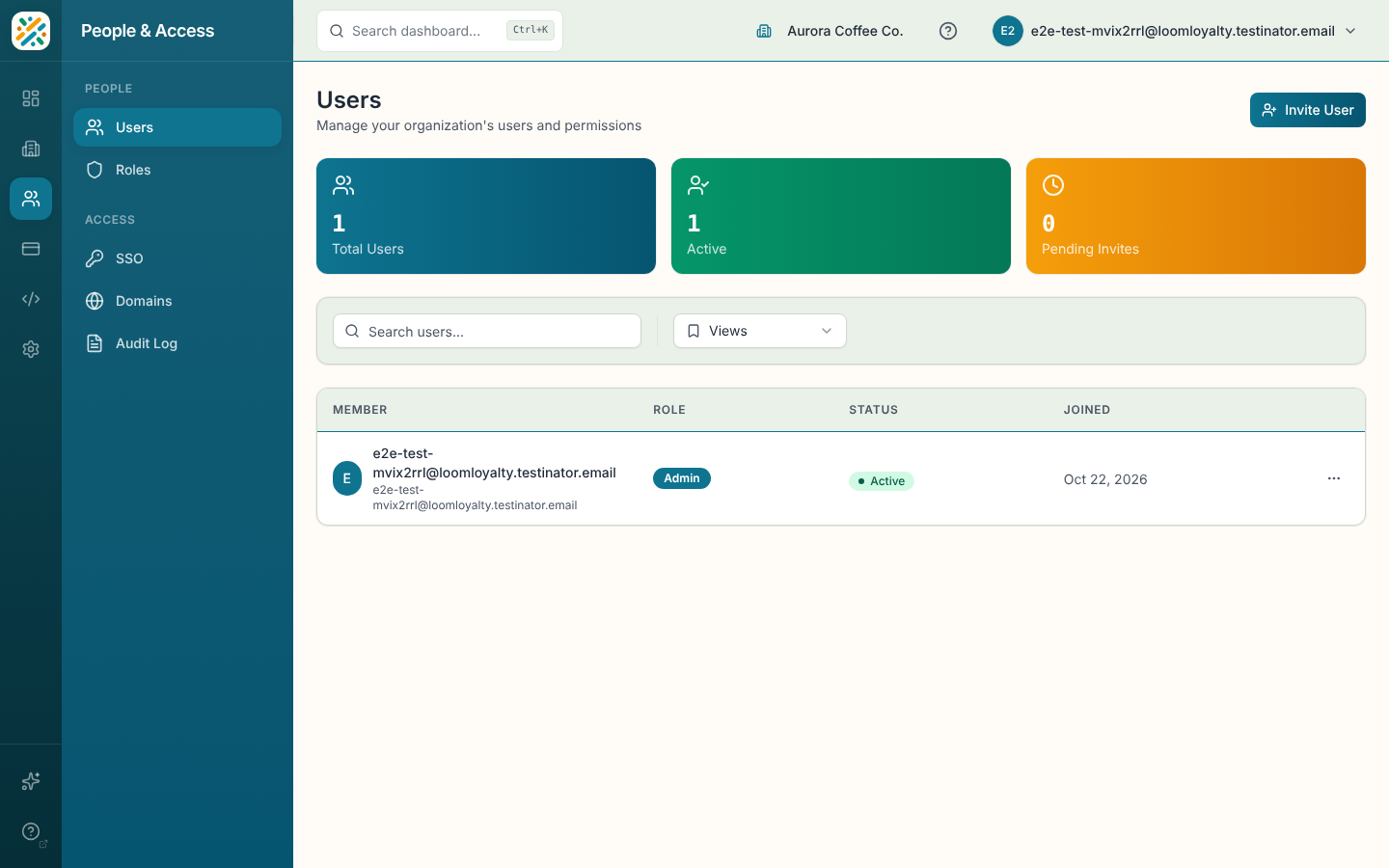
Users is the list of people who can sign in to your organization. Invite a teammate, check who has accepted, change what someone can do, or take their access away.
Before you start
You need auth:login-users:read to see the page. Inviting, role changes and removals depend on your other permissions. If a role change isn't going through, check with an organization admin.
Read the page
Three counters sit at the top: Total Users, Active and Pending Invites. They always count everyone, even when you've searched. Below them, the table shows Member (name and email), Role (Owner, Admin, Member or Viewer), Status (Active, Pending or Suspended) and Joined. Search matches name or email.
Invite a user
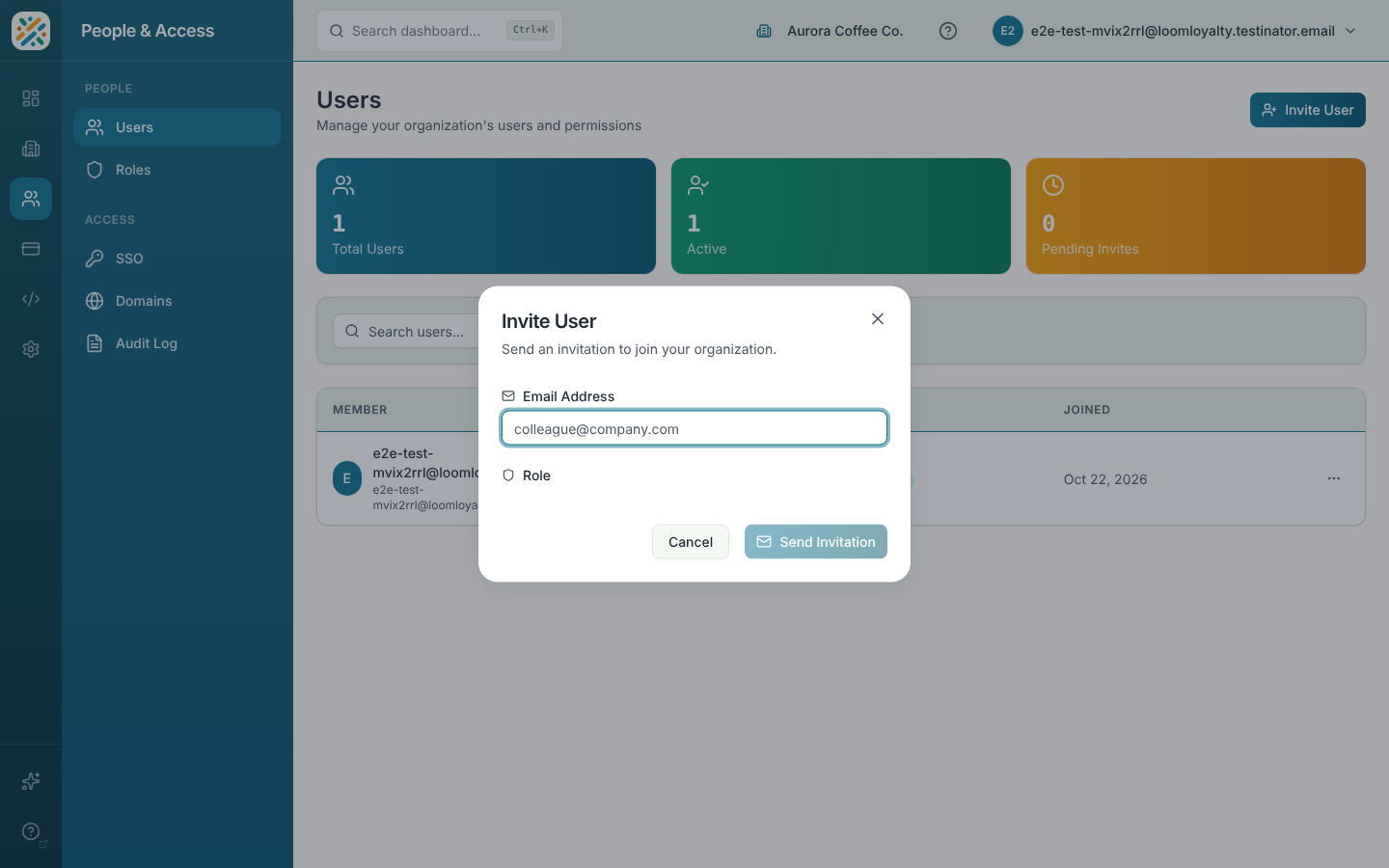
- Click Invite User.
- Enter their Email Address.
- Choose a Role. The options are the roles in your organization, each with its description. Member is preselected when it exists.
- Click Send Invitation.
They show up as Pending until they accept. The button stays disabled until you've entered an email and the roles have loaded.
Change someone's roles
Open the row menu and choose Manage Roles. The sheet lists the roles they have now and a selector for adding another. Each current role has a remove button. System roles are marked as such.
If you see "No Platform account found", the person hasn't signed in for the first time yet. Their account gets created when they do, so come back after that.
Remove a member
- Open the row menu and choose Remove Member.
- Confirm. The person loses access immediately.
You can't remove the organization owner. The page says "Cannot remove the organization owner."