Hub Configs
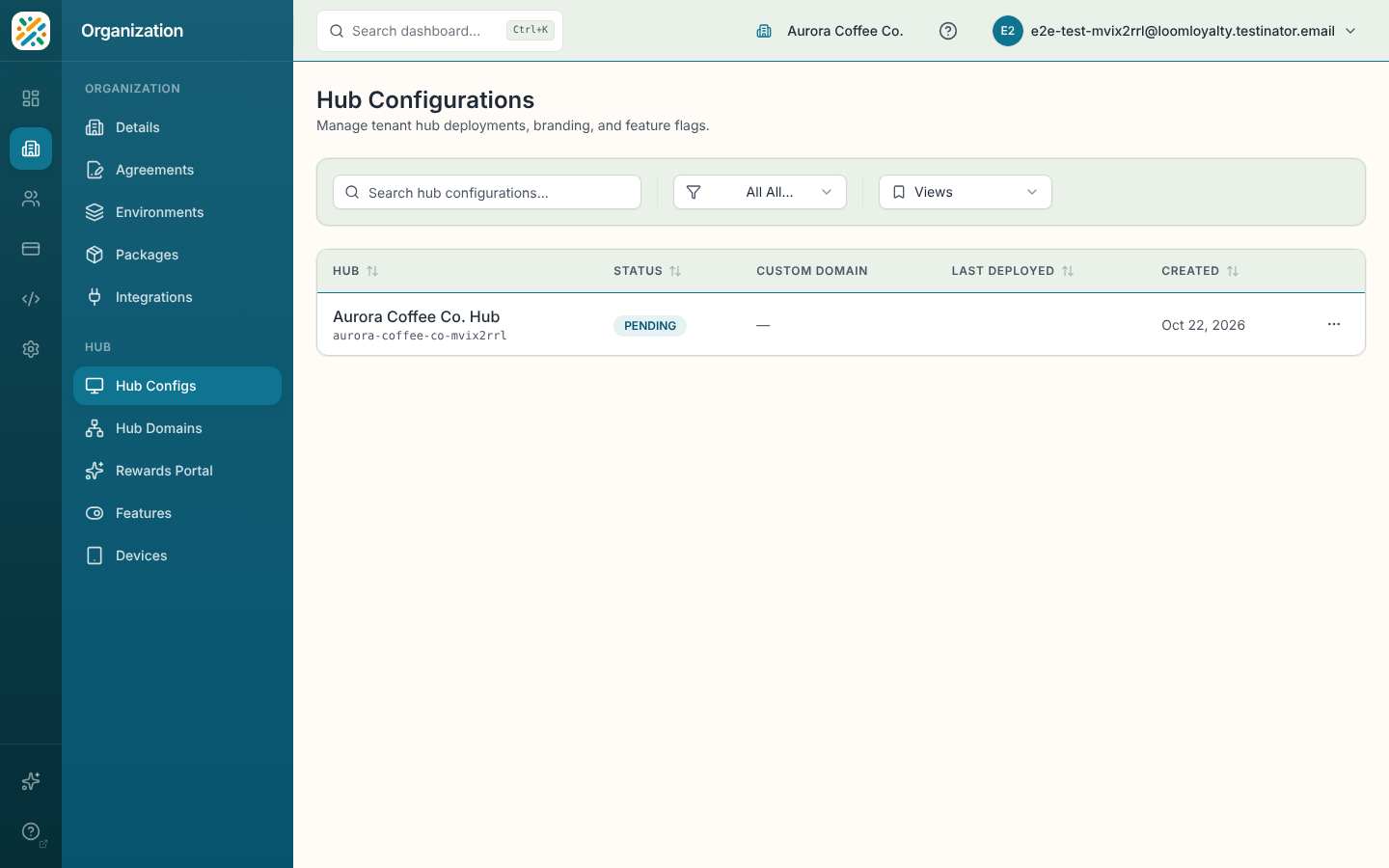
A hub config is one deployment of the Hub for your environment. This page lists them so you can check whether a Hub is up, see which subdomain and custom domain it uses, and give it a clearer name.
Most organizations have a single hub config, so the list is short. You can't create or delete one here. You can only look at them and change the name.
Before you start
You need the hub:hub-configs:read permission to open the page. Renaming a hub is blocked if you don't have permission to update it, and the save will fail with an error in the sheet.
Find a hub
The table shows the hub's name with its subdomain underneath, then Status, Custom Domain, Last Deployed and Created. Search matches the name or the subdomain. The status filter offers Active, Deploying, Suspended, Failed and Pending. Click a column header to sort by name, status, created date or last deployed date.
If you filter down to nothing, the table says "No hub configurations match your filters." If your environment has none at all, it says "No hub configurations found."
Read a status
A hub is Active, Deploying, Suspended, Failed or Pending. Active means it's deployed. Deploying means a deployment is under way. If a hub shows Failed or Suspended and you weren't expecting it, check with your account team.
View a hub's details
Click a row, or open the row menu and choose View details. The sheet groups the hub's information under General (name, subdomain, status and custom domain if it has one), Timestamps (last deployed, created, modified) and System (the hub config ID and environment ID, handy when you talk to support).
Rename a hub
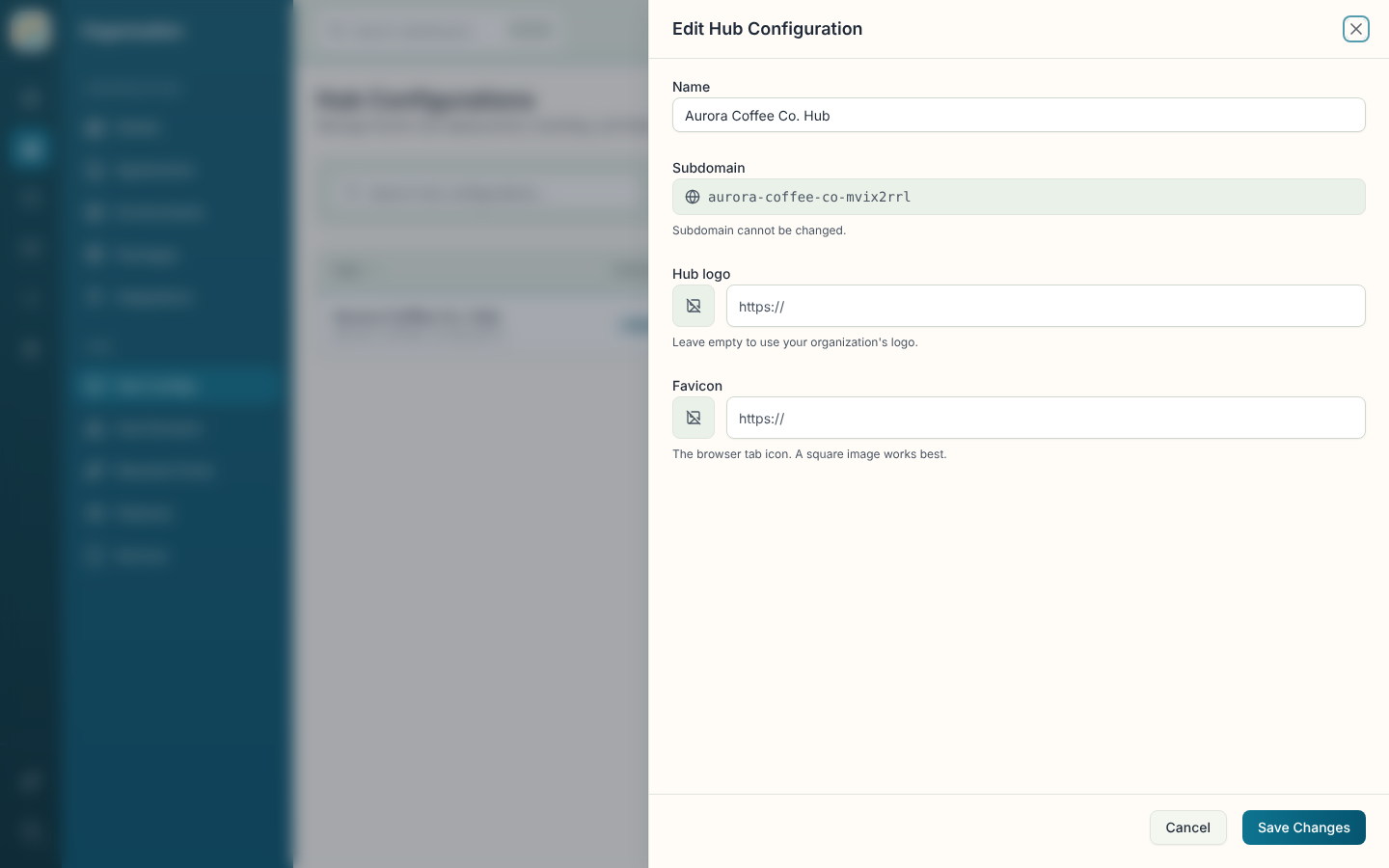
- Open the row menu and choose Edit, or click Edit Configuration in the details sheet.
- Change the Name. This is the display name shown in the list.
- Optionally set a Hub logo and a Favicon by selecting Upload next to each field, or by pasting the web address of a hosted image. Uploads take PNG, JPG, WebP or SVG files up to 5 MB. If you don't see Upload, your deployment has no image storage yet, so paste a web address instead. Leave Hub logo empty to use your organization's logo.
- Click Save Changes.
The Subdomain is shown but locked: "Subdomain cannot be changed."