API Keys
An API key lets a system you control, such as your point-of-sale backend, call the Weave API without a person signing in. Each key belongs to one environment and carries the roles you give it. For how to send the key in a request, see Authentication.
Before you start
You need auth:m2m-clients:read to see the list. Creating or revoking a key needs the matching write permissions. Production keys may be refused until your organization has finished its go-live checklist. If that happens, the create sheet shows the checklist below the form.
Read the list
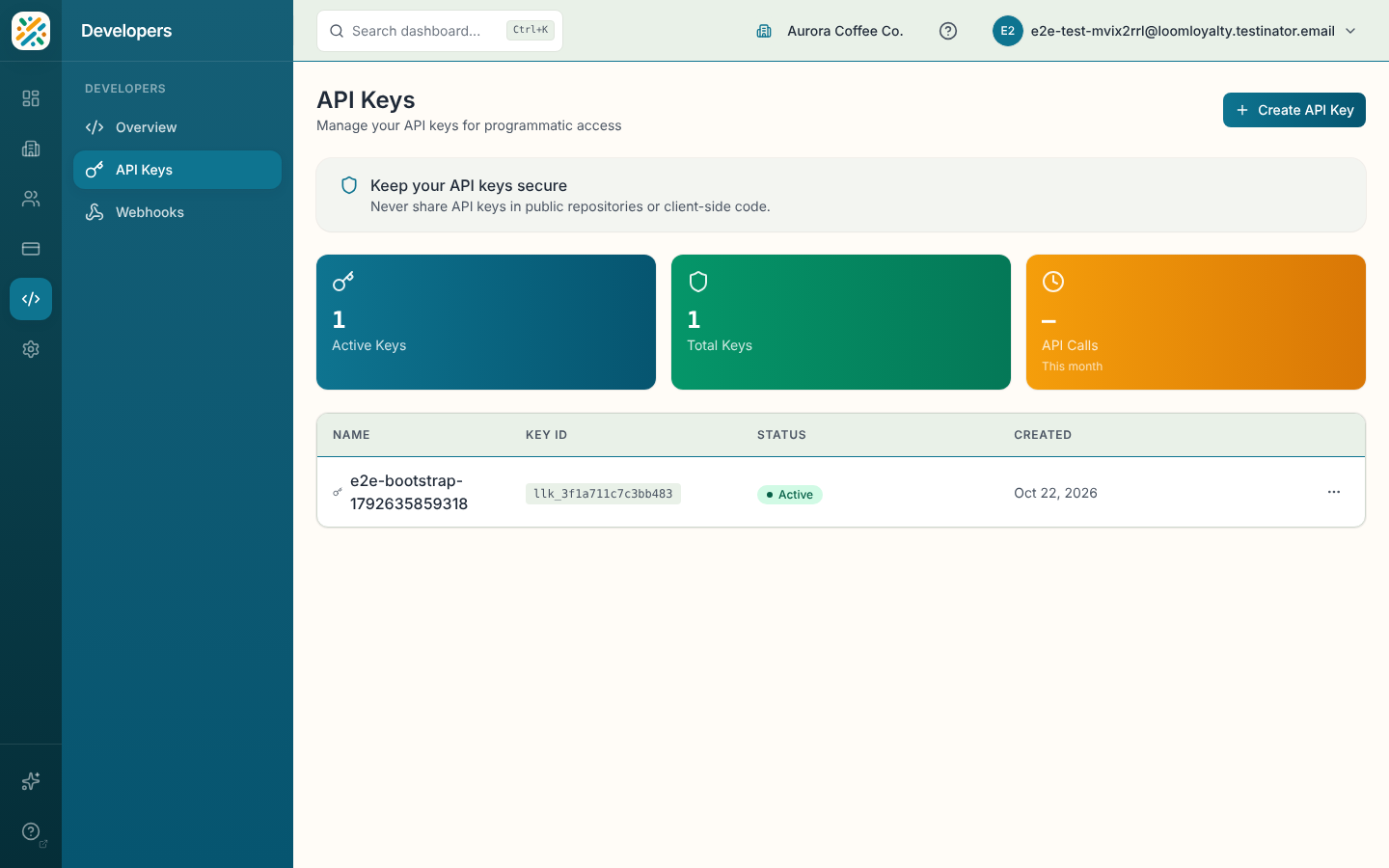
Counters at the top show Active Keys and Total Keys. The table has Name, Key ID, Status (Active or Revoked) and Created. Under the status, a key shows when it was revoked, or when it will be if a rotation left it working for a while. A key made by rotating another shows "Rotated from" and the old key's name and ID. A key installed by a package shows "Managed by" and the package name. For those, the row menu also offers Uninstall in Packages.
Create a key
- Click Create API Key.
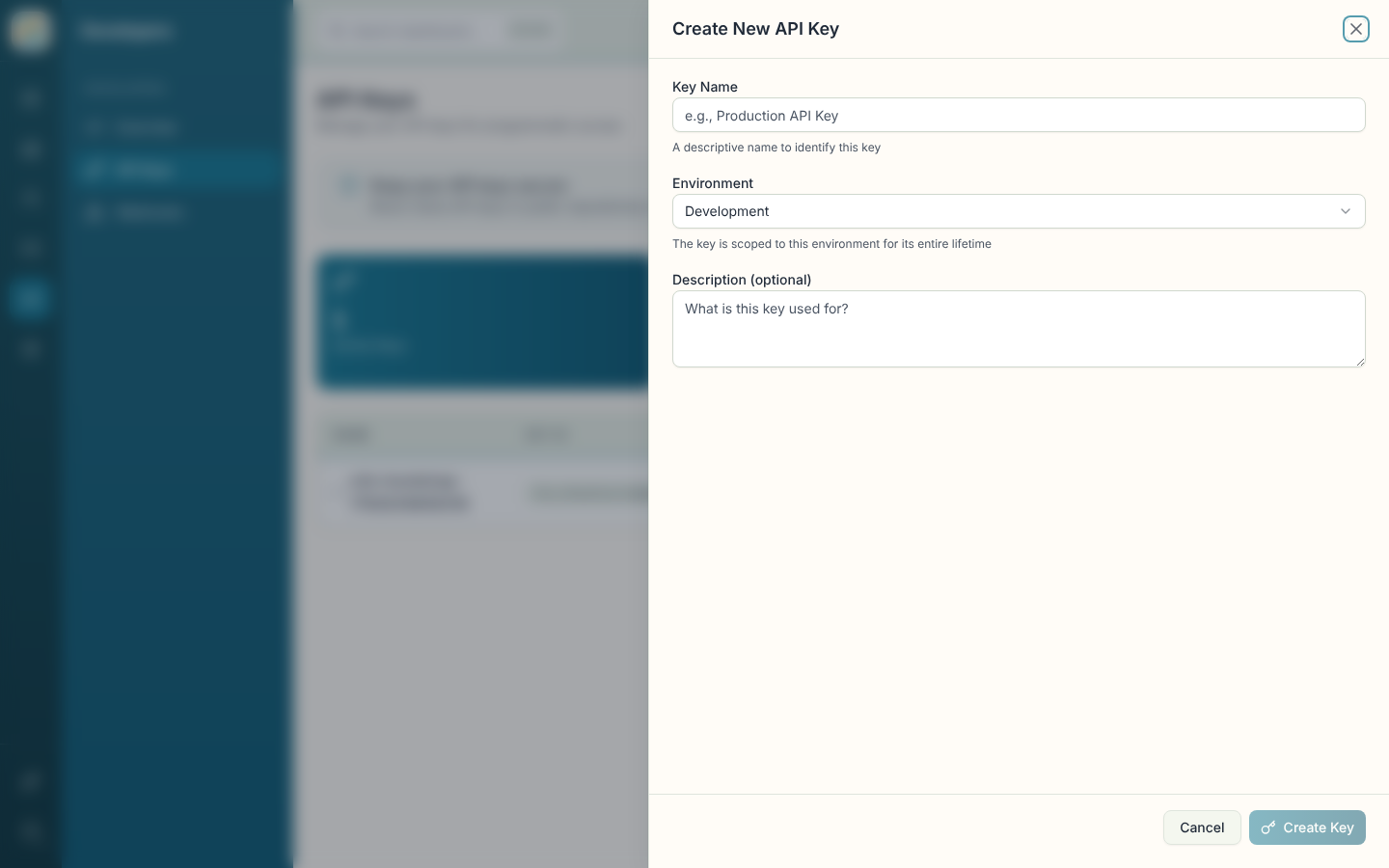
- Enter a Key Name, something that tells you where it's used, like "Brewhouse POS (production)".
- Choose the Environment. A key is tied to this environment for its whole life, so pick carefully.
- Optionally add a Description of what the key is for.
- Click Create Key.
The next screen, API Key Created, shows the full key once. Copy it now and store it somewhere safe. When you close the sheet it can't be shown again, and if you lose it you'll need to revoke it and make a new one.
Treat the key like a password: don't commit it to a public repository or put it in client-side code.
Give a key permissions
Open the row menu and choose Manage Roles to assign or remove roles, the same way you would for a person. Roles that apply to API keys are the ones with the API key (M2M) or both user type. See Roles.
Rotate a key
Rotate a key to replace its secret without changing what it can do. The new key gets the same name, environment and roles.
- Open the row menu and choose Rotate Key.
- Choose how long the old key keeps working: Revoke immediately, 1 hour, 24 hours or 7 days. Pick a window long enough to put the new key in place everywhere the old one is used.
- Click Rotate Key.
The next screen, API Key Rotated, shows the new key once, with when the old key stops working. Copy the new key now. After the window ends, the old key is revoked automatically.
A key can be rotated once. To rotate again, rotate its replacement. Rotate Key isn't offered on revoked keys or keys installed by a package.
Other row actions
- Copy Key ID puts the key's ID on your clipboard. This is the ID shown in the table, not the secret.
- Revoke Key stops the key from working. Confirm in the dialog. It can't be undone.