Devices
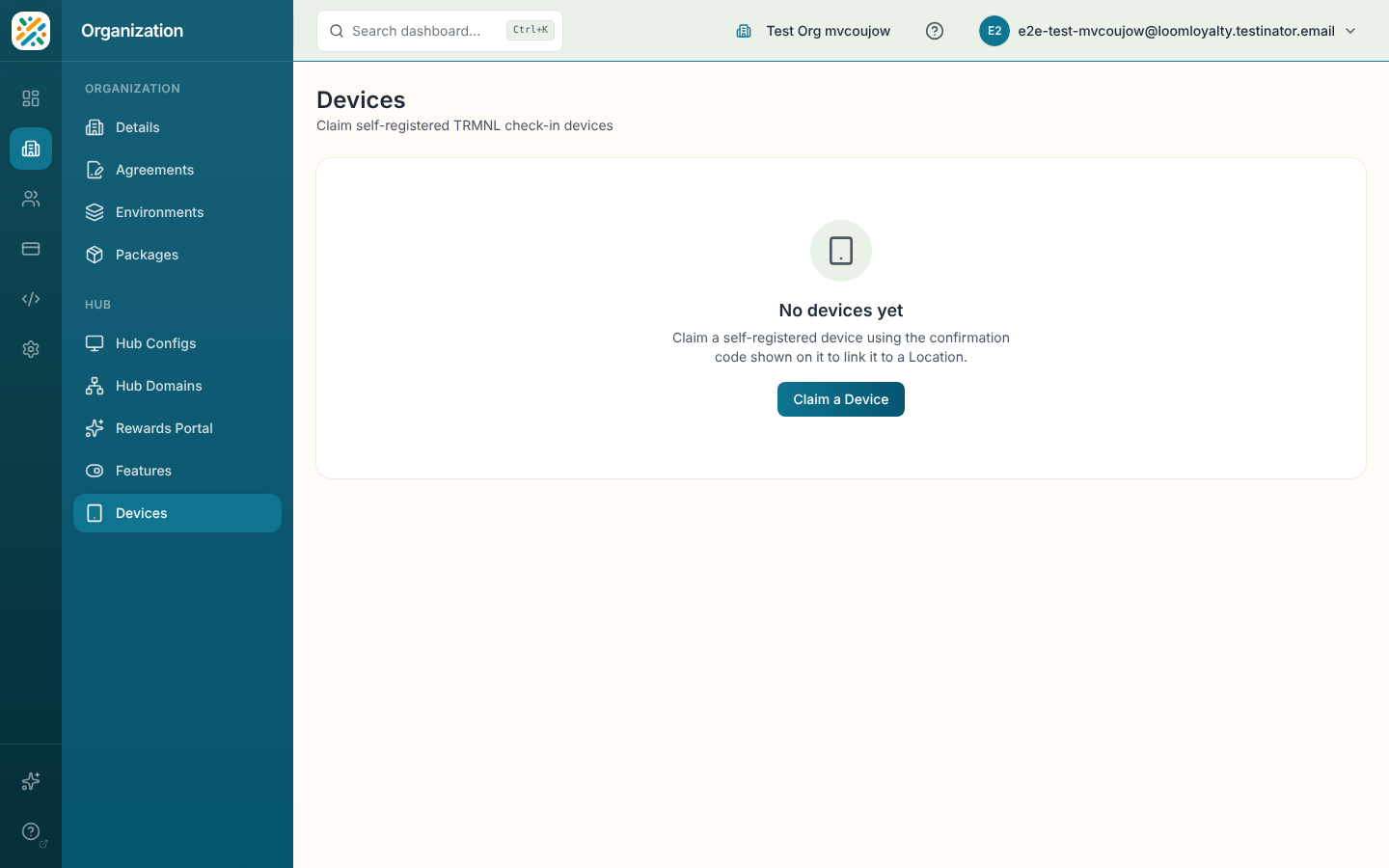
Devices lists the TRMNL check-in devices registered to your environment. A new device registers itself and waits. You then claim it here, which ties it to a Location so members can check in by scanning its screen.
Setting up the physical device (Wi-Fi, server address, the setup code) happens on the device itself. That whole walkthrough is in Portal Device Setup, so this page only covers the dashboard side.
Before you start
device:devices:readlets you see the list.- Claiming needs
device:devices:write, and releasing needsdevice:devices:delete. Without them the Claim a Device button or the row actions don't appear. - Have the confirmation code that the device displays.
Claim a device
- Click Claim a Device. On an empty page the same button sits in the empty state ("No devices yet").
- Choose the Location (required). If it doesn't exist yet, the dropdown offers Add New Location, and the new Location is selected when you save it.
- Enter the Confirmation code shown on the device.
- Click Claim.
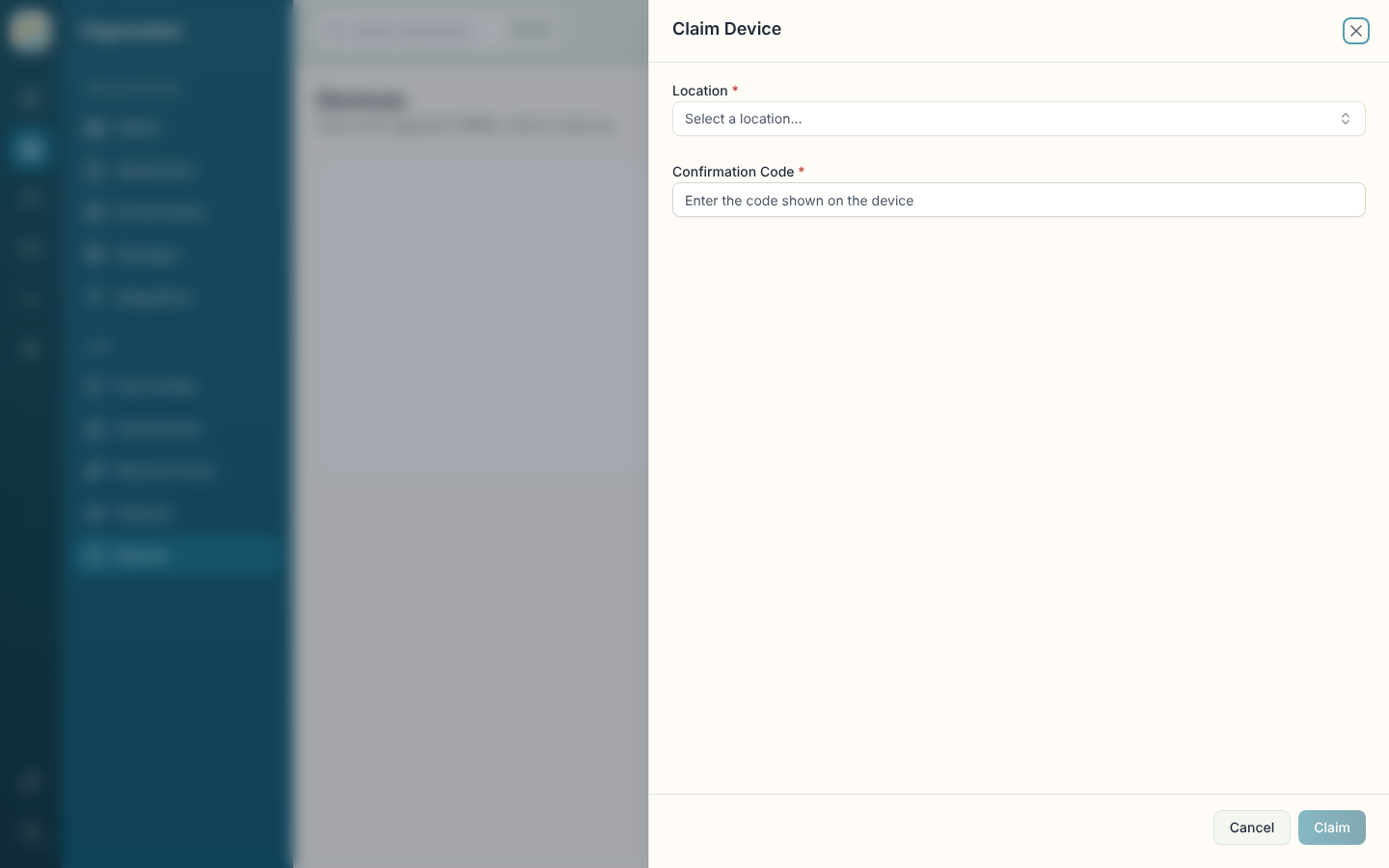
If the claim fails you'll see a specific reason, such as "Incorrect confirmation code." or "This device has already been claimed." A "Too many attempts" message means wait a moment before trying again.
Read the list
The table shows Location, Status, Claimed at and Device ID. Status is Claimed, Pending claim or Revoked. There's no search or filter here, only paging.
Release a device
Open the row menu, choose Release, and confirm. The device is removed and its credential is revoked, so it stops working until it registers again and someone claims it. Use this when you retire a device or move it to a different Location.