Hub Domains
By default your Hub lives on a Weave subdomain. If you'd rather your team opens it at something like hub.brewhouse.example, add that hostname here, create a DNS record at your DNS provider, then ask Weave to verify it.
Before you start
- You need the
hub:hub-domains:readpermission to see the page. Adding, verifying and deleting need the matching write permissions. - The environment needs a hub config first. Without one, Add Domain is disabled and its tooltip says "Create a Hub Config first".
- You need access to the DNS settings for the domain you want to use.
Add a domain
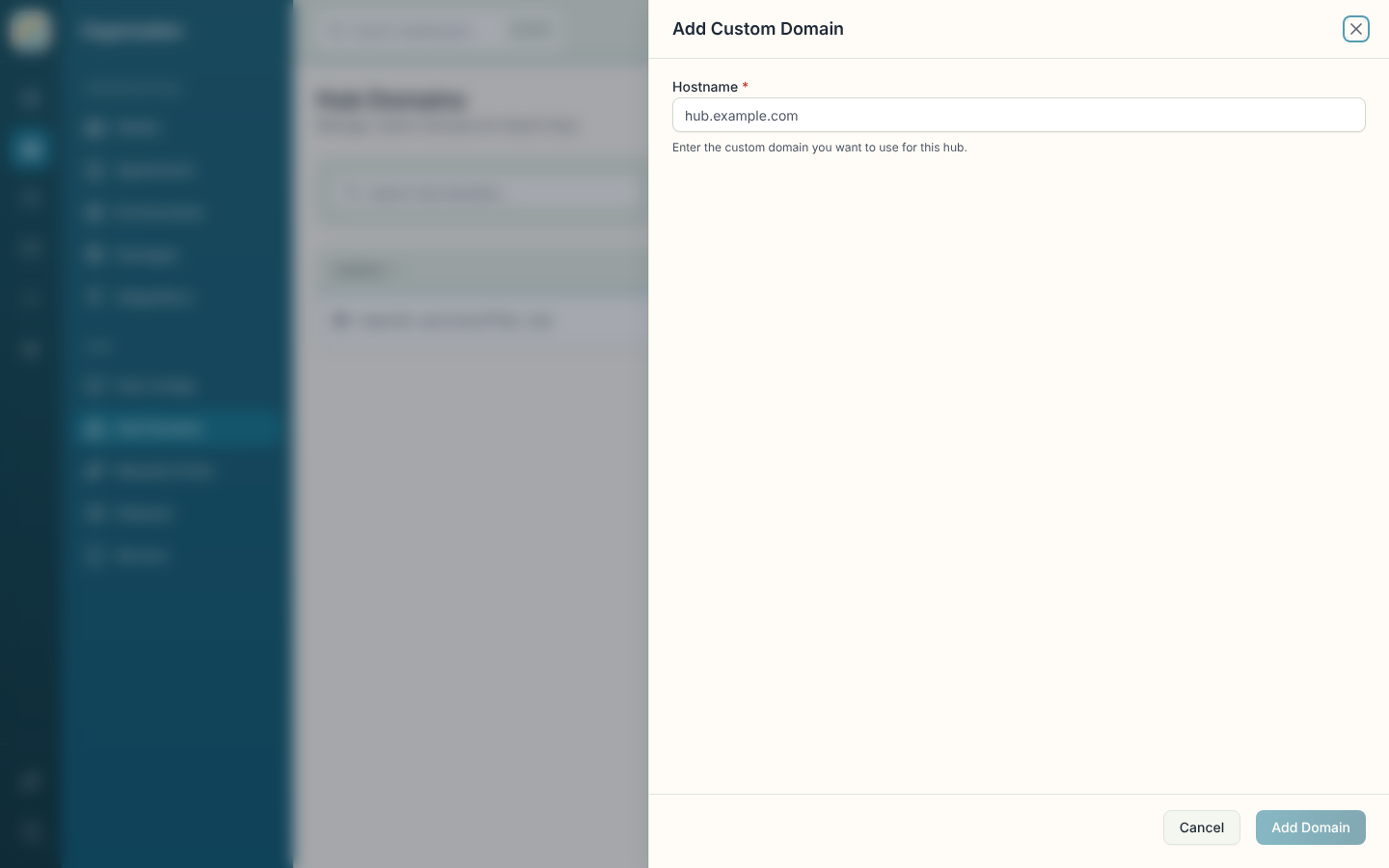
- Click Add Domain.
- Enter the Hostname, for example
hub.brewhouse.example. This is the custom domain you want to use for the hub. - Click Add Domain again in the sheet.
The new domain appears with a Pending status.
Point DNS at Weave and verify
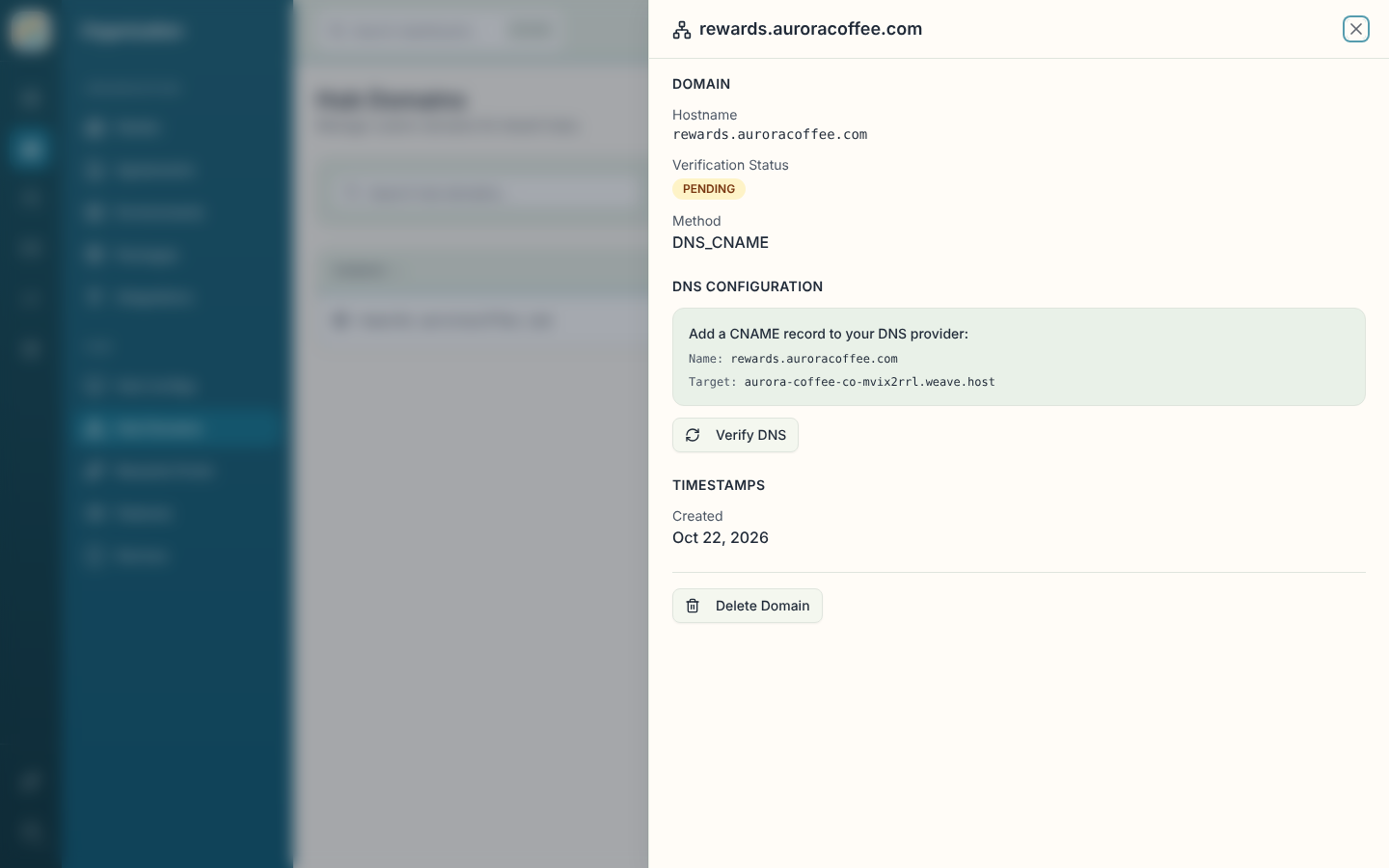
Open the domain's row and look for the DNS Configuration section, which only shows while the domain is Pending. It tells you to add a CNAME record at your DNS provider, with the hostname as the Name and a Target value that Weave gives you.
Once you've created the record:
- Open the domain (click the row, or use View details).
- Click Verify DNS. You can also pick Verify DNS from the row menu.
DNS changes can take a while to spread. If the check fails, the sheet shows the error. Wait a bit and try again. When it works, the sheet shows "Domain verified" along with the date.
Read the table
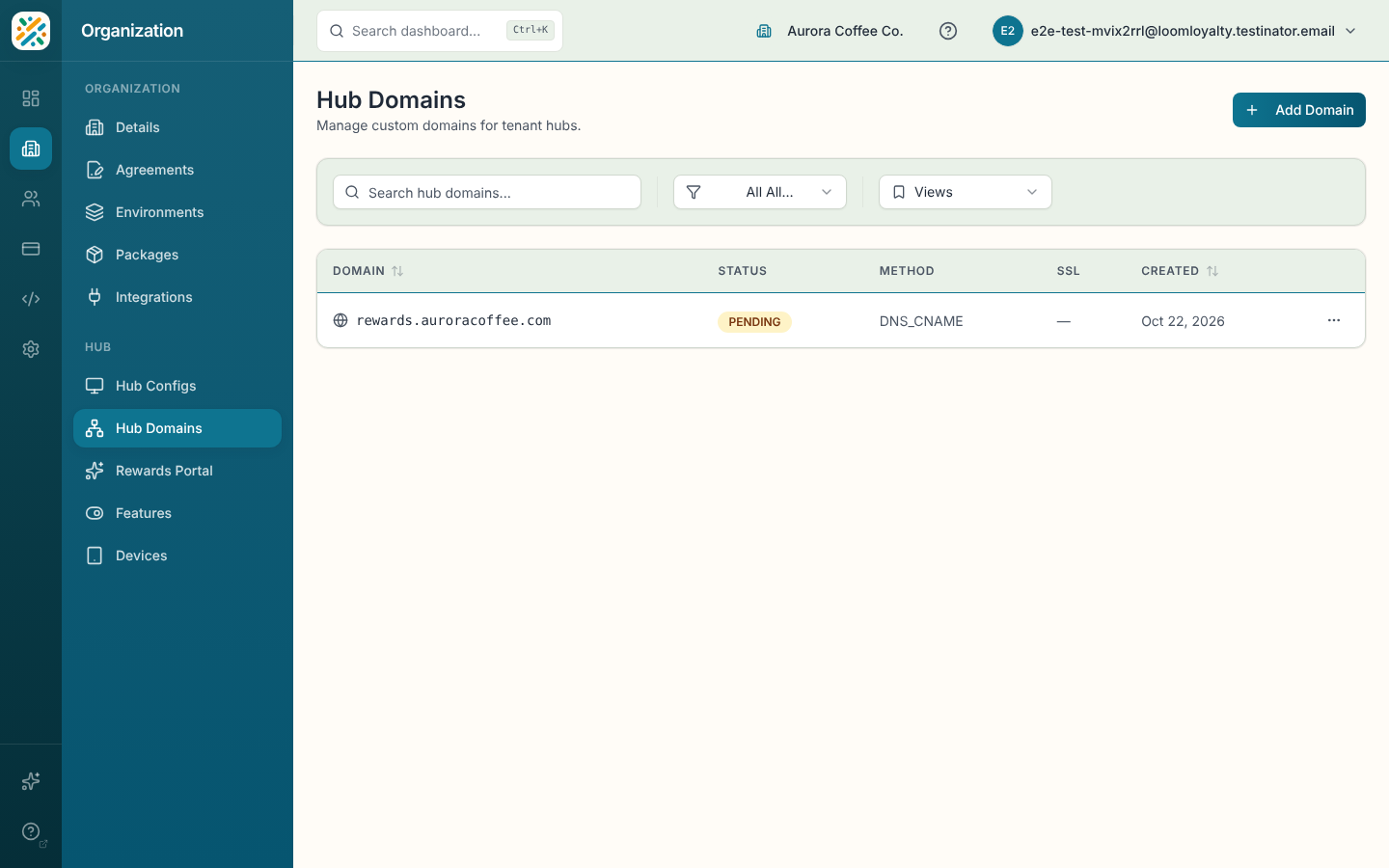
The list shows Domain, Status (Verified, Pending or Failed), Method, SSL and Created. Search matches hostnames, and you can filter by status or sort by domain or created date.
With no domains, the page says "No hub domains configured. Add a custom domain to get started."
Delete a domain
Choose Delete from the row menu, or Delete Domain in the details sheet, then confirm. Deleting can't be undone, and traffic stops routing to the hub through that domain. Your Weave subdomain keeps working.
Related
- Hub Configs
- Rewards Portal, which has its own custom domain setting