Rewards Portal
The Rewards Portal is the site your members visit to see their points or punch cards. This page is where you set it up for an environment: its program name, how progress is counted, its colors and font, and an optional custom domain.
Before you start
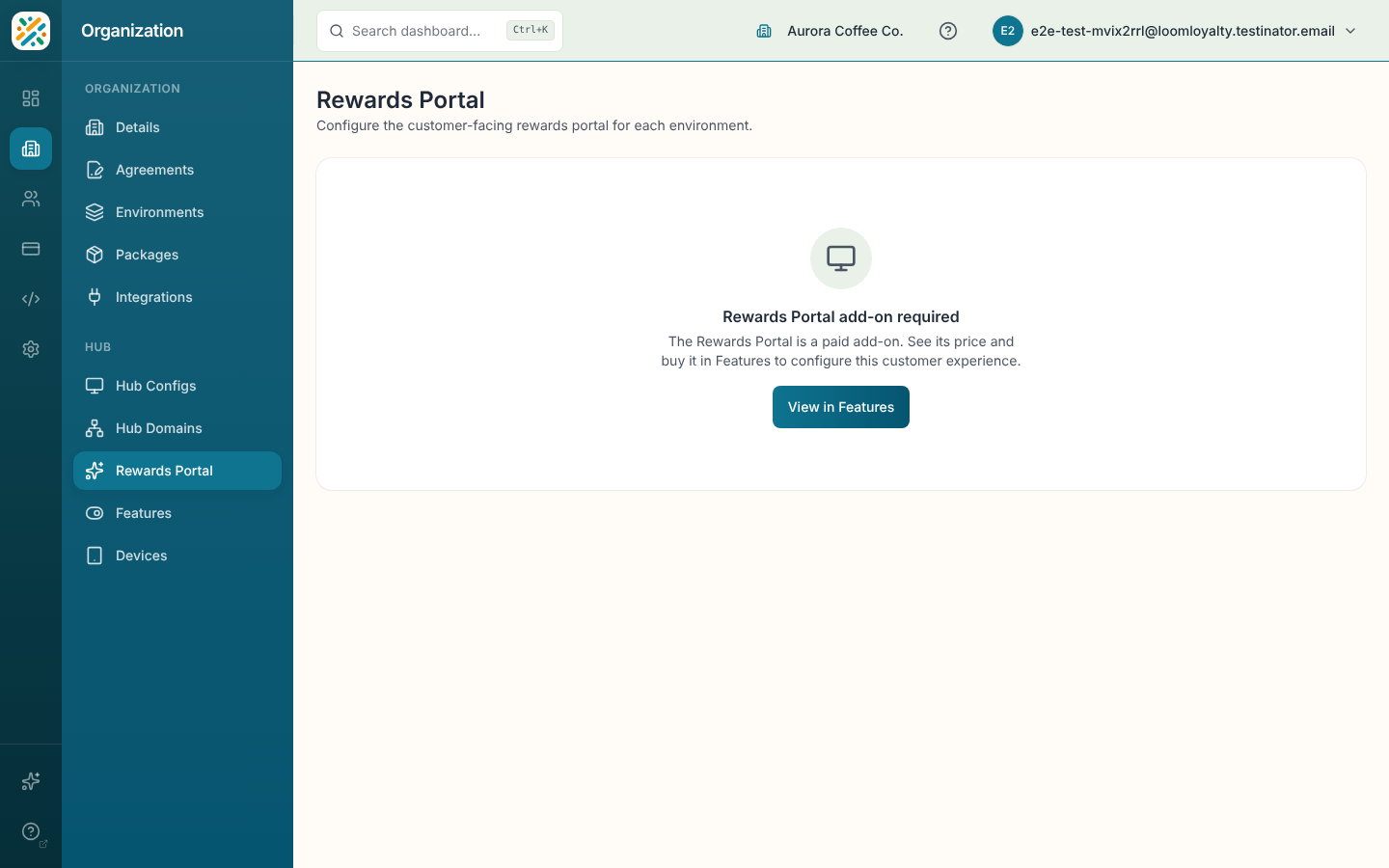
The Rewards Portal is an add-on. If your organization doesn't have it, the page shows "Rewards Portal add-on required." Admins get a link to buy it in Features, and everyone else is told to ask an organization admin. Some plans include it (the Turnkey plan does), and those still need it turned on in Features.
You also need the rewards-portal:portal-configs:read permission. Each environment can have one portal configuration.
Create the portal
- Open Rewards Portal. If nothing is set up yet, click Create Rewards Portal.
- Fill in the fields (see the table below). Program Name, Program Mode and Status are required.
- Click Create.
If something conflicts with an existing configuration, a red Conflict message appears above the buttons.
Fields
| Field | What it does |
|---|---|
| Program Name | The name members see, for example "Brewhouse Rewards". |
| Program Mode | Punch Card, Points or Both. |
| Status | Draft, Published or Suspended. |
| Brand Color | The main color, as a hex value like #112233. |
| Accent Color | A second color, as a hex value. |
| Font | Inter, Manrope or Plus Jakarta Sans. |
| Logo | Your logo. Select Upload (PNG, JPG, WebP or SVG, up to 5 MB) or paste a link to a hosted image. |
| Display Event Rule | The event rule the portal uses for its display. |
| Display Target | The target to show. Pick an event rule first, because the list depends on it. |
| Display Threshold | The amount members work toward, such as visits, points or currency. |
| Custom Domain | A domain like rewards.brewhouse.example to serve the portal from. |
If a saved event rule or target can no longer be found, the form says so and asks you to choose a valid one before saving.
View and edit
Once the portal exists, the page shows a card with the program name and a summary (program mode, subdomain, status, custom domain, created date). View details opens the full picture including branding, and Edit opens the same form as Create.
Use a custom domain
You can serve the portal from your own domain, such as rewards.brewhouse.example. Use a subdomain: a CNAME record can't sit on a bare domain like brewhouse.example.
- Enter the domain in Custom Domain and save.
- Open View details. The domain section shows a CNAME record to add at your DNS provider (a Name and a Target). The target is your portal's own address, such as
brewhouse.rewards.weave.host. - Add the record at your DNS provider:
- Some providers add your domain to the name for you. If yours does, enter only the part before it, for example
rewards. - If your DNS is on Cloudflare, set the record to DNS only (grey cloud), not Proxied.
- Remove any other A, AAAA or CNAME record with the same name first.
- Some providers add your domain to the name for you. If yours does, enter only the part before it, for example
- Click Verify DNS. DNS changes can take a while to spread, so if the check fails, wait and try again.
- Once DNS is verified, Loom Loyalty issues a security certificate for the domain. This usually takes a few minutes. The badge shows Certificate pending until it's ready, then Live. Click Re-check DNS to update it.
The portal serves on the domain once the badge says Live. Until then, members can keep using the portal's own address.
If the badge says Certificate failed, check that the CNAME record is still in place and isn't proxied, then click Re-check DNS to try again.
To take a domain off, open Edit and click Remove Custom Domain. Clearing the field and saving doesn't do it: the form notes that removal is a separate action.
How members sign in
Members sign in with a one-time code. They never set a password. Email is the default: the portal emails a code, and the member types it in.
Sign-in by text message is available when Loom Loyalty has turned it on for your environment. You can't turn it on from this page. When it's on, the sign-in screen offers Email or Text message, with Email selected first. A member who picks Text message gets a texted code and can join with only a phone number.
- Backup email. The first time someone joins by text, the portal offers to add a backup email. With one, they can still sign in if they change their number. They can skip it with Not now.
- Adding a mobile. A member who signed in by email can add a mobile number from Account. The portal texts it a code. Once they confirm it, the number is saved to their profile and they can sign in by text too. A number already on another member's account is refused.
- Deleting an account. Members confirm a deletion with a code, by email or by text. A code sent by text has to go to the number they sign in with.
- Profile. A confirmed email or phone number is saved to the member's customer profile.
Each text costs money, so Loom Loyalty limits how many codes go out:
| Limit | Default |
|---|---|
| Codes per environment per day | 100 |
| Codes per environment per calendar month | 1,500 |
| Codes to one phone number per minute | 3 |
| Codes to one phone number per hour / per day | 5 / 10 |
| Codes a signed-in member asks for, per hour / per day | 3 / 10 |
| Tries per code | 5 |
A code expires after 10 minutes. When a limit is reached, the portal asks the member to wait before requesting another code. They can try again later or use their email.
Cancelling the add-on
If your organization bought the add-on, a banner on this page links to Manage or cancel in Features. After you schedule a cancellation, the page tells you when access ends.