Import customers
If you're migrating from another system or loading a guest list, import a CSV instead of creating customers one at a time. The page checks every row before anything is created, so you can fix problems first.
Before you start
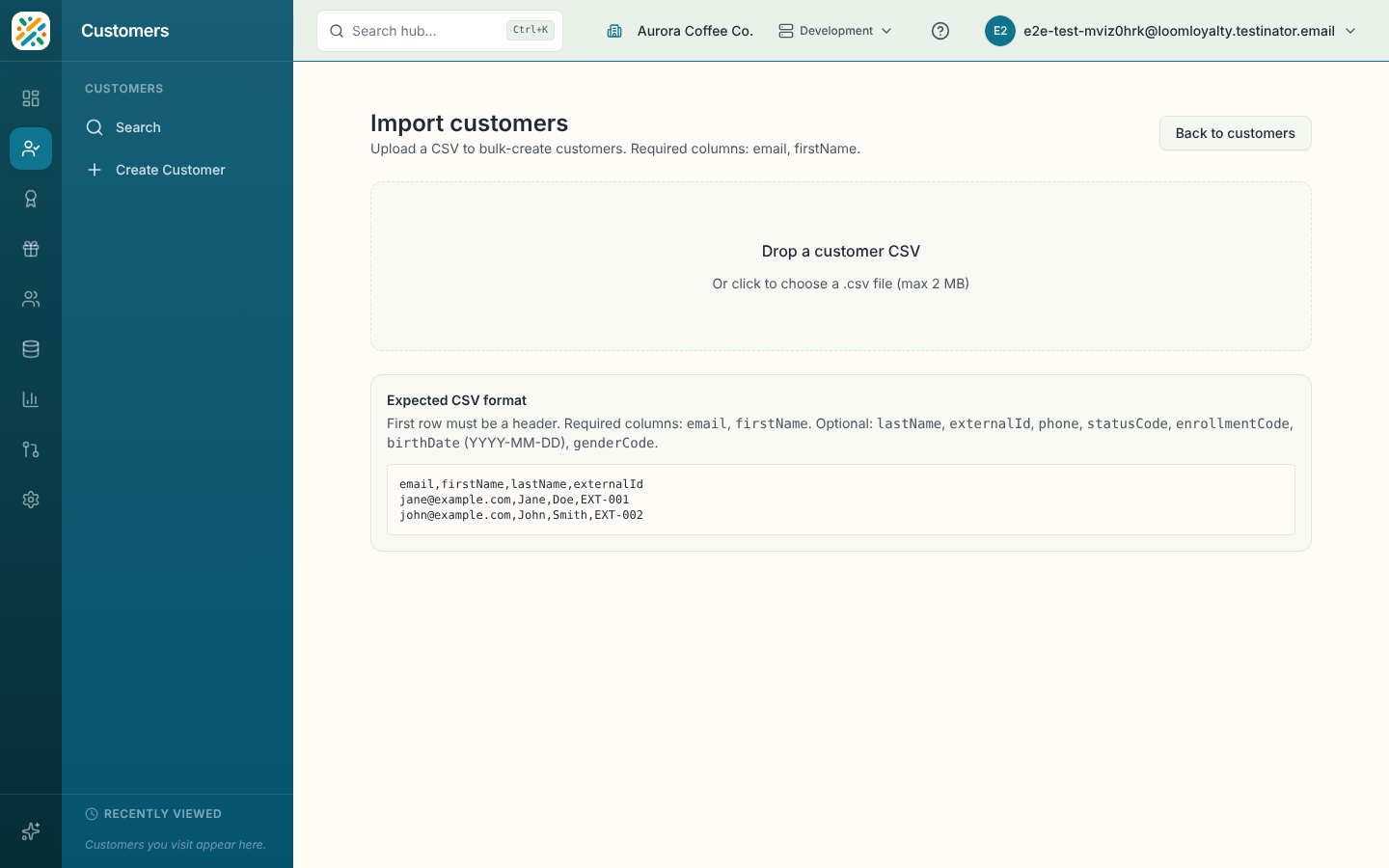
Prepare a CSV of 2 MB or less. The first row must be a header. Two columns are required: email and firstName. These are optional: lastName, externalId, phone, statusCode, enrollmentCode, birthDate (as YYYY-MM-DD) and genderCode. A small example:
email,firstName,lastName,externalId
jane@example.com,Jane,Doe,EXT-001
john@example.com,John,Smith,EXT-002
Run an import
- On the Customers page, select Import.
- Drop your file on Drop a customer CSV, or click to choose it.
- Review the Preview. It shows the row count and how many are valid or invalid. Each row has an Include checkbox, and the Issues column explains problems, such as a missing or malformed email, a missing first name or a bad birth date. Invalid rows are unticked and can't be included. Unknown columns are ignored, with a note.
- Untick any valid rows you want to leave out, then select Import N rows. Choose Choose a different file to start over.
- Watch the progress bar. When it ends, a summary reads "N created, M failed".
If any rows failed, select Download failed rows CSV. It contains those rows with an error column, so you can fix them and import again. Select Import another file to continue, or Done to go back to Customers.
If the file can't be read at all, a "Could not parse this file" message lists why, for example a missing required header. Files over 2 MB or not ending in .csv are rejected.