Programs
A program is the top of your loyalty setup. Currencies, tiers, badges and rules all hang off one or more programs, so this is usually the first thing you create. Say you run a coffee chain: "Bean Rewards" would be a program, and "Bean Points" a currency inside it.
The Programs page lists every program in your organization. Open one to read its details, edit it, or jump to the setup that belongs with it.
Before you start
You need the program:programs:read permission to see the list. The Create Program, Setup Wizard and Upload Template buttons, and the Edit and Delete actions, only appear when you're allowed to change programs. If you're starting from nothing, the Setup Wizard builds a working program in one pass and is usually faster than creating each piece by hand.
Find a program
The table shows these columns: Program (name and code), Description, Type, Partner, Auto-create, Enabled in Environment, Created and Modified.
Type in Search programs... to search by name or code. The Type and Partner dropdowns narrow the list to one value each. You can sort by name, code, created date or modified date, and Clear removes your filters. The saved views menu next to the filters keeps a combination of search, filters and sort so you can come back to it.
One quirk: the Type and Partner filters apply to the page you're looking at, so the total in the footer only counts matching rows on that page.
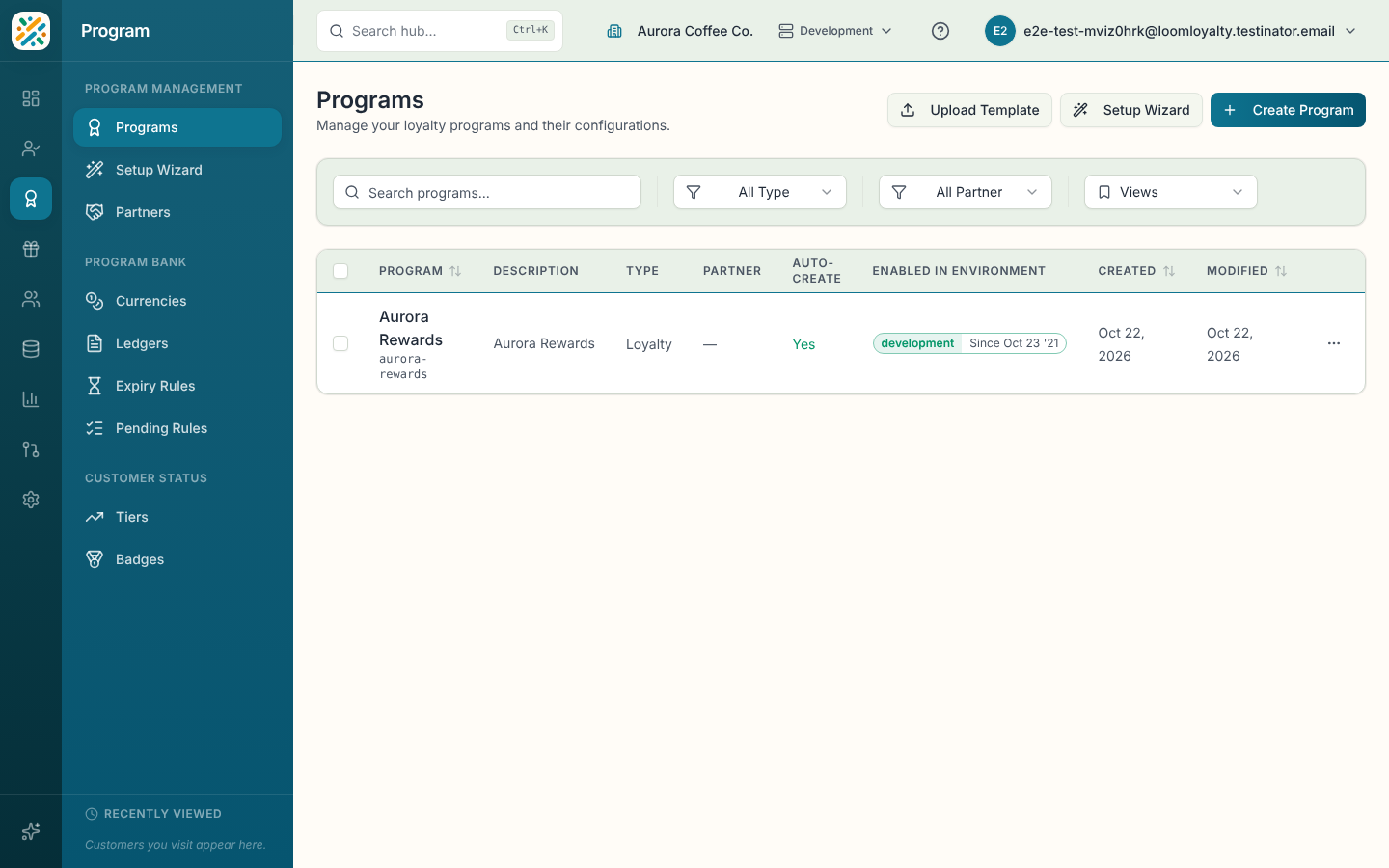
If nothing matches, you'll see "No programs match your filters. Try adjusting your search or filters." An empty organization shows "No programs found. Create your first program to get started."
Create a program
- Select Create Program.
- Fill in the fields in the sheet (see the table below). Name, Code and Program Type are required.
- Select Create Program at the bottom of the sheet.
The code fills itself in from the name, in lowercase with hyphens, and you can edit it before you save. After the program exists, the code is locked.
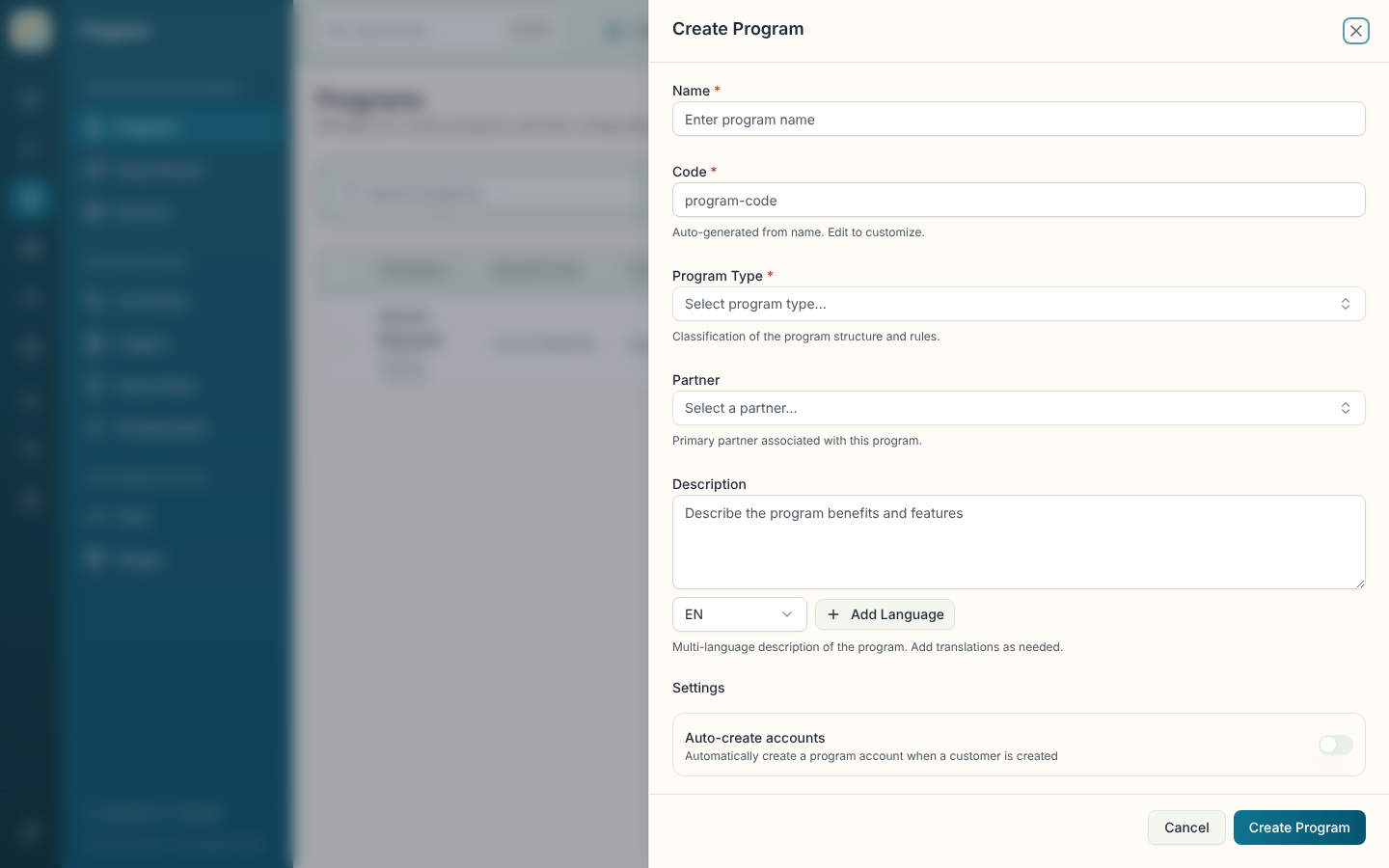
Program sheet fields
| Field | What it does |
|---|---|
| Name (required) | The program's display name. |
| Code (required) | A unique identifier, generated from the name. You can change it while creating, not after. |
| Program Type (required) | Classifies the program's structure and rules. Pick an existing type, or type a new one and it's created when you save. |
| Partner | The primary partner for the program. You can create a new partner from the picker without leaving the sheet. |
| Description | A multi-language description. Add a translation for each language you need. |
| Auto-create accounts | When on, a program account is created automatically whenever a customer is created. |
| Account ID Generation | Controls how program account IDs are made. Code Type is required: External, External if not provided, Generated, Generated if not provided, or Provided. The two Generated options reveal Prefix, Suffix, Part 1 Algorithm, Part 1 Length, Part 2 Algorithm, Part 2 Length and Check Digit Algorithm (Mod 10 for internal IDs, Luhn for customer-facing ones). |
| Additional Information | Extra fields your organization has added to programs through its data model. Only shown if there are any. |
Read a program's details
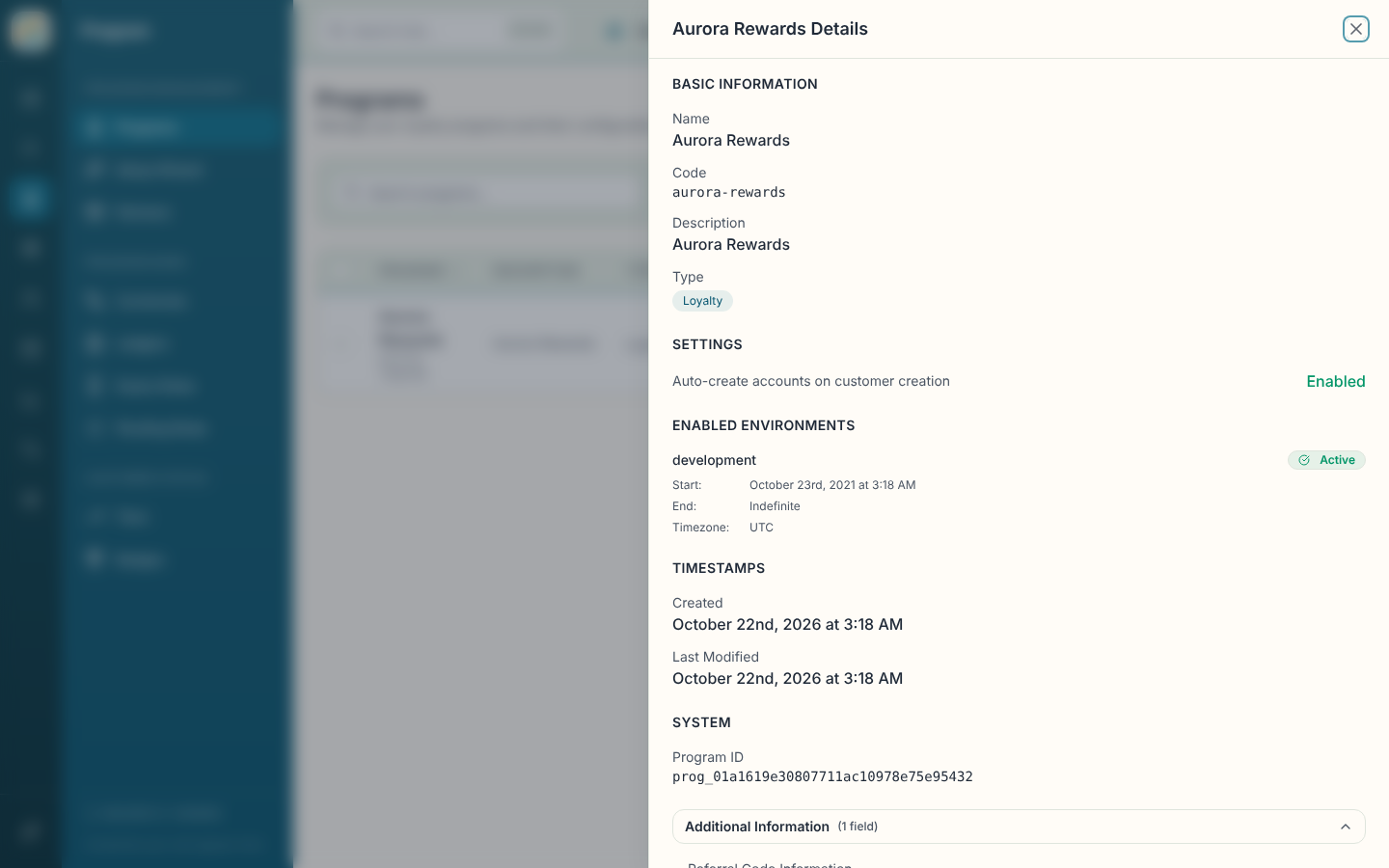
Select a row (or View details from the row menu) to open the details sheet. It shows Basic Information (name, code, description, type), the Partner, Settings (whether accounts are auto-created), Enabled Environments, Timestamps and the program ID. Edit and Delete sit at the bottom.
Open a program's own page
Each program also has a full page, with the program's name and code at the top and an Edit Program button, which opens the same sheet described above with the code locked. Next to it:
- Upload Template goes to the template upload page.
- The download icon (Download program template) saves the program as a Markdown or Excel file.
Below that, a Related Configuration section has cards for Offers, Tiers, Badges, Targets, Event Rules, Currencies and Partners. They're shortcuts. Each card opens the full list for that item, across all programs, not a list filtered to this one.
Edit, delete or enable a program
Use the row menu on any row.
- Edit reopens the sheet. The code can't change.
- Delete asks for confirmation. Deleting is permanent and removes the program and all its associated data, so check first.
- Enable in Environment sends a request to make the program available in another environment. You choose a Target Environment, a Start Date, an optional End Date (leave it empty to keep it enabled indefinitely) and a Business Justification of at least 10 characters. It creates a workflow request that needs approval, and Submit Request sends it.
To enable several programs at once, tick their rows and use the Enable in Environment bulk action. The Enabled in Environment column shows each program's status as Active, Scheduled or Expired.