Data Models
A data model describes the shape of the information your program works with: the fields on a purchase event, a store visit, a customer. Rules and rewards can only read fields that a data model declares, so this is where you set up what Weave knows about your events before you build anything on top of them.
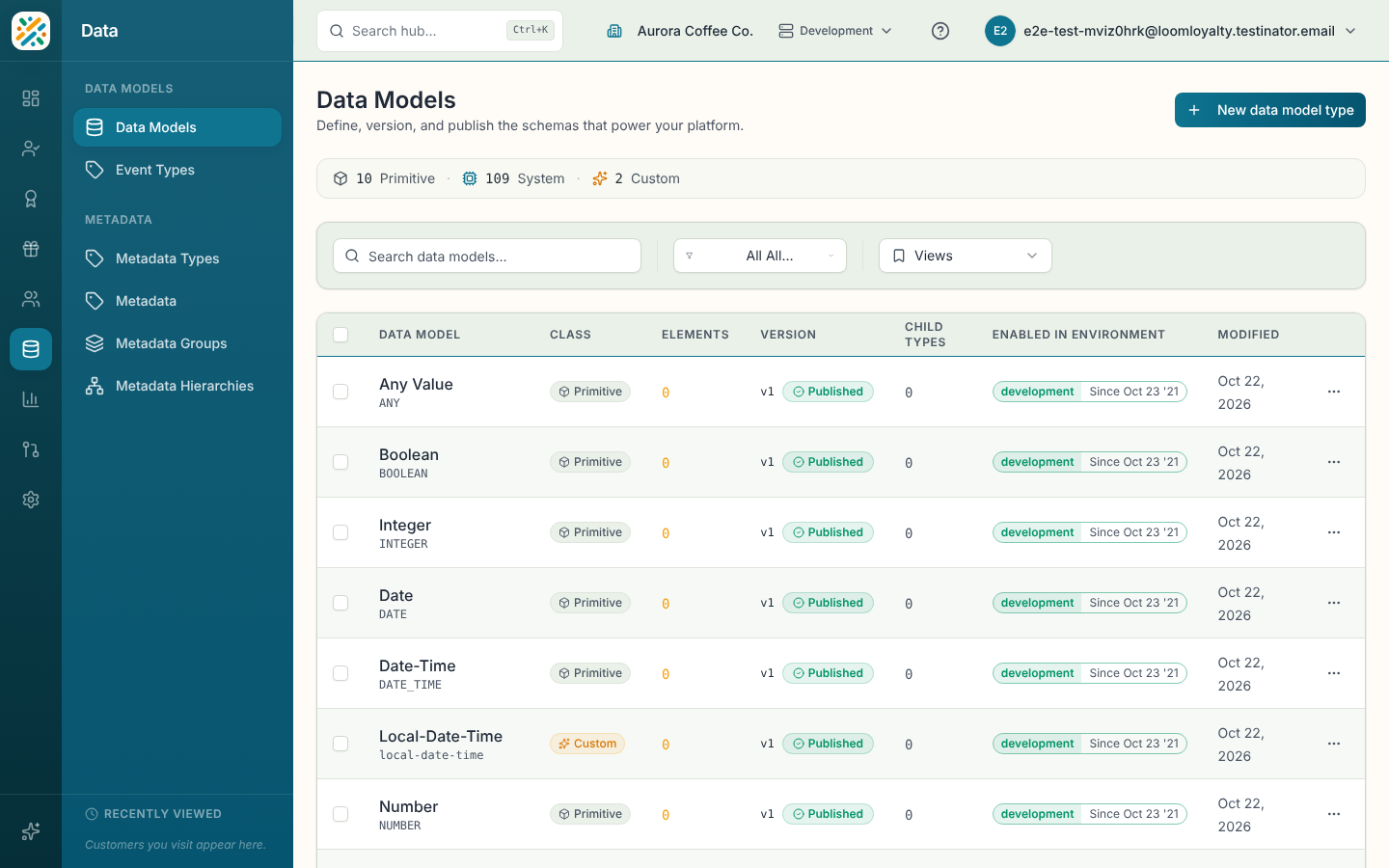
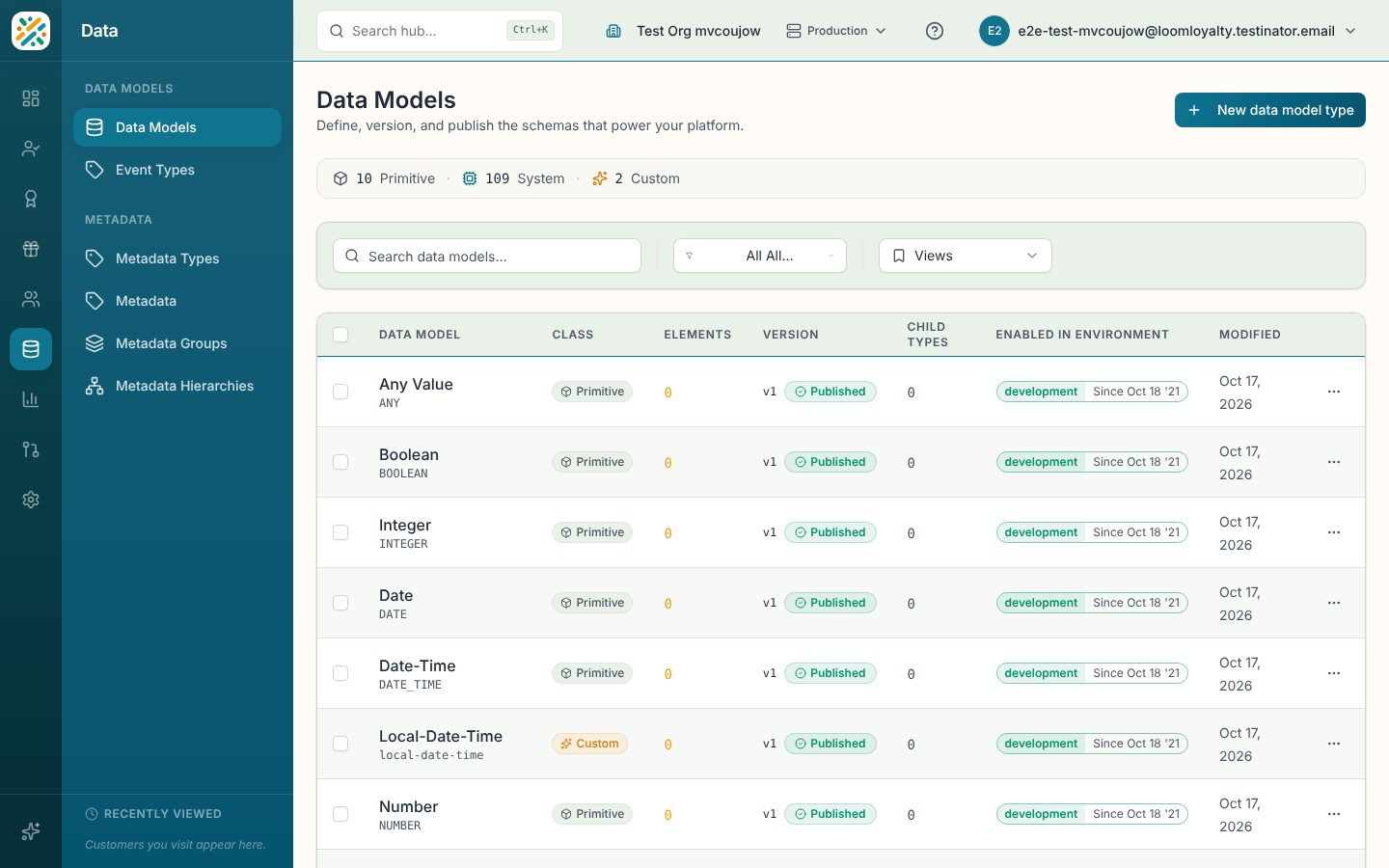
The list shows one row per model type. If a type has several versions, you see the latest one.
Before you start
You need the data-model:data-models:read permission to see the page. The New data model type button, editing and publishing depend on what your role allows.
Know the three classes
Every row has a class, shown in the Class column and counted in the bar above the table.
| Class | What it is | What you can do |
|---|---|---|
| Primitive | Built-in building blocks such as STRING, INTEGER, BOOLEAN, DATE and UUID. | View only. They're marked Read-only. |
| System | Platform-defined types for standard things like customers, programs and badges. | View, edit, duplicate, version. You can't delete them. |
| Custom | Types your team creates. | Everything, including delete. |
Use the All classifications filter to narrow the list to one class, or search by name, code or ID with Search data models....
Create a data model type
A coffee chain that wants to reward app orders might create "Order completed" with fields for the total, the currency and the store.
- Select New data model type. The builder opens.
- Enter a Name, for example
Order completed. - Optionally pick a parent under Extends. The default is Nothing, start empty. If you extend a type, its fields show up as inherited and read-only.
- Under Start from, choose how you want to fill in the fields:
- Describe it: type what the event contains in plain language, such as "A completed order with a total, a currency, the customer email, and the line items." Weave AI drafts the fields.
- Paste schema: paste a JSON Schema or a sample payload and the fields are read from it.
- Field by field: add each field yourself in the table.
- Sample: drop a CSV of your data (up to 2 MB) or start from the Stripe sample.
- Review the Fields table. Each row has a Label, a Field name, a Type, a Metric and a Req (required) box. Rows that need your attention are counted as "need review". Use Accept all once you're happy with them, or View as JSON Schema to check the result.
- Select Create.
The Create button stays disabled until the model has a name and every field is resolved. If you opened the builder from another screen, such as while creating an event rule, the button reads Create & use and takes you back with the new model selected.
Metric roles
The Metric column lets you tag a numeric field as Revenue, Cost or Margin. Tag the field that holds a customer's spend so the revenue analytics can read it. It only works on numeric fields, and the earn rule has to read that field too. See Revenue Deciles.
Look at a model's details
Select a row to open its details panel. From top to bottom it shows:
- The class, version status and version number.
- Type Information: name, code, description and any parent type.
- Elements: the fields, with their types.
- A JSON Schema view and a Validate Against Schema box where you can test a sample payload.
- Version history, Used By (other models that reference this one) and Child Type References.
- Created and last modified times.
Edit, version and publish
Versions move through four statuses: Draft, Published, Paused and Archived. Only a draft can be edited. Once a version is published, make changes by creating a new draft from it.
- Open the model and select Edit to change a draft's fields, then Save Changes.
- When it's ready, select Publish. The button stays disabled until the model has at least one element ("Add at least one element before publishing.").
- To change something that's already published, select New Version. That creates a new draft copy you can edit and publish.
- The version history lists every version, and you can publish an older draft from there.
Duplicate opens the builder with the custom fields of the current model already filled in, so you can start a similar type without retyping. System fields aren't copied.
For custom types, the Type Information section also has Edit Type (name, code, description, parent type) and Delete Type. Deleting a type affects every data model that uses it, so check Used By first.
Enable a model in an environment
A published model isn't available in other environments until you enable it there. Use Enable in Environment from the row menu, or tick several rows and use the bulk action. Drafts and primitive types don't offer it.
Delete a model
Delete removes one version and all its elements. It can't be undone, and it's only offered for custom types.