Customer detail
A customer's profile is the full picture: who they are, which programs they're in, what tier and badges they hold, what coupons they have, and a timeline of everything that happened to them. It's the page to open when a member calls and asks why their points look wrong.
Before you start
You need permission to read customers. Most of the buttons below change data, so you'll only be able to use them if your role allows it. Record activity… appears only for people with the customer-care permission.
Open a profile
Search for the customer and select their row, or create one. See Customer search. If the ID doesn't match anyone, the page says "Customer not found" with a Back to Customers link.
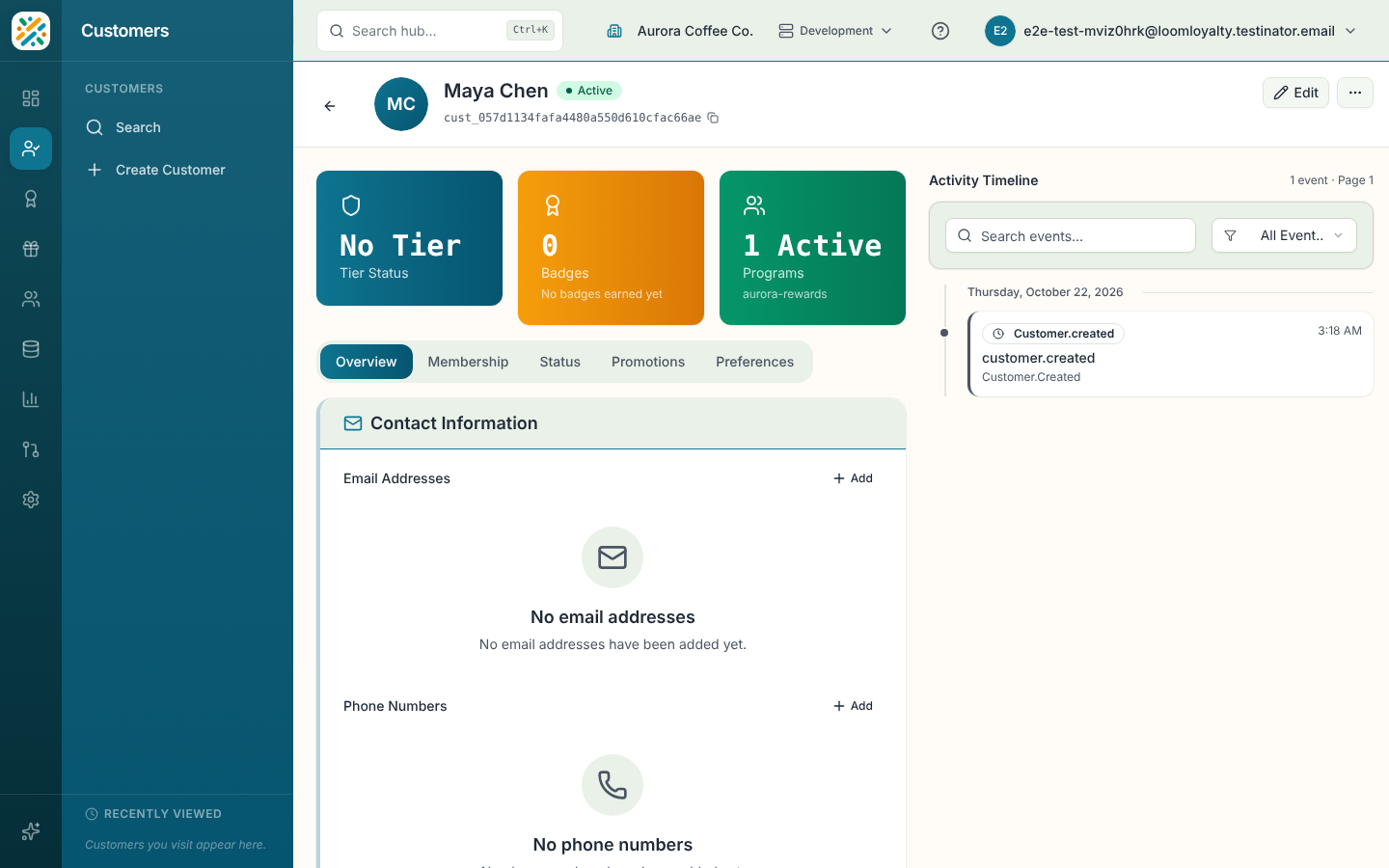
What's on the page
The left side starts with a status strip showing Tier Status, Badges and Programs, then five tabs. The right side is the Activity Timeline.
| Tab | What it holds |
|---|---|
| Overview | Contact Information (emails, phones, addresses), Recent Transactions from the ledger with a link to the full history, and Identifiers. |
| Membership | Programs the customer is enrolled in and Tier History. |
| Status | Segments (audiences they belong to), All Badges, Offers (coupons) and Tags. |
| Promotions | Promotion rules that apply to the customer. |
| Preferences | The customer's saved preferences. |
The timeline lists events newest first, with an Event Type filter and paging. Select an event to open its details, including its tags and data. For care agents, activities that were recorded by hand show Correct or cancel.
Common tasks
Edit the profile. Use the edit action in the header. The identity type is fixed after creation.
Enroll in a program. On Membership, use the add button in Programs, pick the program and save. You can later update the enrollment, unenroll or generate a referral code.
Assign a tier. In Tier History, select Assign tier. You can edit or remove an assignment later. Tiers marked Lifetime, Trial or Cancelled say so in the history.
Award a badge. On Status, in All Badges, select Award badge.
Issue a coupon. In Offers, select Issue and choose the offer. A coupon shows as Active, Held, Used, Cancelled or Expired. To mark one as used at the till, see Record coupon use. Active coupons can also be cancelled.
Add contact details, identifiers or preferences. Each list has its own add, edit and delete controls, opening a small form sheet.
Add to or remove from an audience. In Segments, add the customer to an audience or remove them.
Record activity. Select Record activity… to log an activity that has no dedicated form. It's shown only with the customer-care permission.
De-identify. Select De-identify Data and confirm. It permanently removes the customer's personal data to meet privacy rules, and you can't undo it.
If a section fails to load, a red banner at the top explains. Dismiss action errors with Dismiss.