Event Rules
An event rule watches for one kind of event, such as a purchase, and does something every time it sees one that matches. A coffee chain might use a rule to award 1 point per dollar on every purchase, and a second rule to double that on weekends.
If you're not sure a rule is the right tool, read Event Rules vs. Flows first. Anything that needs to wait, or to branch on what the customer does next, belongs in a flow.
Before you start
You need the event-engine:event-rules:read permission to see the list. Creating, editing, publishing and deleting need write access, and the Create Event Rule button won't appear without it. The rule's reward usually points at something that already exists, such as a currency, a badge or a target, so set those up first.
Find a rule
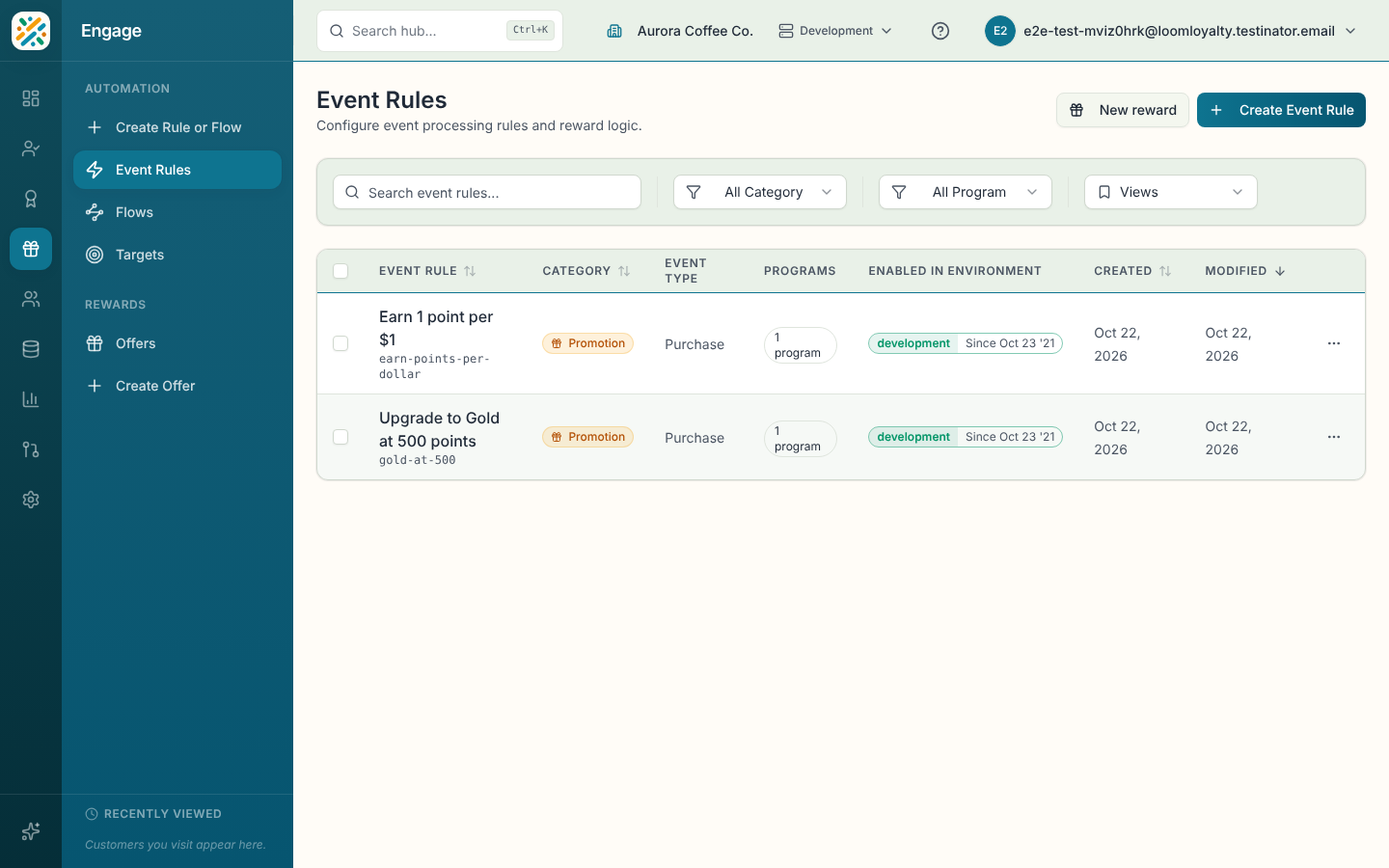
Open Engage, then Event Rules under Automation. The table shows each rule's name, category, event type, programs, and when it was created and last modified. Search by name, or filter by Category and Program. You can save a filter combination as a view from the menu at the end of the filter bar.
Select a row to open its details: the conditions and actions in plain language, its targets, and its version status. Each row also has a menu with View details, Edit, Delete and Enable in Environment. To enable several rules at once, tick their checkboxes and use Enable in Environment from the bulk bar.
Create a rule
- Select Create Event Rule. The New Event Rule sheet opens.
- Enter a Name. The Code fills in from the name ("Auto-generated from name"). Change it only if you need a specific code, because the sheet then shows "Manual override active".
- Pick a Category. It sets the order rules run in, so a Base rule runs before a Promotion rule.
- Pick one or more Programs. Optionally add a Description.
- Open Trigger and choose the event the rule listens for. If the event type you need doesn't exist yet, the picker lets you add a new one without leaving the sheet.
- Open When and select Add condition if the rule should only fire for some events, for example purchases over $20 in store. With no condition, the rule fires on every event of that type.
- Open Then do and select Add action. Describe what you want in the box (for example "give 500 points, or award the VIP badge") or build it by hand. Quick Start (Always True + Actions) gives you an empty "always" rule to add actions to.
- Open Caps & limits if you need them (see below).
- Select Save to keep a draft, or Activate to publish it.
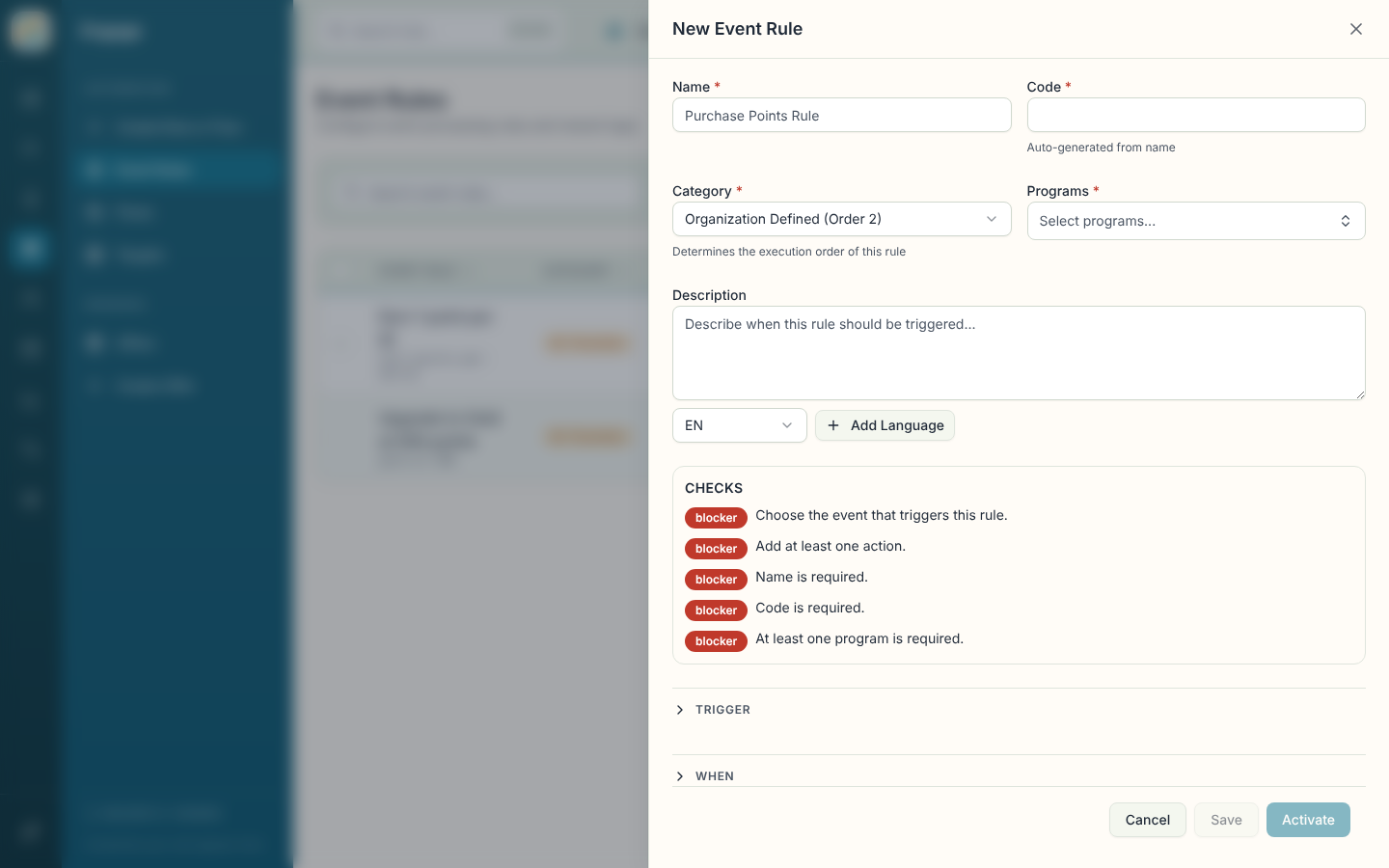
Save only needs a name, code, category, programs and trigger. A rule with no actions can be saved, but Activate stays unavailable until it has at least one. The Checks panel in the sheet lists anything blocking you, so look there first if a button is greyed out.
Caps & limits
This section holds the settings that constrain a rule.
| Setting | What it does |
|---|---|
| Promotion Target | An optional single target tied to a promotion. |
| Occurrence Targets | Count occurrences of the event against one or more targets. |
| Currency Targets | Limit a currency, for a program, by a target. |
| Currency Targets To Exclude | Currencies that don't count toward the limit. |
| Process Items Individually | Handle each item in the event data (each line of a purchase, say) on its own. |
| Roll Up Event Rule Results | Combine the results from those individual items. |
You can create a new target from here with the plus button next to a target picker.
Test a rule before it goes live
The Backtest section replays real past events through your saved draft and through the latest published version, then shows what each would have awarded. Choose a window of 30, 90, 180 or 365 days, or set a Start date and End date under Custom, and select Run backtest.
Read the Cost change against the published version first: it shows, per currency, how much more or less the new draft would have cost. The result also covers totals, the overlap between the two versions, and the top customers affected. Backtest runs against the saved rule, so save your edits first.
Versions: publish, pause, resume
Open a rule's details to manage its life cycle. Which buttons you see depends on the rule's state.
- Publish makes a draft version live.
- New Version starts a fresh draft from the current rule, so you can change a live rule without touching it until you publish.
- Pause stops the rule from processing rewards immediately, in every environment it's enabled in. You confirm first, and you can Resume it later.
- Delete removes the rule permanently and takes it out of all its programs. It can't be undone.
- Edit reopens the sheet.
Publishing a rule that awards points can also complete a step in the onboarding checklist.