Spindle
Spindle is the SQL workbench for your program's data. Use it when the standard Performance charts don't answer your question: which stores had the most visits last week, how many customers joined from a given campaign, who your top earners are. You can write SQL yourself, or ask in plain language and have the assistant write it for you.
Before you start
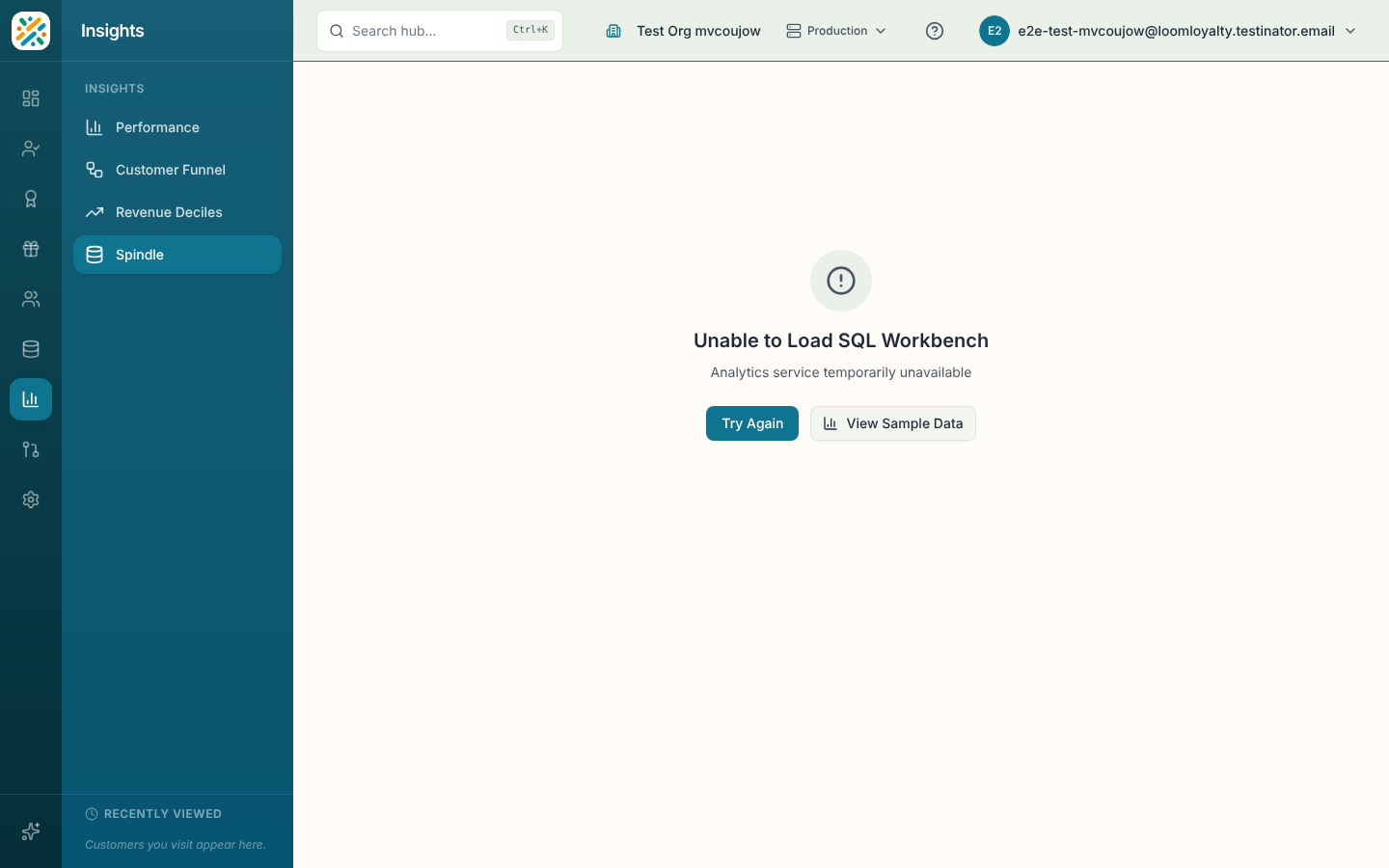
Spindle is part of the Analytics plans. Without it the page says the SQL Workbench is available on Analytics plans and offers View Sample Data, which lets you try the layout against made-up data. If it can't load, you'll see Try Again and the same sample option.
Queries are read-only views of your data. Spindle adds a limit of 1,000 rows to any query that doesn't have one, so add your own LIMIT if you want a different number. A query that runs too long stops with a message suggesting a LIMIT or a narrower date range.
Ask a question
- In the assistant box above the editor, type a question such as "top spenders this quarter" and select Ask.
- The assistant fills the editor with SQL, and tells you any Assumptions it made. If it needs more detail, it asks a clarifying question instead.
- Read the SQL, change it if you want, and run it.
Follow-up questions build on the one before, and a note shows which question you're continuing from. Select Start new question to begin fresh. Next to Ask there is also Explain SQL, which describes in plain words what the SQL in the editor does.
Nothing runs until you run it yourself, so you always get to review what the assistant wrote.
Write and run SQL
Type in the SQL editor and select Run Query, or press Cmd+Enter (Ctrl+Enter on Windows). The button shows Running... while the query is in flight.
The schema browser on the left lists your datasources, their columns and column types. Select a column to insert it at the cursor. Use the toggle in the header to hide or show it.
The Examples menu gives you ready-made starters. Items tagged Ask send a question to the assistant, and items tagged SQL load a query straight into the editor, such as event volume by type, customers by tier, or top customers by earnings.
Save queries
The Saved menu keeps queries you want to reuse. Type a name under Query name... and select Save. You can mark a saved query as a favorite, load it back into the editor, or delete it. Saved queries are stored in your browser for the current environment, so they don't follow you to another browser or device.
Read the results
Results appear below the editor. Switch between a table and charts with the result view buttons, and pick the Measure to plot. Select Export CSV to download the rows. The table shows how many rows came back, and notes when Spindle added a limit.
After a successful query you can select Explain results for a short written summary. If a query fails, select Try to fix with AI to get a corrected version in the editor to review and run.
Open Spindle from a chart
The Explore link on a Performance chart opens Spindle with a query for that chart and the date range already applied. A banner at the top says where you came from, and Back to Analytics returns you to Performance. If there's no saved query for that chart, the question is pre-filled for the assistant so you can review it and ask.