Flows
A flow is a customer journey made of steps. A welcome series is the classic example: issue a welcome offer, wait 7 days, then give bonus points if the customer hasn't bought anything yet. Weave remembers where each customer is in the journey until they finish.
Flows replace the older Campaigns feature. For a single immediate action, an event rule is simpler. Event Rules vs. Flows helps you choose.
Before you start
You need event-engine:flows:read to open the list and event-engine:flows:write to change a flow. Publishing, pausing, resuming and archiving each check their own permission, so you may be able to edit a flow but not publish it.
The flow list
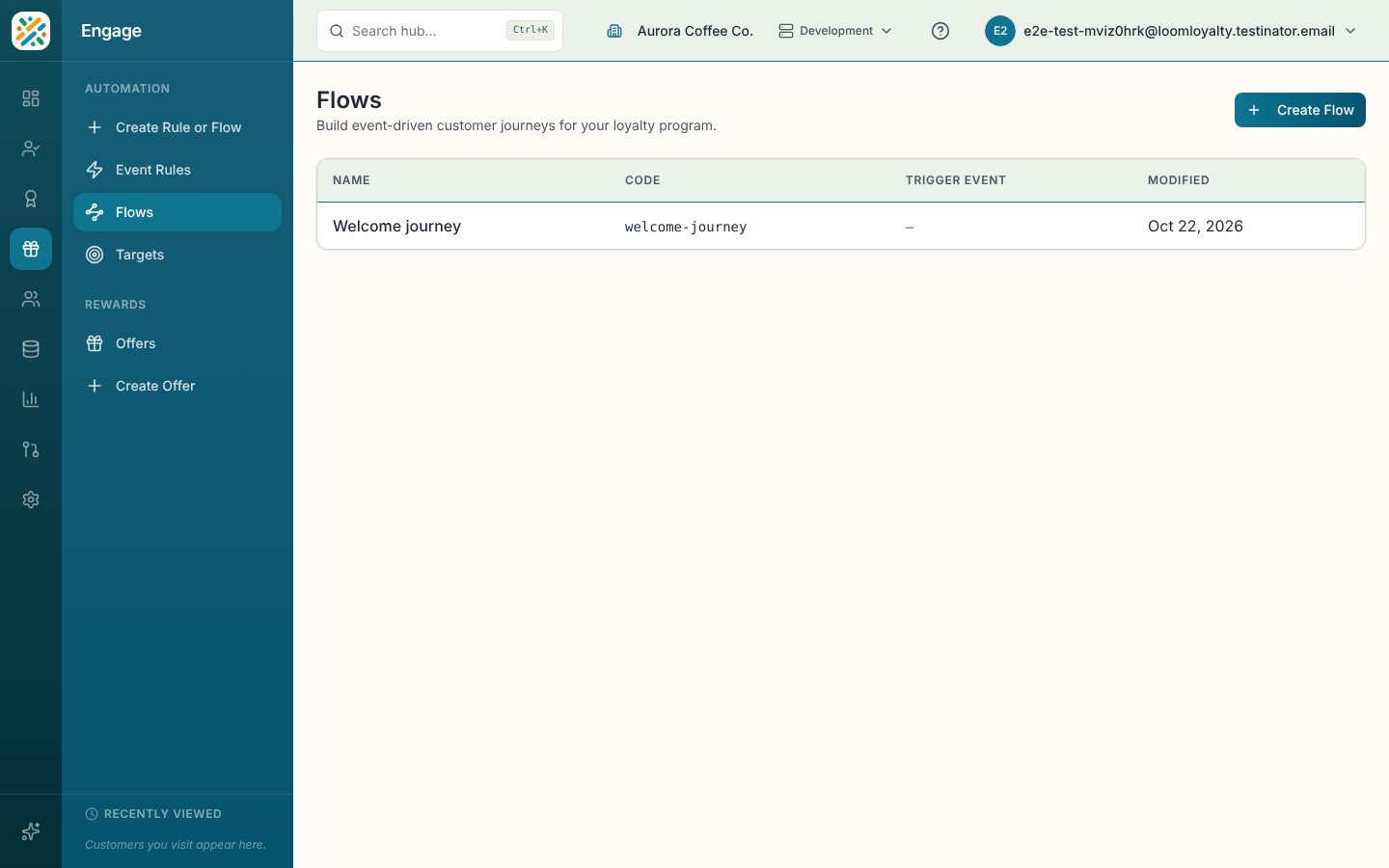
Open Engage, then Flows. The table shows each flow's name, code, trigger event and when it was last modified. Select a row to open the flow in the builder, at its latest version.
Create a flow
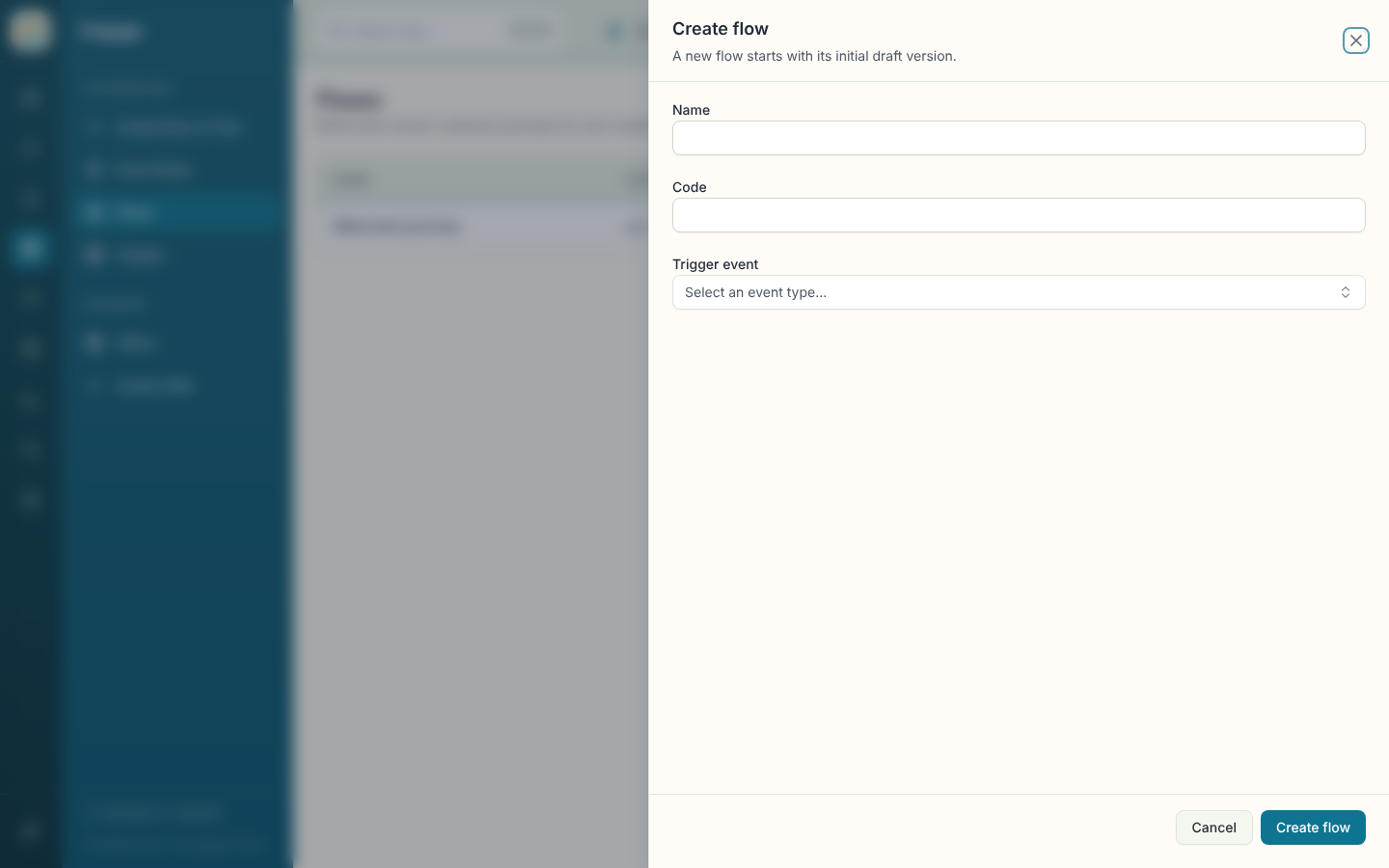
- Select Create Flow. The Create flow sheet opens.
- Enter a Name. The Code follows it until you edit the code yourself. Codes use lowercase letters, numbers and hyphens.
- Choose the Trigger event, which is the event that enrolls a customer.
- Select Create flow. You land in the builder with the flow's first draft version.
Let Weave AI draft it
Create Rule or Flow in the sidebar (or the Home quick actions) lets you describe what you want in a sentence. If Weave AI decides it's a flow, you land on a draft page headed Draft from Weave AI, showing the drafted steps on the canvas with the note "Not saved yet".
Look the steps over, then select Create flow. A dialog named Create this flow shows why Weave AI chose a flow and asks for a name, code and trigger event. If it lists things under "You'll need to fill in:", those are parts of the draft that point at things that don't exist yet, and you'll finish them in the builder. Look at the steps closes the dialog so you can keep reading, and Discard throws the draft away. Nothing is saved until you create it. If the flow saves but its steps don't, the dialog says so and offers Open flow so you can carry on in the builder.
Build the steps
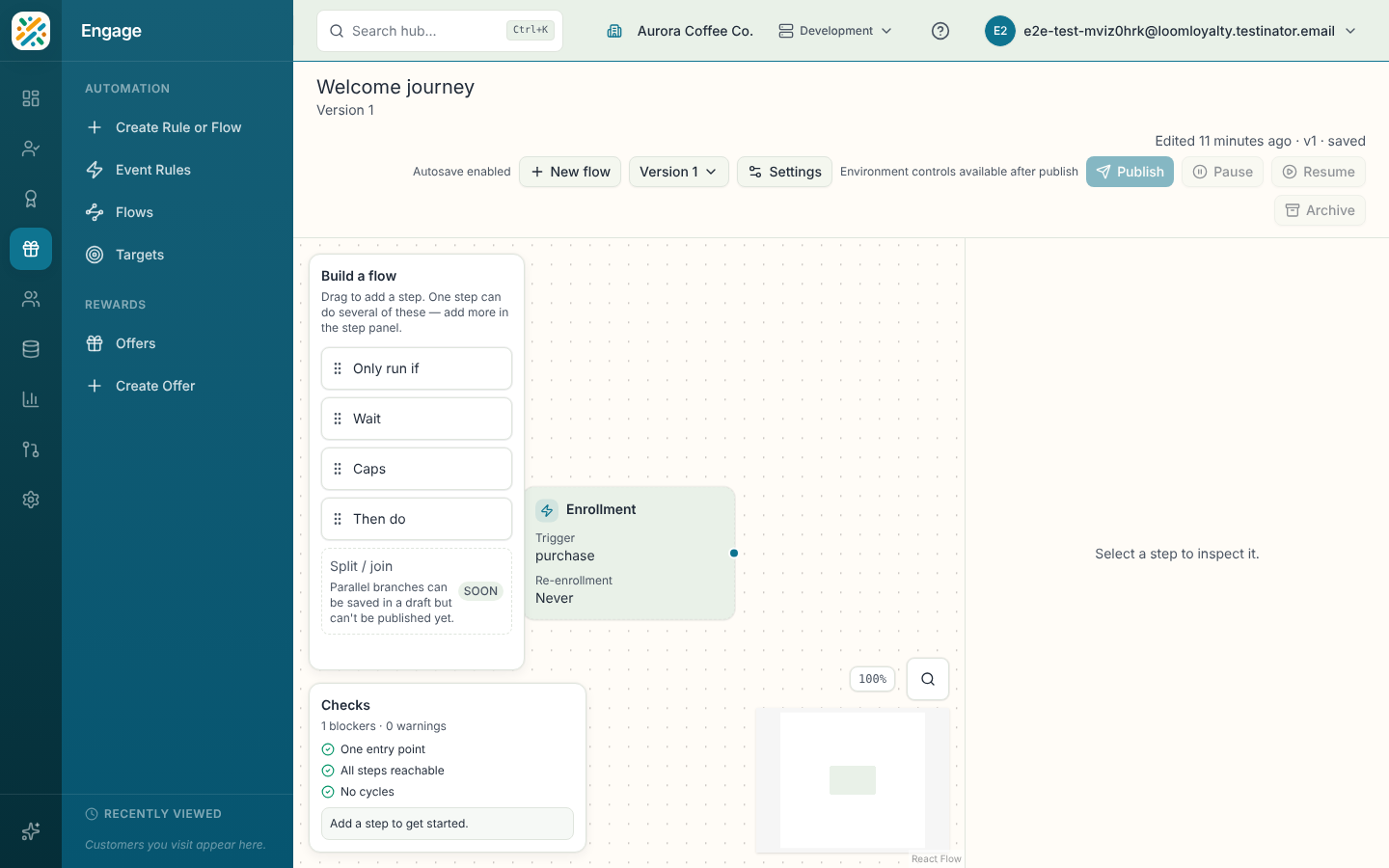
The builder shows the flow as a canvas. An Enrollment card on the left shows the trigger event and the re-enrollment setting, and each step is a card connected to the next.
To add a step, drag an item from the Build a flow panel onto the canvas (or focus one and press Enter). One step can combine several of these, and you add more from the step panel. Select a step to open its inspector on the right, where you can pick the Programs it applies to and configure these parts:
| Part | What it does |
|---|---|
| Wait | Pause the customer, either for a Duration ("Resume after") or until an Event happens. You can set a Resume condition and a Maximum wait. |
| Only run if | A condition. When a step has one, it routes to a Yes step or a No step. |
| Caps | Occurrence, currency and excluded-currency targets that limit the step. |
| Then do | The actions the step takes, such as awarding points or issuing an offer. |
| Then go to | Which step comes next (Then), when there's no condition. |
A wait that has a maximum wait can also send customers down a Timed out path. Use the search button on the canvas to find a step in a big flow, and Delete step in the inspector to remove one.
The Checks panel at the bottom left counts blockers and warnings and lists each check. Blockers have to be cleared before you can publish.
Autosave
Changes to a draft save as you go. The line at the top right tells you where you are, for example "Edited 2 minutes ago · v1 · saved". If it says "Pick an entry step to save this flow.", choose the step customers should start on. If you try to leave with unsaved work, you're asked whether to Stay or Leave anyway.
Versions
Each flow has numbered versions, and only one is the live one. Open the Version menu in the toolbar to switch between them. The list shows each version's status, such as PUBLISHED or DRAFT.
A published version is read-only. To change a live flow, select Edit as new draft. If a draft already exists, the button reads Open draft v2 (or whichever number) so you don't end up with two. When the draft is ready, Publish it.
The toolbar also has Pause, Resume and Archive, and a count of how many environments the flow is enabled in. The environment controls become available after you publish. Settings shows the trigger event, trigger subtype and re-enrollment policy. Re-enrollment can't be edited in the builder yet, and some platform triggers always require it to be "Never".