Badges
Badges mark achievements: "First Purchase", "Ten Visits", "Early Adopter". Unlike tiers they don't form a ladder, though you can give them a rank to control display order. A badge can be permanent or last for a set period.
This page defines the badges. Awarding them is done with your rules and targets.
Before you start
You need the customer-status:badges:read permission and at least one program. Create and edit controls only show when you're allowed to change badges.
Find a badge
Columns: Badge (name and code), Description, Type, Rank, Programs, Created and Modified. Use Search badges... and the Type dropdown. With no badges you'll see "No badges found. Create your first badge to get started."
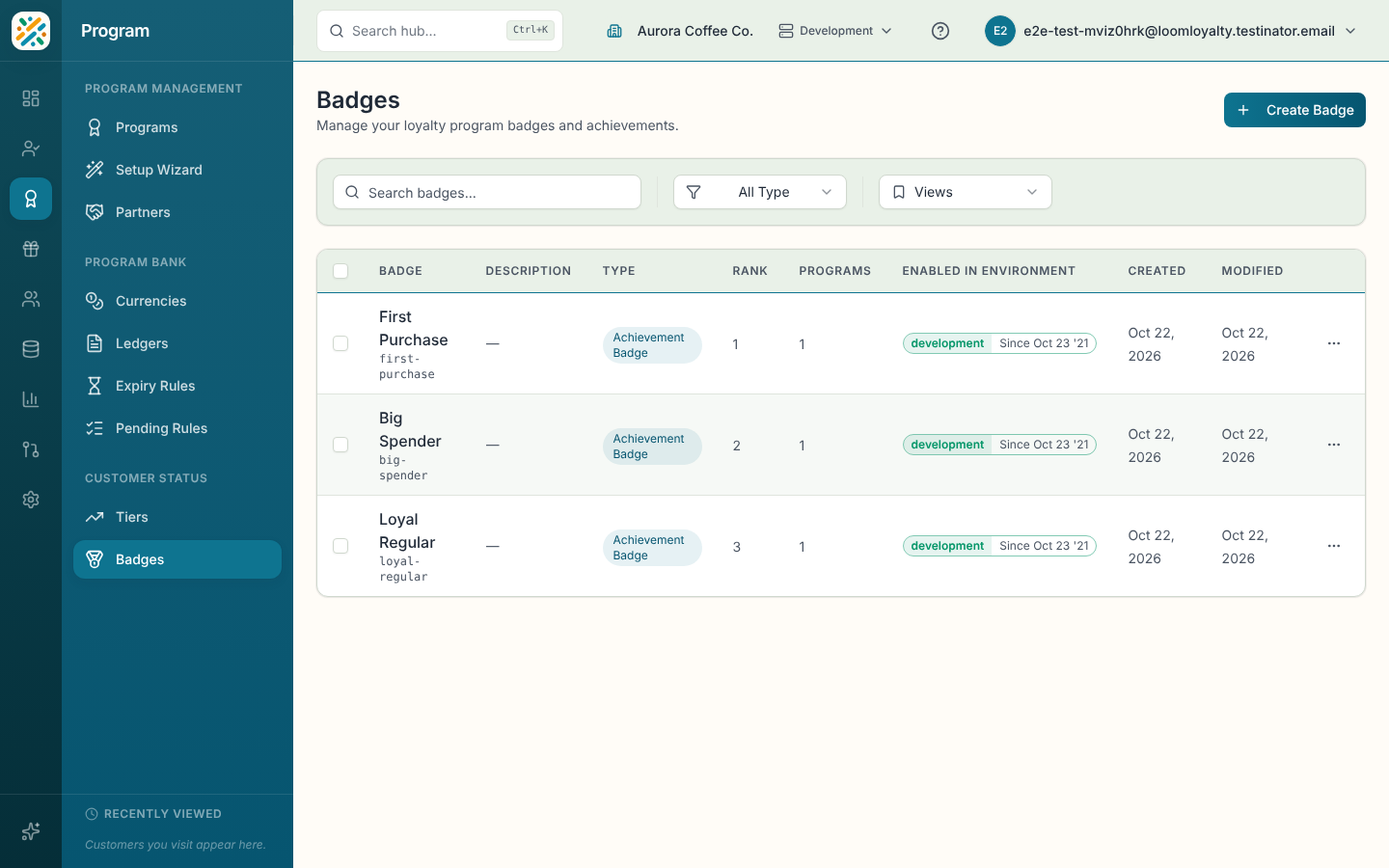
Create a badge
- Select Create Badge.
- Enter a Name, check the Code, and choose a Badge Type.
- Choose at least one Program. Without one, the sheet shows "At least one program must be selected."
- Add a rank, duration or description if you need them, then select Create Badge.
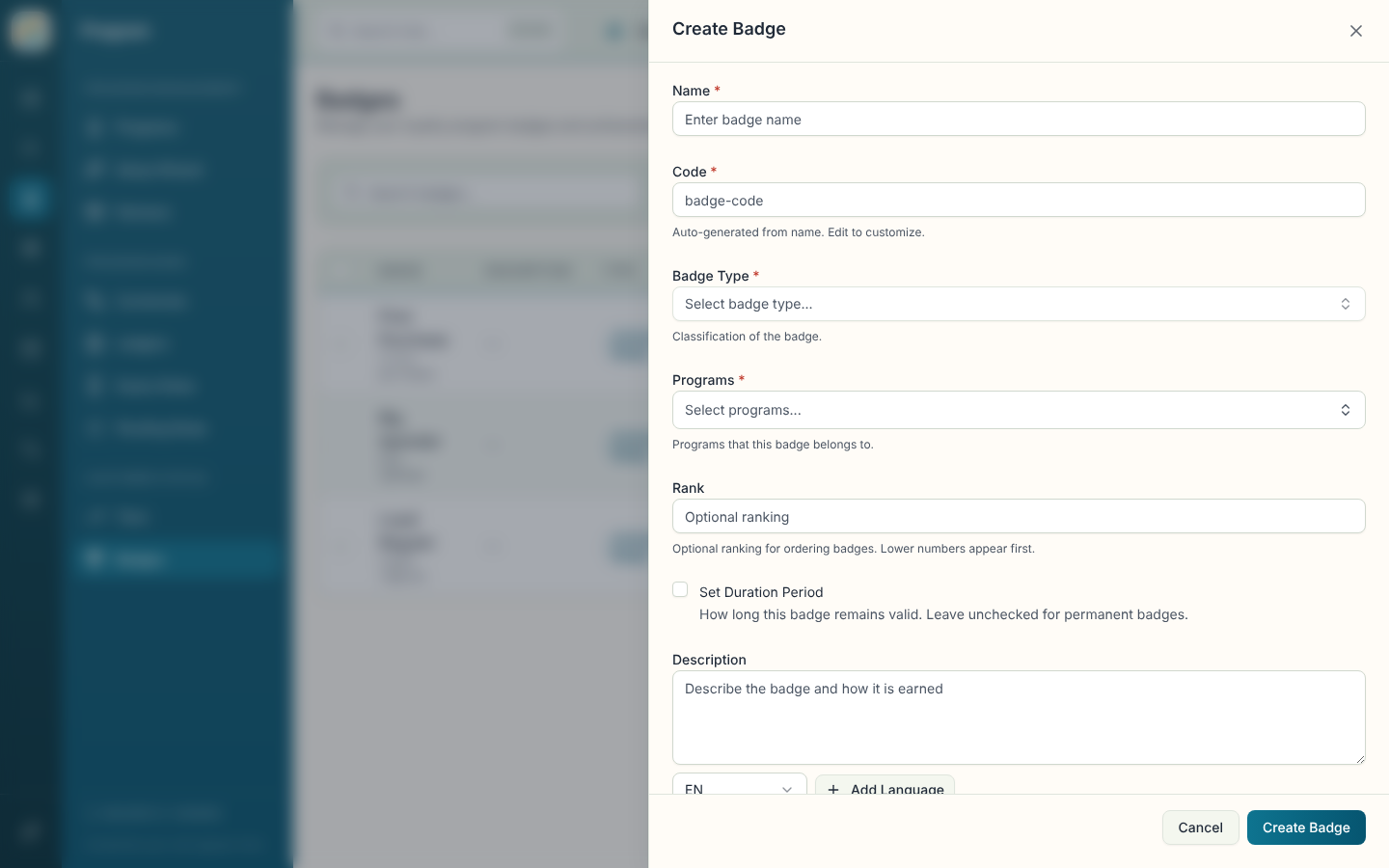
| Field | What it does |
|---|---|
| Name (required) | Display name. |
| Code (required) | Unique identifier, generated from the name. Locked after creation. |
| Badge Type (required) | Classification of the badge. Pick one or type a new one, which is created on save. |
| Programs (required) | Programs the badge belongs to. |
| Rank | Optional whole number of at least 1. Lower numbers appear first. |
| Set Duration Period | Leave unchecked for a permanent badge. Tick it to set Period Type, Duration Value, Period Unit, Start Date and an optional End Date. |
| Description | Multi-language description of the badge and how it's earned. |
| Additional Information | Extra fields from your data model, if any. |
Open, edit, delete or enable a badge
The details sheet shows Name, Code, Description, Type, Rank, Duration, associated programs and timestamps. Edit and Delete are on the sheet and in the row menu. Deleting is permanent and may affect customers who hold the badge. Enable in Environment is covered on the Programs page.