Environments
Environments separate your organization's work into stages, such as Development, Staging and Production. A coffee chain might keep a Staging environment to try a new "Double points weekend" before it goes live. Use this page to see what you have and to add, rename or remove environments.
Before you start
You need permission to read environments to see the page.
View your environments
- Open Organization and select Environments.
- Check the three counters at the top: Total Environments, Active Environments and Production.
- Browse the table, which shows Name, Code, Status and Created.
- Open a row's menu and select View to see its details in a side panel.
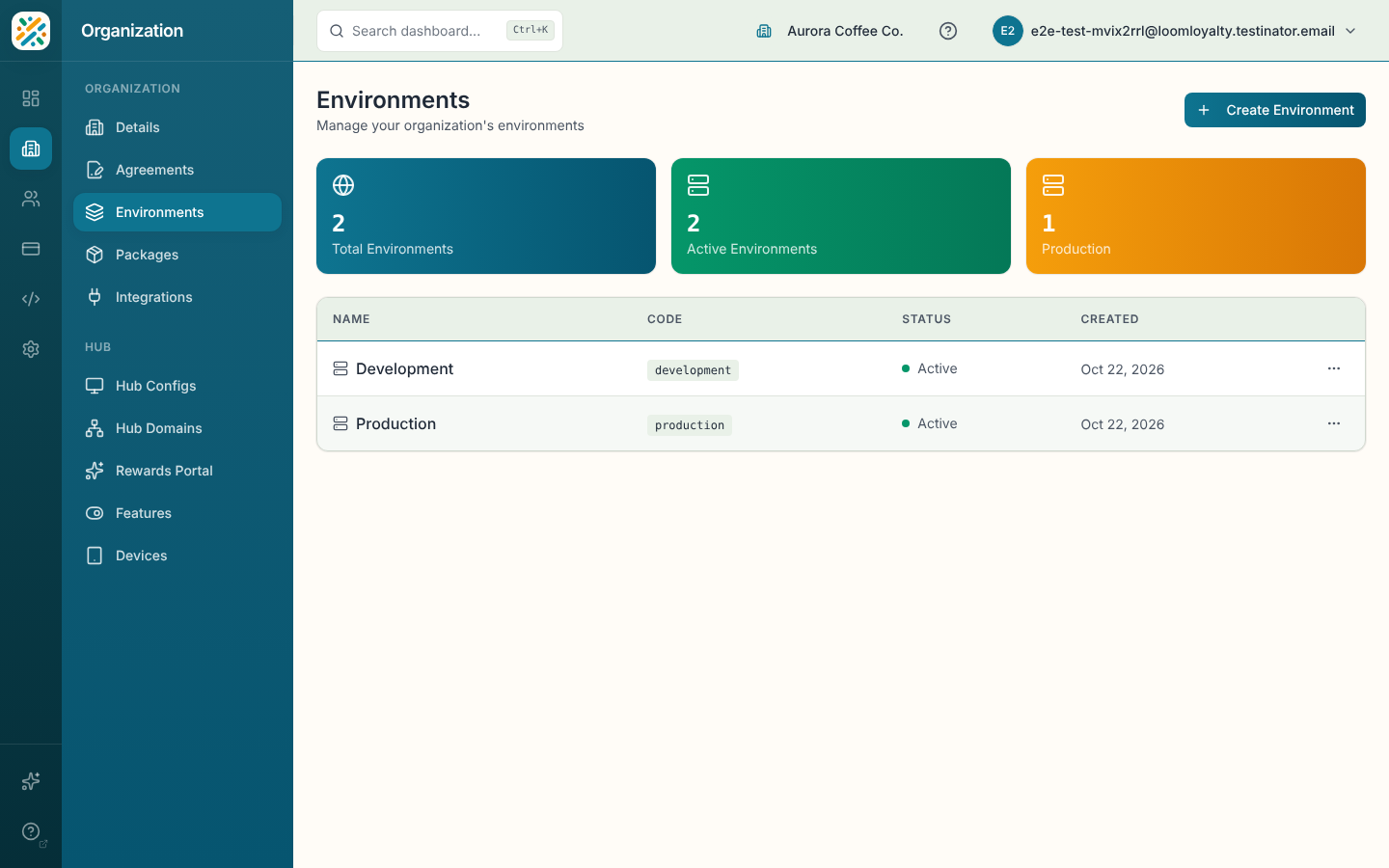
With no environments, the page reads "No environments yet" with a Create Environment button.
Create an environment
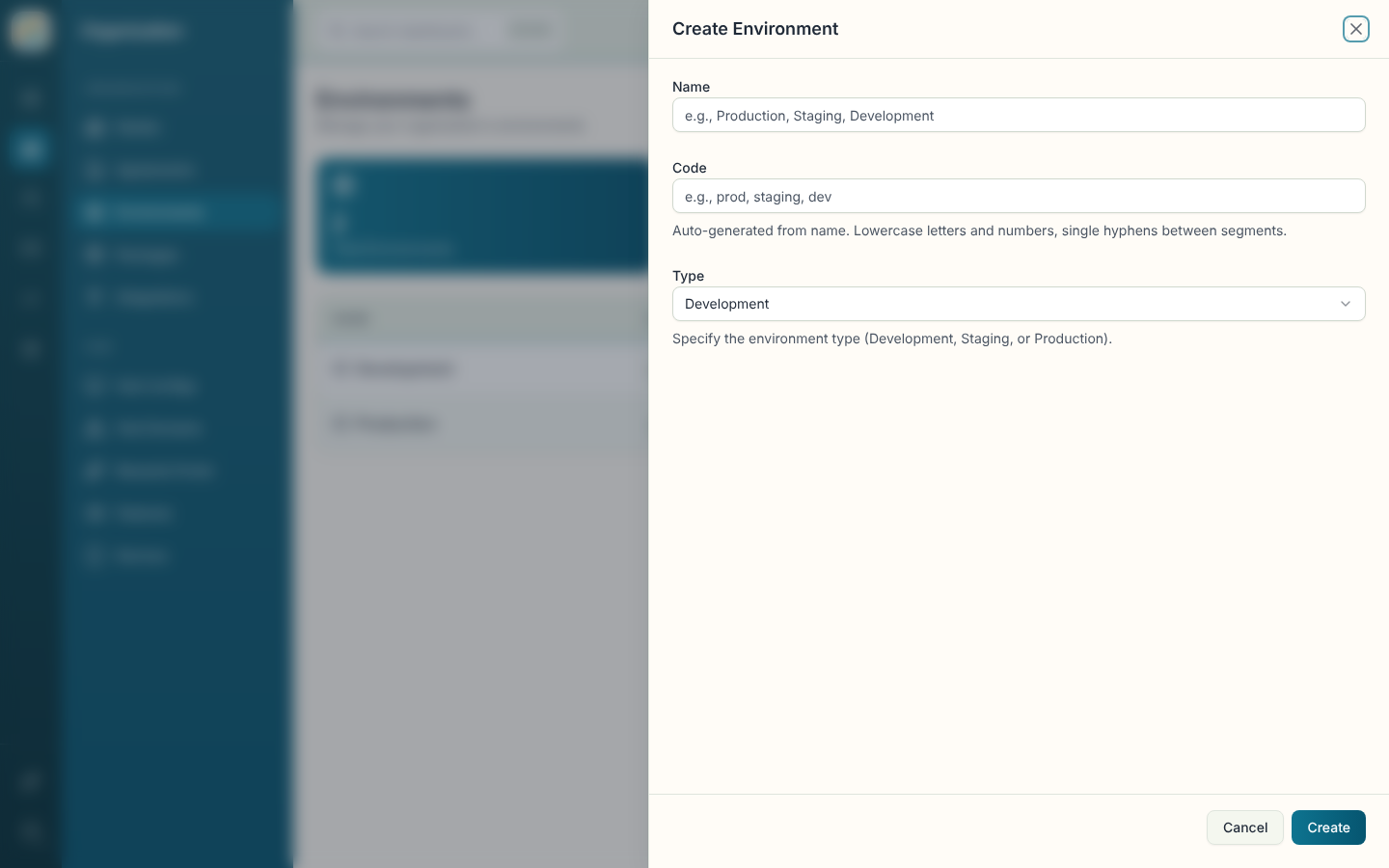
- Select Create Environment.
- Enter a Name, up to 100 characters. The Code fills in automatically from the name. You can overwrite it with lowercase letters and numbers, using single hyphens between segments.
- Choose a Type: Development, Staging or Production.
- Select Create.
Edit an environment
- Open the row's menu and select Edit, or select Edit in the details panel.
- Change the Name, Code or Type.
- Select Save Changes.
Delete an environment
- Open the row's menu and select Delete.
- In the Delete Environment dialog, select Delete. This can't be undone.