Event Types
An event type is a kind of signal your program reacts to: a purchase, a store visit, a sign-up. Each one points at a data model that describes its fields, and carries one or more processing configurations that say how events of that type are handled. Rules use event types as triggers, so you set them up here first.
Before you start
You need the event-engine:event-type-configurations:read permission. The Create Event Type button and the edit controls only appear when your role can change event types and the environment isn't read-only.
Create the data model first if the event has fields your rules need to read. See Data Models.
Read the list
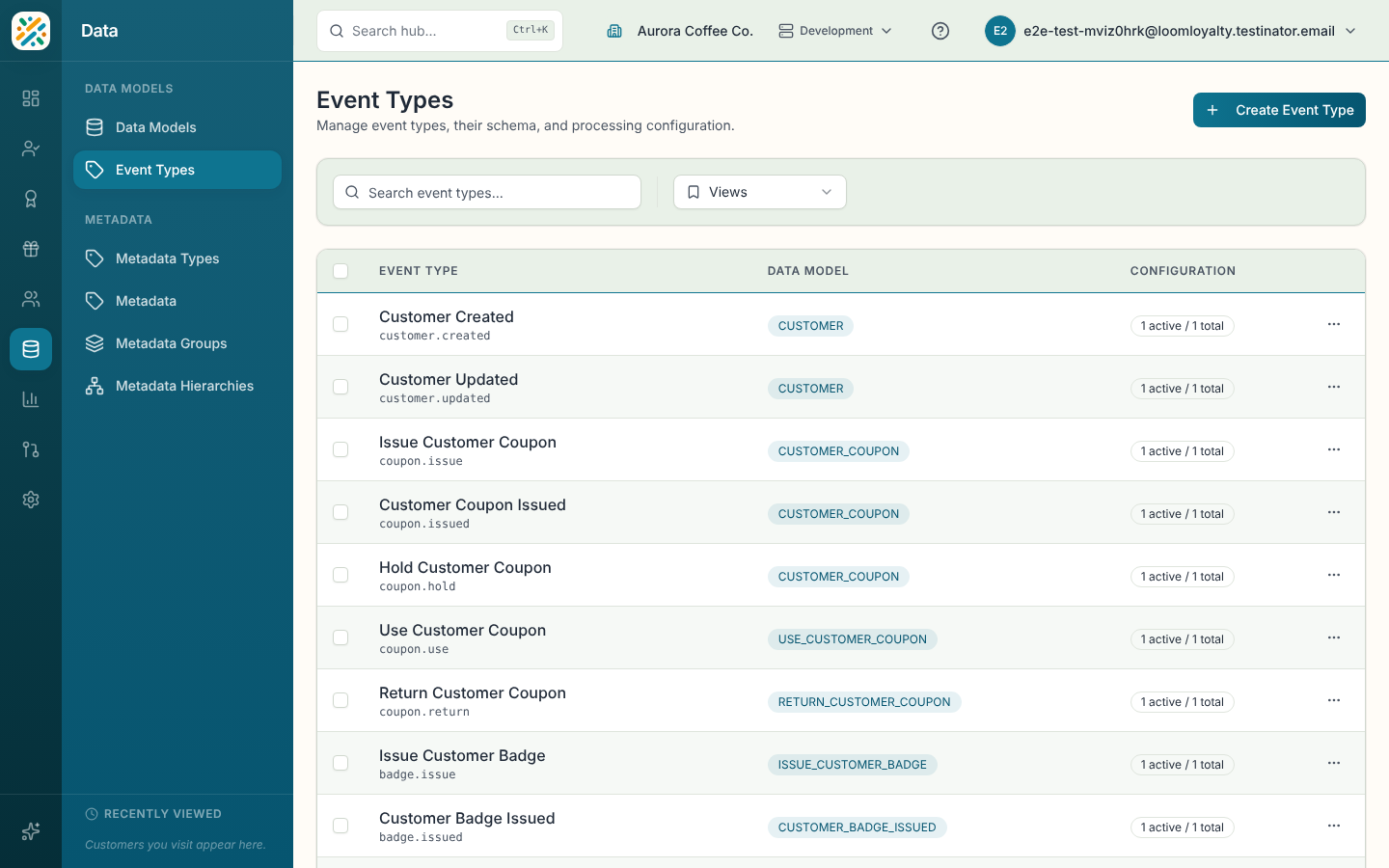
Each row is an event type, with three columns:
- Event Type: the name, with its code underneath.
- Data Model: the model that defines its fields, or a dash if none is linked.
- Configuration: how many of its configurations are active, for example
1 active / 2 total. It reads Not configured when the type has none. Select the badge to open the configurations.
Search with Search event types.... Sort by name, code, created or modified date.
Create an event type
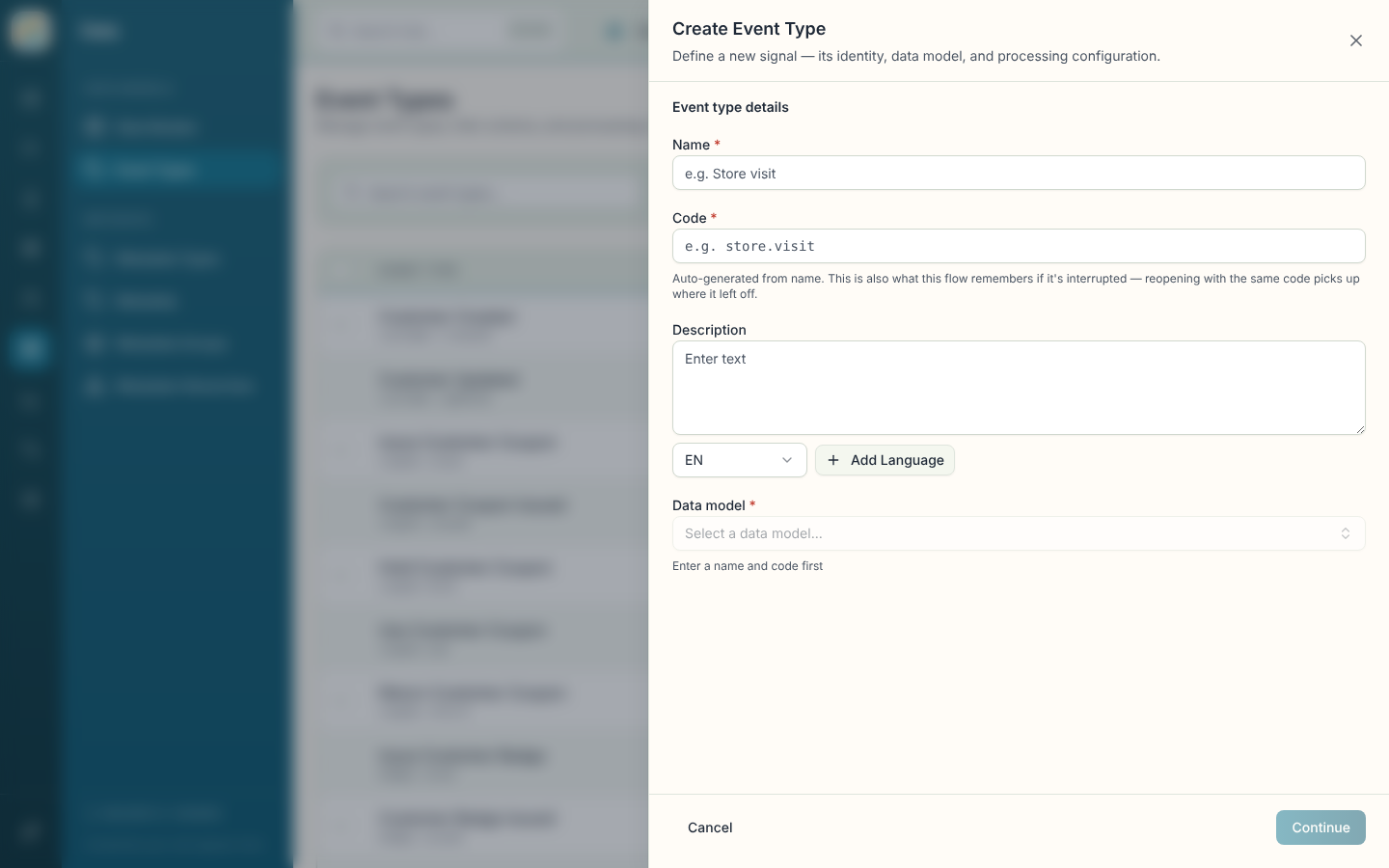
- Select Create Event Type.
- Fill in Event type details: a Name (for example
Store visit), a Code (for examplestore.visit), an optional Description and the Data Model. The data model picker needs a name and code first. - Under Processing settings, optionally add a Sub-type such as
PURCHASE, and decide on Synchronous processing and Save unprocessed events. - Select Create Event Type.
The same sheet opens from inside the event rule editor as Add new event type, so you can define a trigger without leaving the rule you're building. There the button reads Create & use.
Open an event type
Select a row. The panel has three parts.
Identity and configurations. The name, code, description and data model, then a list of configuration variants. A variant is one configuration for a sub-type. If you never set a sub-type, the variant is labeled Default. Each shows whether it processes events synchronously (Sync) or not (Async). Next to a variant you can start a New rule for it or enable it in an environment. Add Configuration creates another variant.
Offered on. Two badges, Customer care and Developer, show which operator consoles list this event type. Use Add or Remove next to each to change it. This only changes which console offers the activity. It stays submittable through the API either way. For event types the engine emits itself, the registration decides whether developers can fire it in non-production environments.
Referenced by. The rules that trigger on this event type. It reads "No rules reference this event type yet." when none do. Flows are listed too, but the section says that isn't available yet.
Configuration settings
Selecting a variant opens its own panel, where you can edit or delete it. The fields are:
| Field | What it does |
|---|---|
| Name, Code | How you refer to this configuration. |
| Event Type | The event type it belongs to. |
| Sub Type Identifier | Splits one event type into variants, for example PURCHASE and RETURN. |
| Description | Free text. |
| Synchronous processing | Events are processed immediately in the request flow. |
| Save unprocessed events | Events that fail processing are kept for later review. |
| Processed Days Till Archival, Unprocessed Days Till Archival | How long events are kept before they're archived. |
| Default Event Description, Event Description JSON Path | The text shown for events of this type, and where in the payload to read it from. |
Delete a configuration
Deleting a configuration is permanent. The dialog lists the active rules that trigger on this event type, and warns that they stay active but will stop firing correctly. Deactivate those rules yourself first if you don't want that.