Metadata
This is the catalog of individual values: "Austin Congress Ave" under Store, "Acme" under Brand. Each one belongs to a metadata type. Rules can then target them, and you can collect them into groups.
Before you start
You need the metadata:metadata:read permission. Create the metadata type first, because every value needs one. If you have a lot of values to load, use Metadata Import instead of adding them one at a time.
Create a metadata value
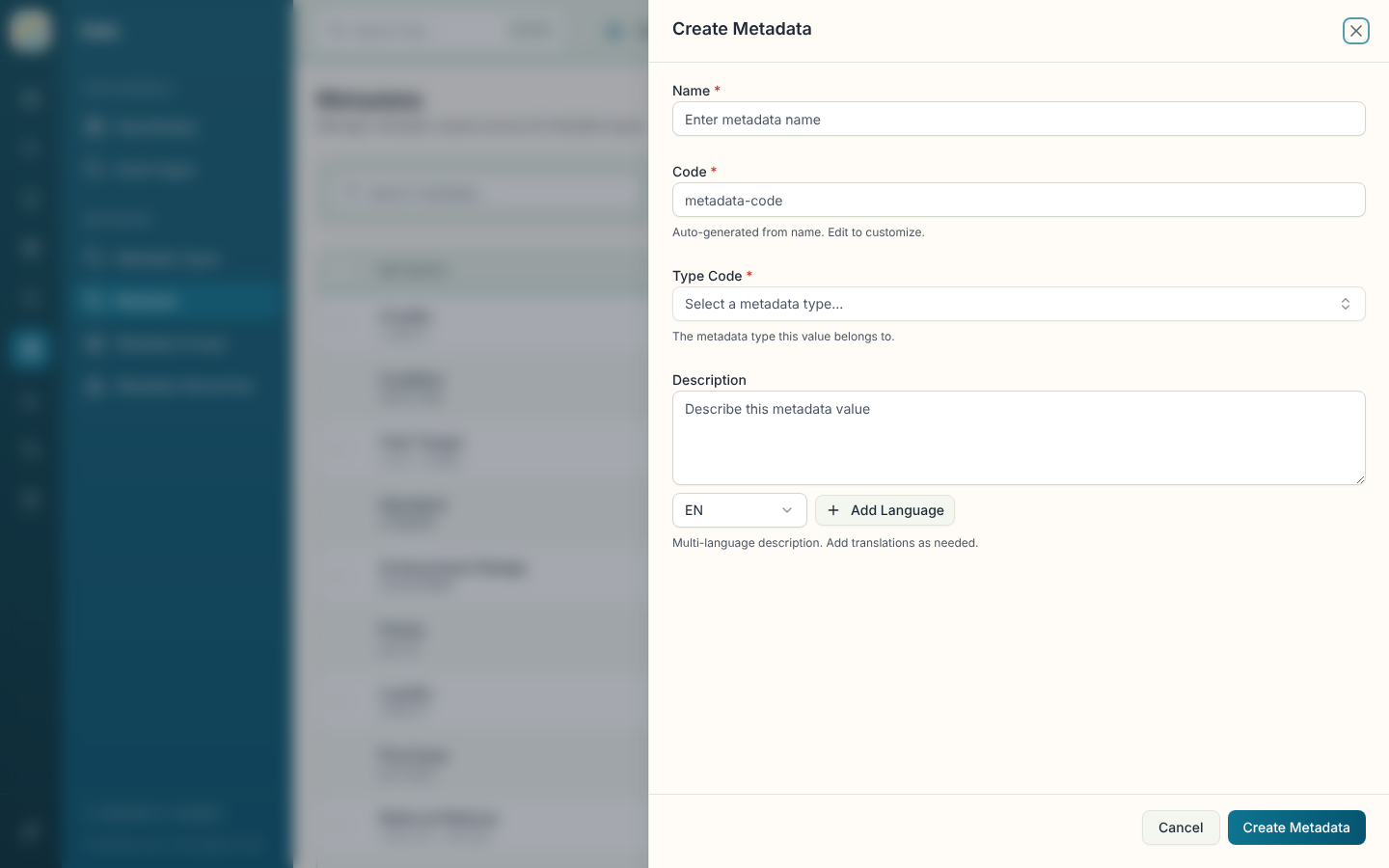
- Select Create Metadata.
- Enter a Name. The Code fills in from it, and you can edit it.
- Choose the Type. This is the metadata type the value belongs to, and you can't change it after you create the value.
- If the type has parent types, a picker appears for each one, so you can place the value under, say, a district. Parents are optional.
- Add a Description if you want one. Some types show extra fields, such as an address for a location or a SKU for an item.
- Select the create button at the bottom of the sheet.
Find values
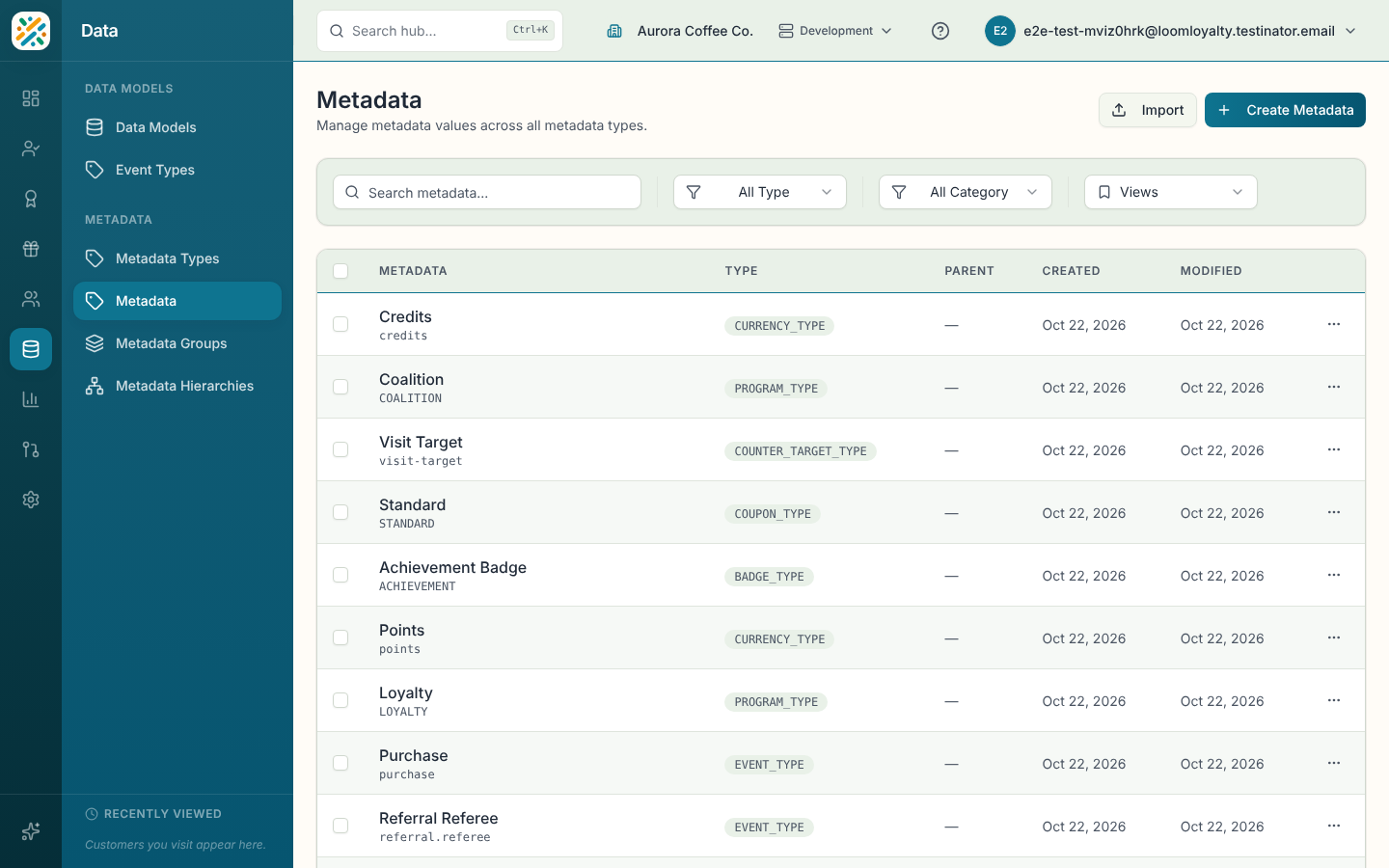
The table shows Metadata (name and code), Type, Parent, Created and Modified, newest first. Search with Search metadata... and filter by Type or Category. If the page says some metadata types couldn't be loaded, the Type filter may be missing entries. Use Retry to load them again.
Open, edit or delete a value
Select a row to see its Name, Code, Type Code and description. Under relationships you can set or remove its parent and add or remove children. The code and type are fixed on edit, so use the relationships section for parents and children.
Delete is in the panel and the row menu.
Save a selection as a group
You can turn a set of values into a metadata group without creating the group first.
- Tick the rows you want. The checkbox in the header selects the current page only.
- To take everything the filters match, select Select all matching entries (it shows the count when it's known). Untick any rows you want to leave out.
- Select Save as group, then name the group.
A group holds one type, so the button is unavailable if your selection spans several types. When you've chosen all matching entries, filter by Type first. A group can take at most 10,000 entries at a time, so narrow the filter if you hit that. If the group is created but some entries fail to attach, the page offers Retry adding entries or Dismiss. Changing a filter clears your selection and says so.
Use Clear selection to start over.