Metadata Groups
A metadata group is a named collection of values that share a type, such as "Downtown stores" or "Airport locations". Instead of picking stores one by one in a rule, you point at the group.
Before you start
You need the metadata:metadata:read permission to see groups. Creating a group and managing its members depends on your role, and on whether the environment is read-only. The values you want to group must already exist. See Metadata.
Create a group
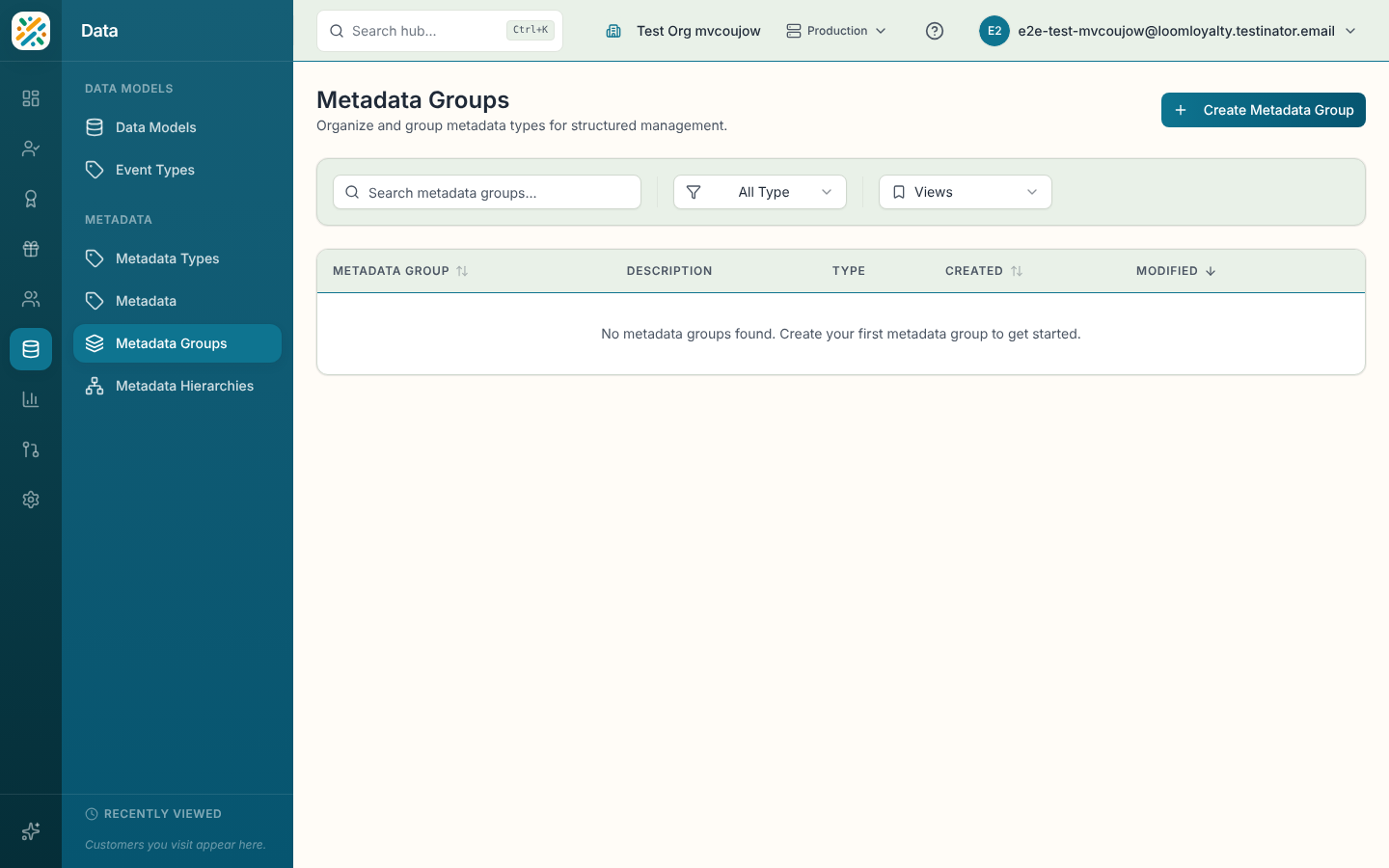
- Select Create Metadata Group.
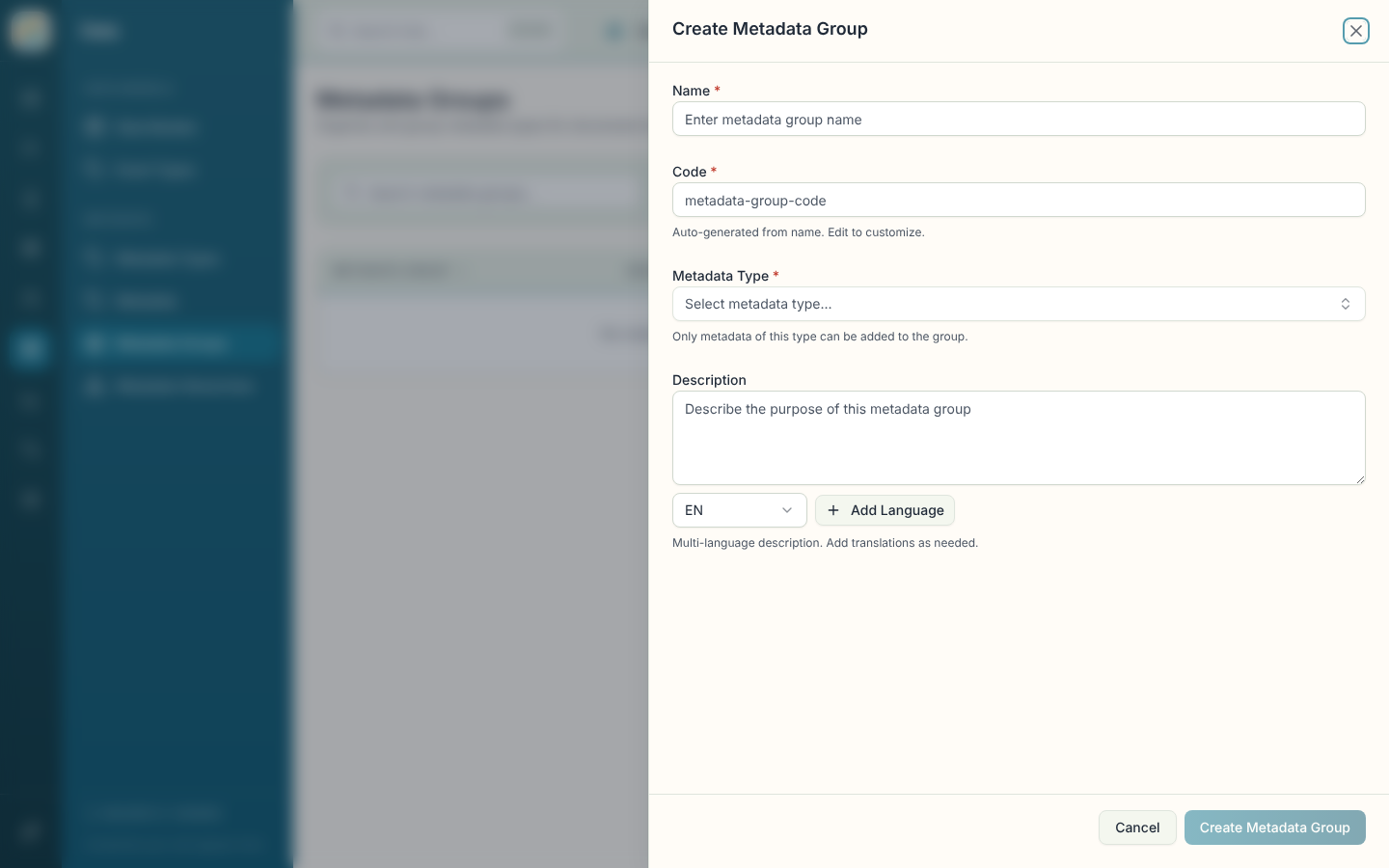
- Enter a Name and a Code. The code fills in from the name.
- Pick the Metadata Type. Only metadata of this type can be added to the group, and you can't change the type later.
- Add a Description if you like, then select Create Metadata Group.
You can also build a group straight from the Metadata page by selecting rows and choosing Save as group. See Metadata.
Manage the members
- Select a group to open its details. A short preview of the members shows under Members, with a count beyond the first few.
- Select Manage Members. The panel lists each member's name, code, description and type, and has Search members....
- Select Add Metadata to open a search (Search by name...) over the values of the group's type. Values already in the group are marked Added.
- To take a value out, use the remove button on its row.
An empty group reads "No metadata in this group yet."
Browse the list
The table shows Metadata Group (name and code), Description, Type, Created and Modified, with the most recently changed first. Filter by Type and search with Search metadata groups....
Edit or delete
Edit changes the name and description. The code and type are fixed once the group exists. Delete is permanent and may affect associated metadata.