Metadata Import
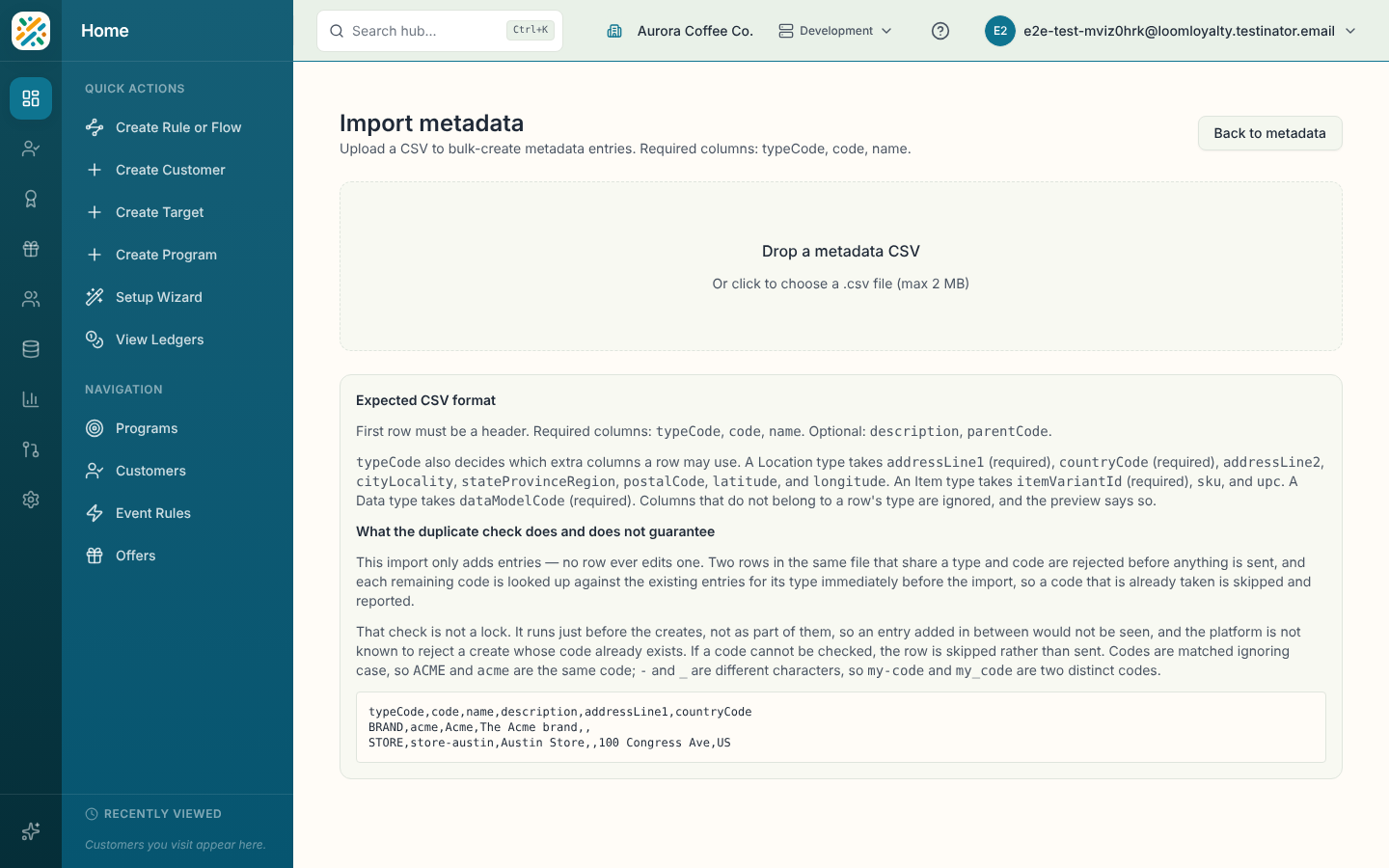
When you have fifty stores or a few hundred products to load, uploading a CSV is quicker than creating each entry by hand. The page reads your file, shows you a preview with any problems flagged, and only creates the rows you tick.
The import only ever adds entries. It never edits or overwrites one that already exists.
Before you start
The metadata types your file refers to have to exist already. See Metadata Types. The page loads the list of types first. If that fails, you'll see an error with Retry loading types, and you can't upload until it works.
There's no menu item for this page. Open it in the Hub at /organization/metadata-import. Back to metadata takes you to the catalog.
Prepare the file
Use a .csv file under 2 MB. The first row must be a header.
| Column | Needed | Notes |
|---|---|---|
typeCode | Yes | The code of an existing metadata type. |
code | Yes | Up to 64 characters. |
name | Yes | Up to 128 characters. |
description | No | Up to 500 characters. |
parentCode | No | The code of the parent entry. |
The type's category decides which extra columns a row can use:
- Location types take
addressLine1andcountryCode(both required), plusaddressLine2,cityLocality,stateProvinceRegion,postalCode,latitudeandlongitude. - Item types take
itemVariantId(required),skuandupc. - Data Type types take
dataModelCode(required).
Columns that don't belong to a row's type are ignored, and the preview tells you so. Here's a small example:
typeCode,code,name,description,addressLine1,countryCode
BRAND,acme,Acme,The Acme brand,,
STORE,store-austin,Austin Store,,100 Congress Ave,US
Import the file
- Drop the file on Drop a metadata CSV, or click to choose it.
- Check the Preview. It shows the file name and how many rows are valid and invalid. Each row has an Include box, its Type, Code and Name, and an Issues column that says what's wrong, for example that a code is too long or the type isn't known. Invalid rows can't be ticked.
- Untick anything you don't want to bring in.
- Select Import followed by the row count, for example Import 48 rows. Use Choose a different file to start over.
- Wait while the page checks each code and then creates the entries. A progress bar shows where it is.
- Read the summary: how many were created, how many already existed and were skipped, how many could not be checked, and how many failed. The Result column shows what happened to each row.
If there are failures or skipped rows, Download rows that were not imported gives you a CSV of them to fix and try again. Done returns to the catalog and Import another file resets the page.
The preview shows at most 500 rows. For a larger file the page tells you how many it's showing, and only those rows can be imported, so split the file and run it in batches.
How duplicates are handled
Two rows in the same file with the same type and code are both rejected before anything is sent. Codes are compared ignoring case, so ACME and acme count as the same code. A hyphen and an underscore are different characters, so my-code and my_code are two codes.
Before it creates anything, the page looks up each code among the existing entries of its type and skips any it finds. That check isn't a lock. It happens immediately before the creates, so an entry someone adds in between wouldn't be seen, and the platform isn't known to refuse a create when the code is already taken. If a code can't be checked, the row is skipped instead of sent.