Setup Wizard
The Setup Wizard creates a complete program in one sitting: the program itself, a currency, optional tiers, badges, expiry and pending rules, an earning rule, bonuses, and a test customer. At the end it builds everything and fires a test event so you can see points land. It's the quickest way to get a first program running, and a good way to see how the pieces fit before you manage them one by one.
Before you start
You need the program:programs:write permission.
The wizard only runs in your Development environment. Anywhere else the page shows "Switch to Development to continue", with a note that setup builds directly in the current environment with no review step. Use the environment switcher in the header, then come back.
Choose how to set up
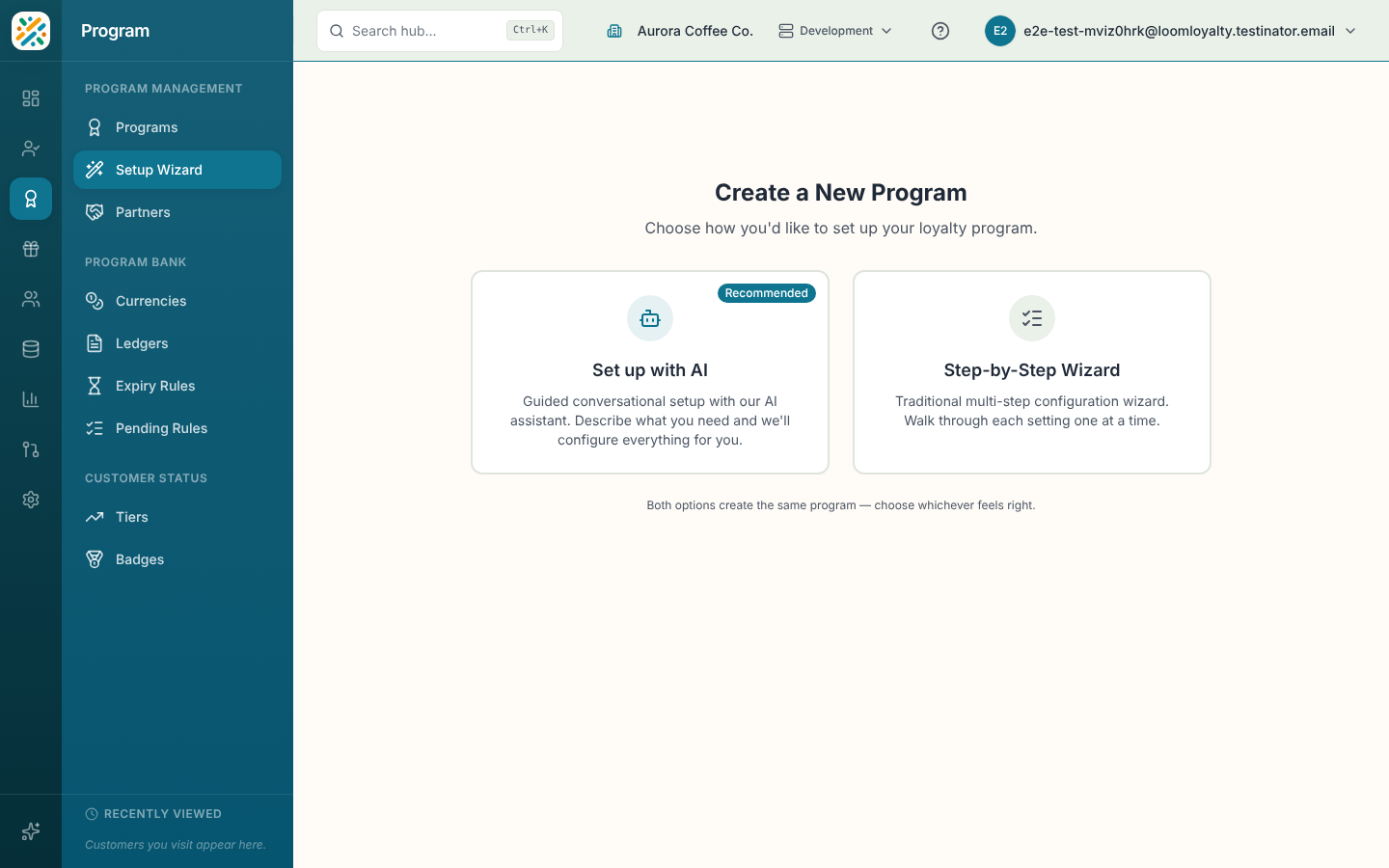
Open Setup Wizard from the Program menu, or from the button on the Programs page. The first screen, Create a New Program, offers two cards:
- Set up with AI (marked Recommended) opens the AI assistant with "I want to create a new loyalty program" and walks you through it in conversation.
- Step-by-Step Wizard is the form-based route this page covers.
Both create the same kind of program. Once you're in the wizard, Back to setup options returns you to this screen.
Move through the wizard
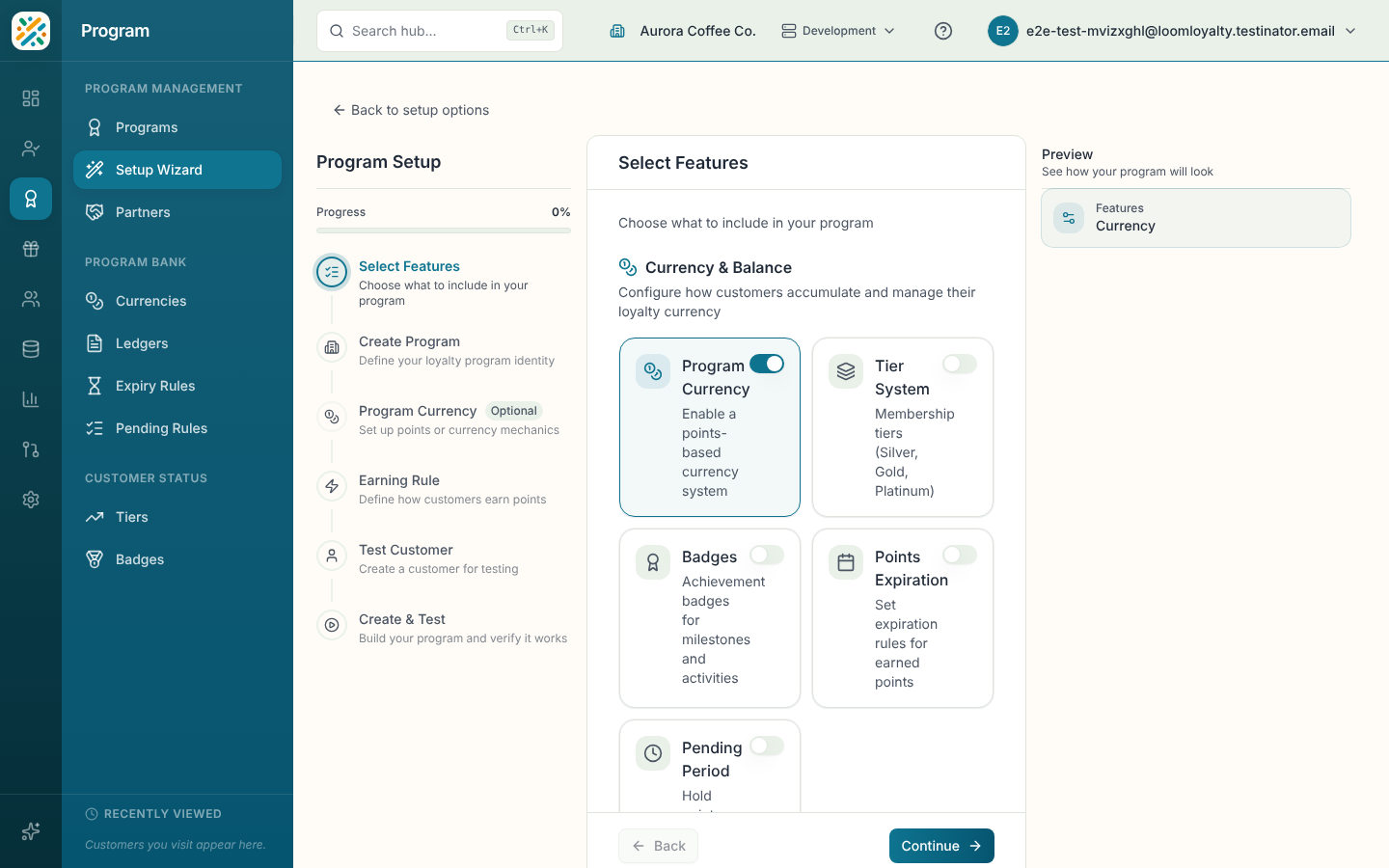
The steps run down the left, with a live preview of your program beside them. The buttons at the bottom are Back, Continue and, on optional steps, Skip for now. On the last form step, Continue reads Create Program. Start Over (shown after the first step) asks "Start Over?" and clears your progress. If something has already been created, it deletes those items too.
Save as template appears from the second step on and downloads your configuration as a file.
Which steps you see depends on the features you pick first.
1. Select Features
Choose what to include. Everything is a switch.
| Group | Option | Notes |
|---|---|---|
| Currency & Balance | Program Currency | Points-based currency. |
| Tier System | Membership tiers such as Silver, Gold and Platinum. | |
| Badges | Achievement badges. | |
| Points Expiration | Needs Program Currency. | |
| Pending Period | Hold points before they're available. Needs Program Currency. | |
| Earning Rules | Transactional Program or Event-Based Program | Earn from purchases, or from a custom event. Pick one. |
| Bonus Rules | Sign-up Bonus | Reward new customers on registration. |
| Birthday Bonus | Reward customers on their birthday. |
Turning off Program Currency also turns off expiration and pending. A Selected Features summary at the bottom shows what you've chosen.
2. Create Program
| Field | What it does |
|---|---|
| Program Name (required) | The customer-facing name, for example "Acme Rewards". |
| Program Code (required) | Generated from the name. It needs at least 3 characters, must start with a letter, and can contain only letters, numbers, hyphens and underscores, with at least 3 letters in total. |
| Program Type (required) | Choose an existing type or create one. |
| Auto-create program accounts | Create a program account when a customer is enrolled. |
| Account ID Generation | How program account IDs are generated. |
3. Program Currency
Pick an existing currency from the dropdown, which lists Existing Currencies, or create a new one. An existing currency is linked to the program as is. A new one asks for a Currency Name, Currency Code and Currency Type. A Currency Summary shows the result.
4. Points Expiration (if selected)
Choose an Expiration Type:
- Rolling Period: points expire a set time after they're earned.
- Fixed Period: points expire at the end of a calendar period.
- Fixed Date: all points expire on one date.
Period types ask for an Expiration Period (a number, at least 1) and a Unit. Fixed Date asks for an Expiration Date.
5. Pending Period (if selected)
Choose a Pending Type: Fixed Period, Rolling Period, Manual Approval or Fixed Date. Period types take a Pending Period and Unit, and Fixed Date takes an Available Date. With Manual Approval, points stay pending until someone approves them.
6. Program Tiers (if selected)
You must add at least two tiers before you can continue. Select Add Tier and fill in the sheet:
| Field | What it does |
|---|---|
| Tier Name (required) | For example "Gold". |
| Tier Code (required) | Lowercase letters, numbers and hyphens. Generated from the name until you edit it. |
| Points Threshold (required) | The minimum amount needed to reach the tier. It counts your currency, or the progression metric if you set one. |
| Progression Metric | What customers accumulate to earn the tier, such as visits, spend or nights. If you have a currency, the tier uses it by default and a Change link lets you use something else. |
| Description (optional) | A short description of the tier. |
Use Add Tier or Update Tier to save the sheet. Once you have two tiers, a checkbox, Automatically award base tier when customer joins, gives new customers the lowest tier on signup. If you tick it without a base tier in place, the wizard warns "Add a base tier first".
7. Program Badges (if selected)
Add at least one badge. Each badge has a Badge Name, Badge Code and an optional Description (optional). Save with Add Badge or Update Badge.
8. Custom Event (event-based programs only)
Choose Create New Event Type or Use Existing Event Type. A new type needs an Event Name and Event Code, an optional description, and Event Data Fields. Select Add Field and give each one a Field Name, a Type (Text, Number, Yes/No or Date) and a Required field switch. An Event Preview shows what the event will look like. For an existing type, enter its code and name.
9. Earning Rule or Event Rule
For a transactional program, pick an earning rule template from the grid: Points per Dollar Spent, Fixed Points per Purchase, Visit Rewards or Custom Event. Then fill in Rule Name, Rule Code and the template's own settings under Rule Settings. Every setting must have a value.
For an event-based program the step is called Event Rule. You give it a Rule Name, Rule Code and Points Awarded (points per event), and it fires on the event type you defined in the previous step.
A Rule Preview summarizes it either way.
10. Sign-up Bonus and Birthday Bonus (if selected)
Each asks for Bonus Points, a whole number from 1 up to 100,000 for sign-up and up to 10,000 for birthday. A preview shows what customers will see.
11. Test Customer
The wizard makes a customer so it has someone to award points to. Enter First Name, Last Name and Email Address. External ID is optional, and one is generated if you leave it empty. The customer is created in your development environment for testing.
12. Create & Test
The final step shows Ready to Launch with a summary of everything you chose. Select Execute Setup & Fire Test Event. The wizard shows its progress as it validates the configuration, creates each item and sends a test event.
When it finishes, "Your program is set up!" lists what was created, with links to the currency, tiers and badges, plus a Test Event Success message with the number of points expected. Open the customer's balance after a moment to see the actual credit. Select View Program to go to the new program, or Create Another Program to start again.
If something goes wrong
A failed run shows one of three headings:
- The setup failed. A heading tells you setup failed and that you can retry. Select Try Again, or Start Over to delete what was created and begin again.
- Setup Needs Correction. The problem is in a step's values. Go back to fix it, then retry.
- Cannot Continue Setup. The wizard can't carry on by itself. Start Over removes whatever was created. The message includes your program code in case you need to contact support.
If you close the page mid-run and come back, a Previous setup detected banner lets you Resume, Start Over or discard the old session. Resume is disabled if the wizard changed since you left.